


Monity for WordPress: install, connect and set up
The Monity plugin connects a WordPress site to your Monity account and brings Monity into wp-admin: uptime, the pages you choose with screenshots of every change, Safe updates after every plugin or theme update, and health signals only WordPress itself can see. The monitoring runs on Monity’s servers; the plugin sets it up and shows the results. The Free plan works with it.
Install the plugin
-
Get the plugin
In Monity, go to Integrations › WordPress and click Download the plugin. In wp-admin, upload the zip with Plugins › Add New › Upload Plugin. Once Monity is listed in the WordPress.org plugin directory, you can also find it under Plugins › Add New by searching for Monity.
-
Activate it and open Monity
Click Activate, then open Monity in the wp-admin menu.
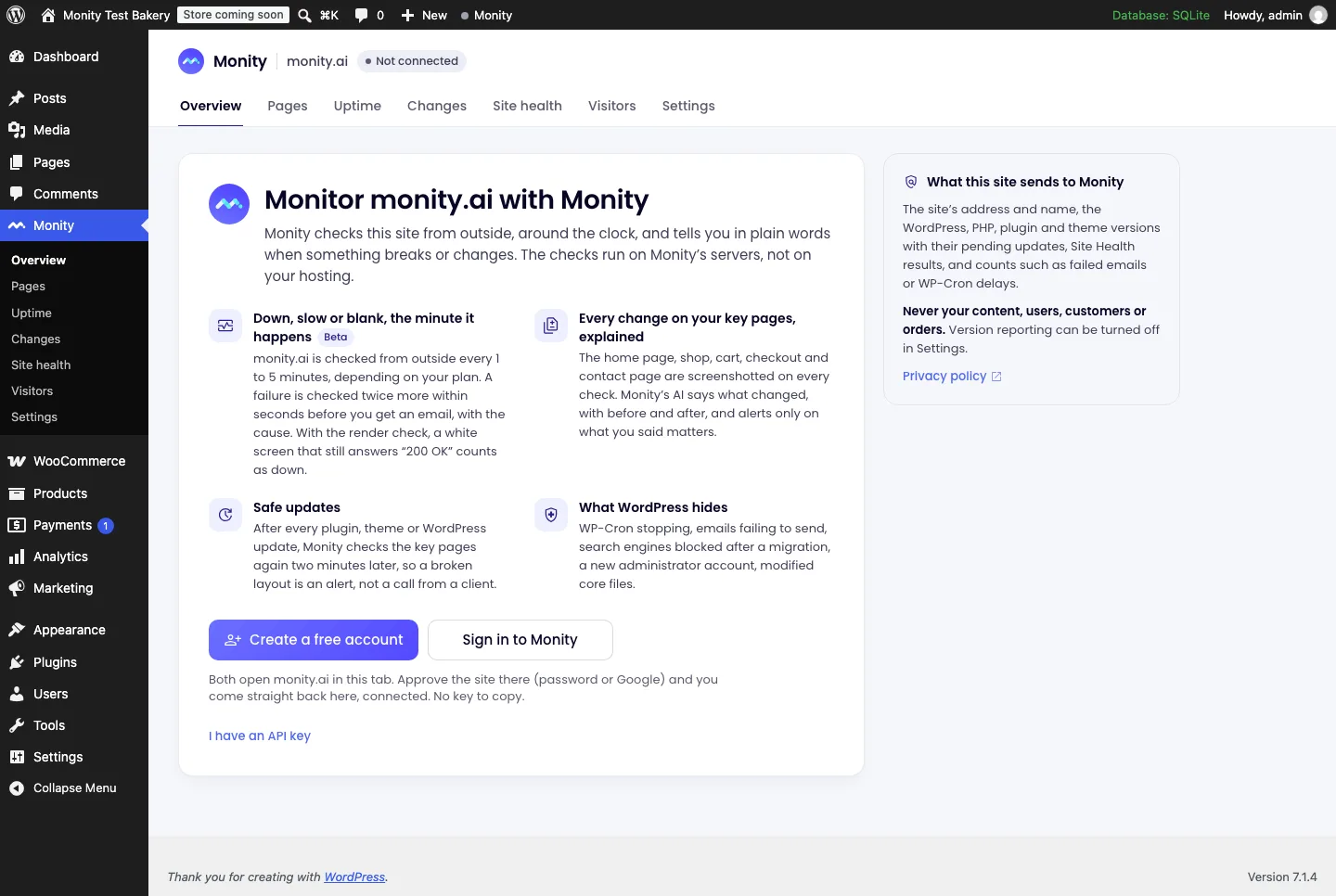
Connect the site
-
Sign in, or create a free account
Click Sign in to Monity (or Create a free account if you don’t have one). Monity opens in the same tab; sign in with your password, Google or Apple.
-
Approve the site
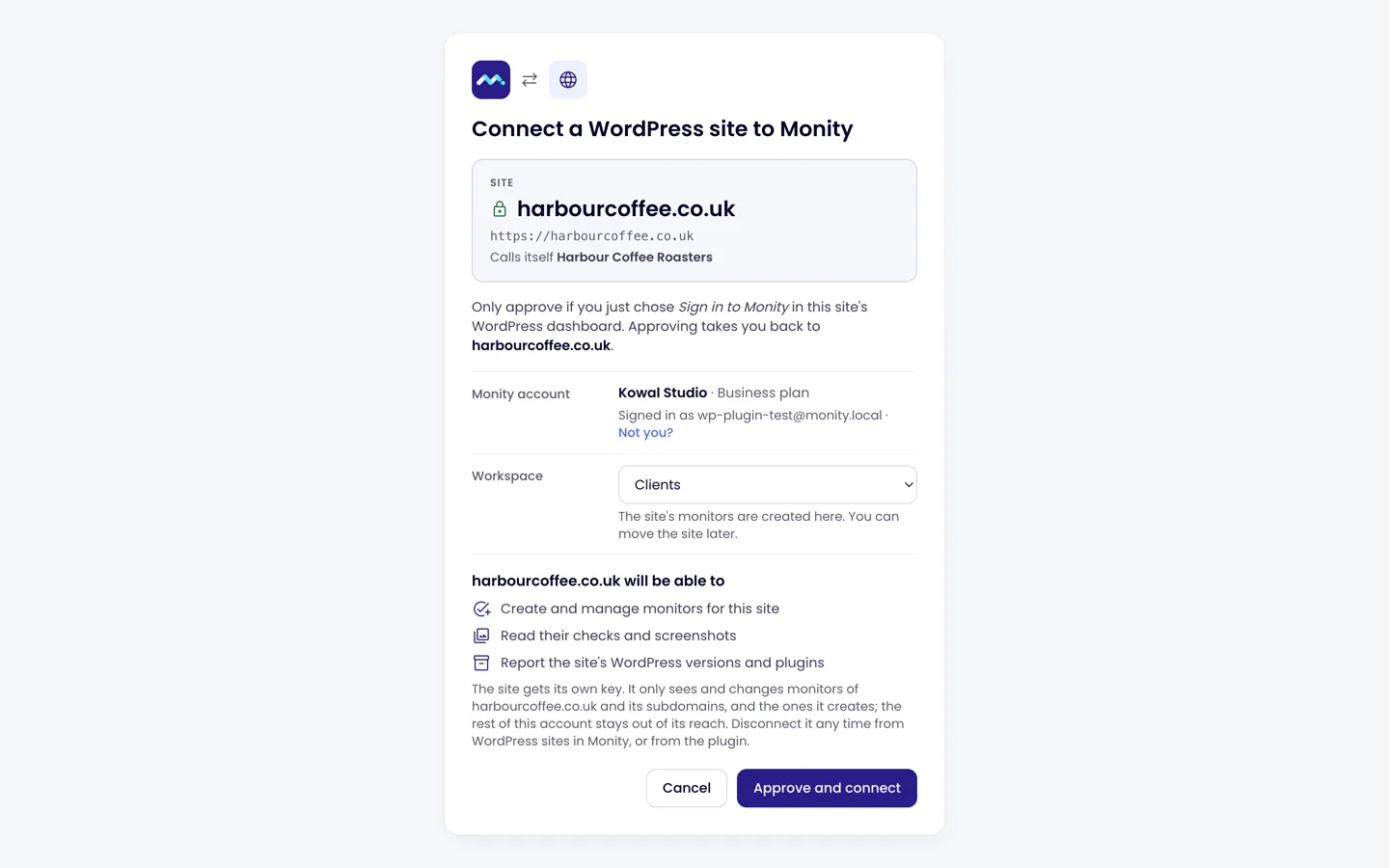
Monity shows the site’s address first, so you can tell your site from anyone else’s, then your account and the workspace its monitors go to. Click Approve and connect. Only an admin of the Monity account can approve a site.
-
Back in wp-admin, connected
You land back on the Monity screen with the site connected. Nothing to copy or paste: the site gets a key of its own, which reaches only this site’s monitors and can be revoked on its own.
Prefer a key? Create one with write access in Monity under Integrations › REST API, then click I have an API key on the connect screen and paste it, or run wp monity connect --key=<key>. A developer key reaches your whole account; on client sites use Sign in to Monity.
Set it up in three steps
-
Uptime
Monity checks the home page as often as your plan allows, with its response time and SSL certificate. The plugin also prints a small marker at the end of every page, so a white screen that still answers “200 OK” counts as down, and asks WP-Cron to ping Monity every hour, so a stopped cron (missed scheduled posts, WooCommerce emails, backups) is an alert too.
-
Key pages
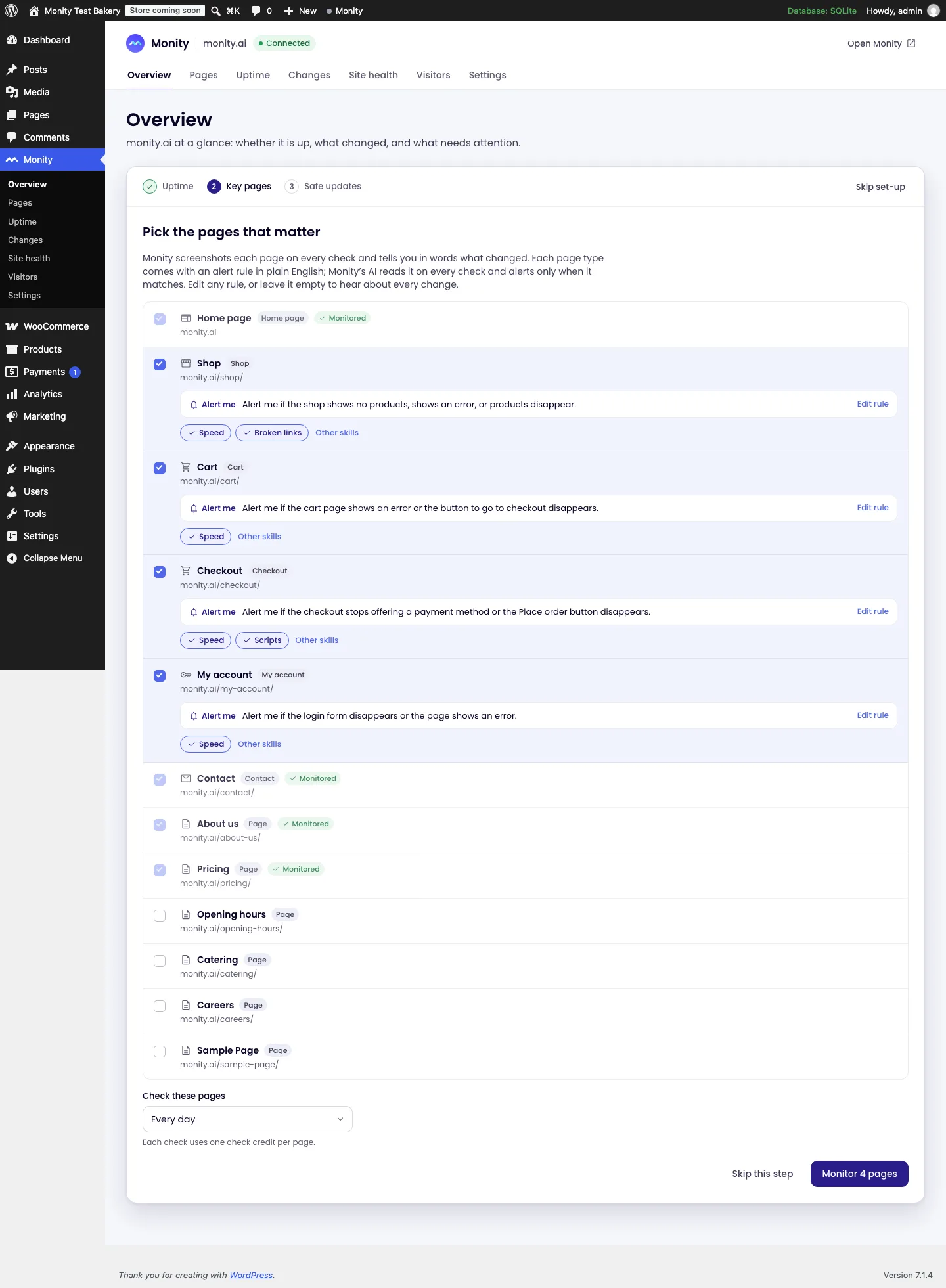
Pick the pages that matter. The plugin suggests the home page, the shop, cart and checkout on WooCommerce sites, the contact page and the pages in your menus. Each comes with a suggested alert rule in plain words, such as “Alert me if the checkout stops offering a payment method or the Place order button disappears”, and suggested skills (speed, broken links, SEO). Edit or remove any of them.
-
Safe updates
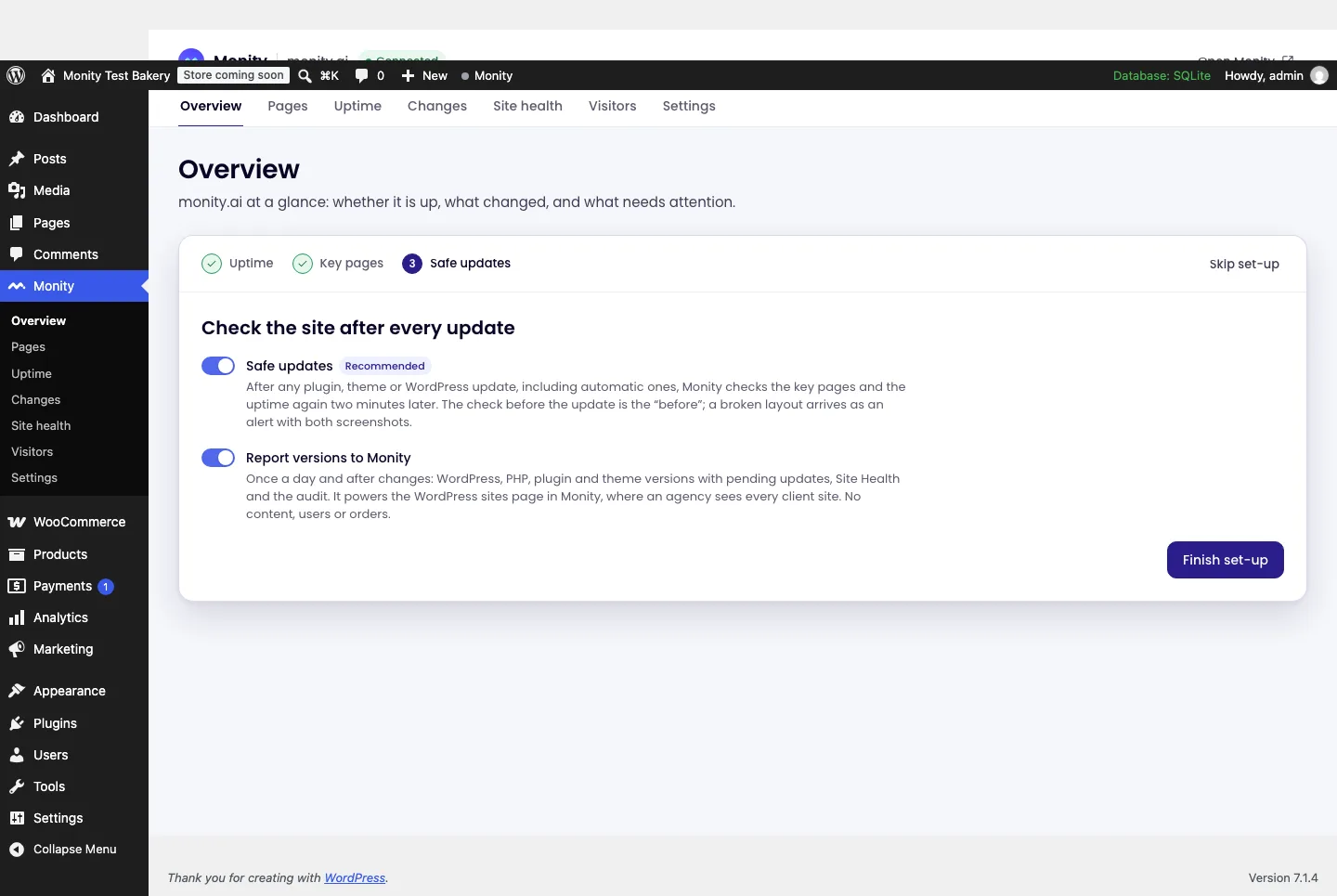
Leave Safe updates on to have your key pages checked again after every plugin, theme or WordPress update (see Safe updates). Report versions to Monity sends the site’s WordPress, PHP, plugin and theme versions to the WordPress sites page in Monity. Click Finish set-up.
Monity in wp-admin
- Overview: is the site up, what changed lately, what needs attention and how much of your plan is used.
- Pages: the monitored pages with their latest check. Add more here, or with Monitor with Monity on the Pages, Posts and Products lists (row and bulk action).
- Uptime, Changes (screenshots before and after, the difference and Monity’s one-sentence summary), Site health (see WordPress health), Visitors (see For your visitors) and Settings.
- A Monity panel in the block editor for the page you’re editing, a status dot in the admin bar, a dashboard widget, Site Health tests and WP-CLI commands (
wp monity status,report,audit,monitor).
A change right after someone saved that page in WordPress is labelled edited in WordPress, so the changes nobody made stand out. Alerts go to your Monity account’s usual alert channels.
For agencies
In Settings › White label and access you can rename the menu (Menu label) and show Monity only to chosen users, so a client’s editors don’t see it. Every connected site is listed in Monity on the WordPress sites page with its uptime, pending updates and versions.
Disconnect
In wp-admin, Monity › Settings › Connection › Disconnect; or in Monity, on the WordPress sites page. A site key is revoked at once; the site’s monitors stay in your account until you delete them. Deleting the plugin disconnects the site too.