
Text mode
Text mode compares the words on the page rather than how it looks, and can alert you only when particular keywords appear or disappear.
-
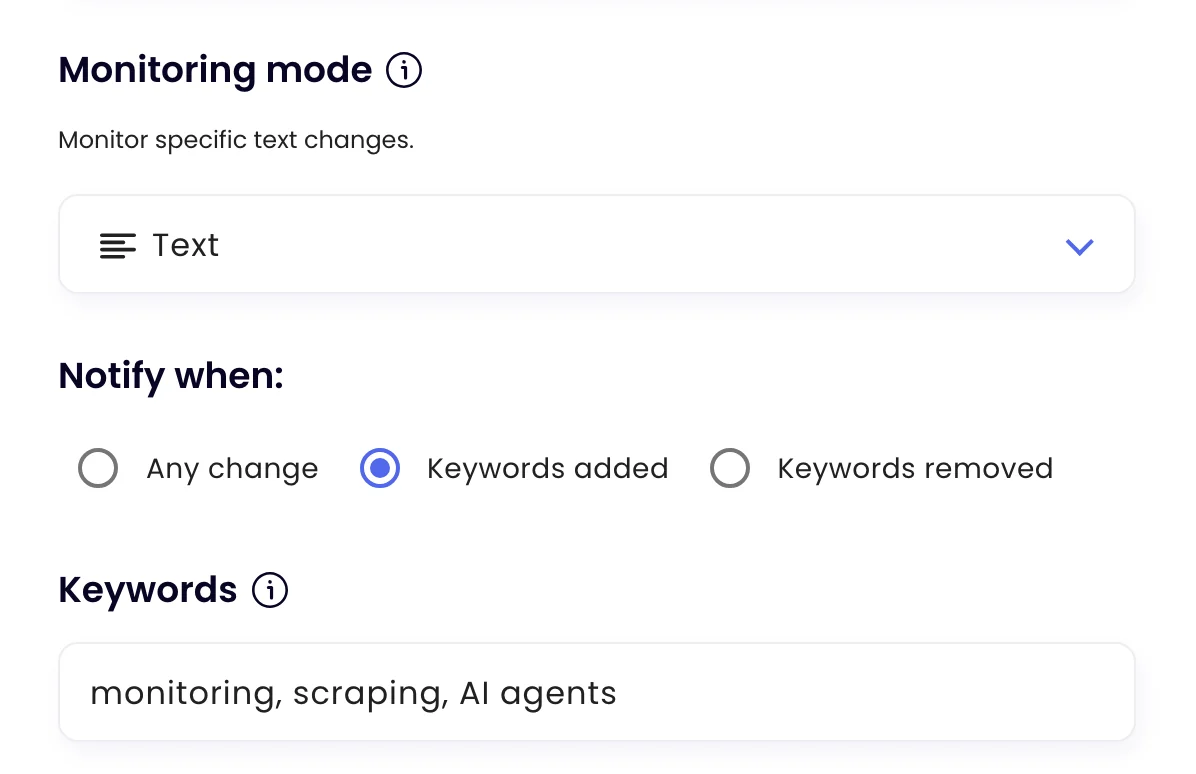
Choose Text
On the task’s Settings tab, set Monitoring mode to Text.
-
Choose when to be notified
Under Notify when, pick Any change to hear about any change in the text, or Keywords added / Keywords removed to hear only about specific words.
-
Enter keywords
For keyword alerts, enter the words or phrases separated by commas, up to 100 characters in total. Then click Update task.
Good uses
- Hear when “out of stock” disappears from a product page (Keywords removed).
- Hear when a news or forum page mentions your company (Keywords added).
- Track every wording change on terms, policies or guidance pages (Any change).
Was this page helpful?