Change many tasks at once
Select tasks in the list to change, run, export or remove them together.
Select tasks
Tick the box at the start of each row. A bar appears at the bottom of the screen with the number of tasks selected. Select all selects every task in the current list, including the ones on other pages, and respects any search or filter you’ve applied.

| Action | What it does |
|---|---|
| Bulk edit | Change settings, schedule and channels for all selected tasks at once. Needs at least two tasks. |
| Run | Starts a check on each selected task now. Each check uses credits, as a scheduled one would. |
| Export | Downloads a CSV of the selected tasks: name, address, labels, mode, threshold, frequency, and the last check, next check and last alert. |
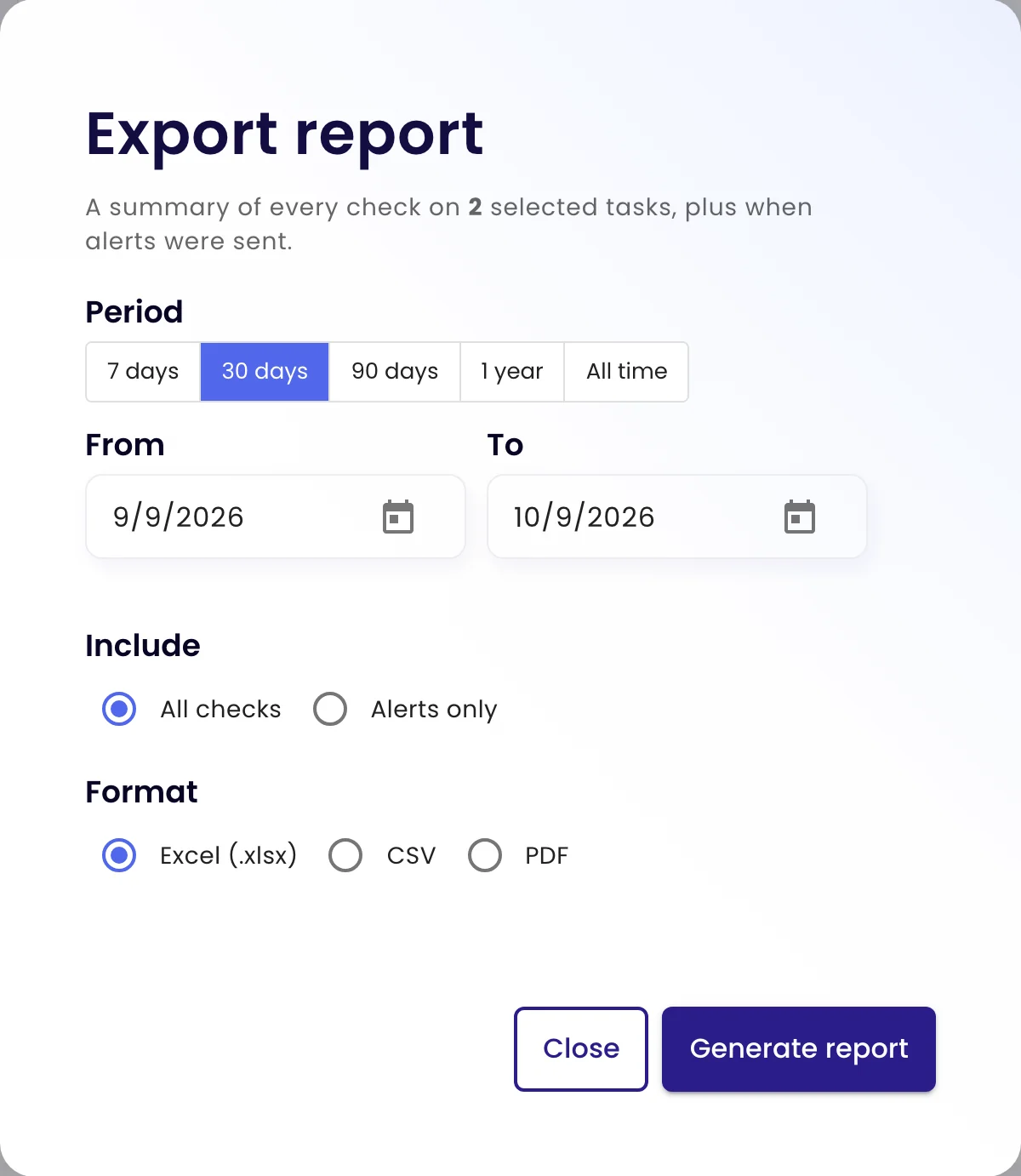
| Report | Builds a report of the selected tasks’ checks over a period (Business accounts). |
| Move | Moves the tasks to another workspace (Business account admins). |
| Deactivate | Stops checks on the selected tasks. In Inactive tasks this becomes Activate. |
| Delete | Removes the tasks and all of their checks permanently. |
Bulk edit
Click Bulk edit. The selected tasks are listed on the left; on the right, the Settings, Schedule and Channels tabs work as they do for a single task. Change what you need and click Update tasks.
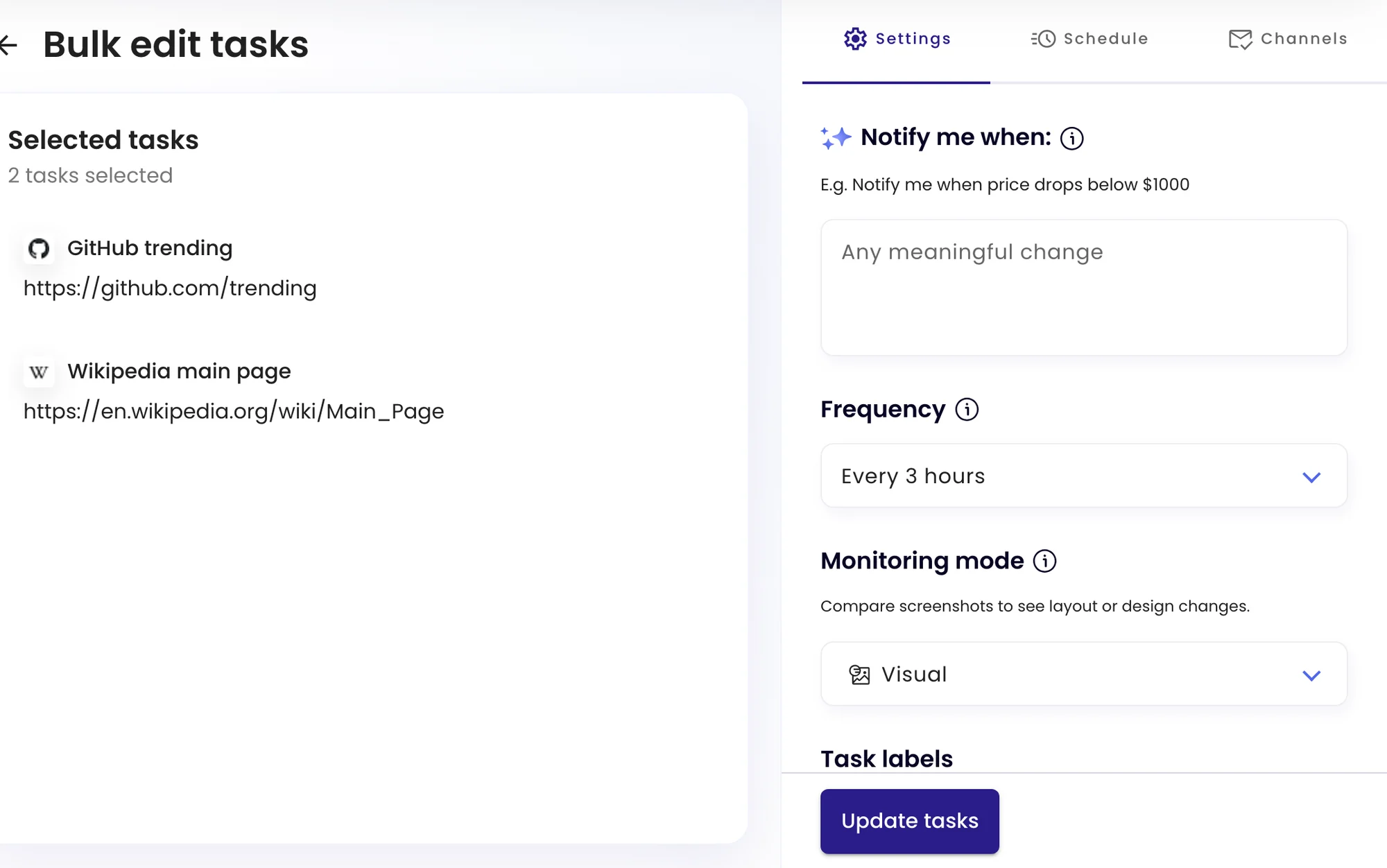
Settings that only make sense for one page, such as the selected area, the element selector or automations, aren’t offered here. Edit those task by task.
Export a report of checks
Click Report, choose the period, whether to include every check or only those that sent an alert, and the format: Excel, CSV or PDF. Then click Generate report.