
Quick start: your first monitor
Set up your first monitor in a couple of minutes: tell the assistant which page to watch and what matters, check what it set up, and choose where alerts go.
-
Start a new task
In Tasks, click New task. The task editor opens with the Assistant on the right.

-
Tell the assistant what to watch
Write the page address and the change you care about in one sentence, then press Enter.
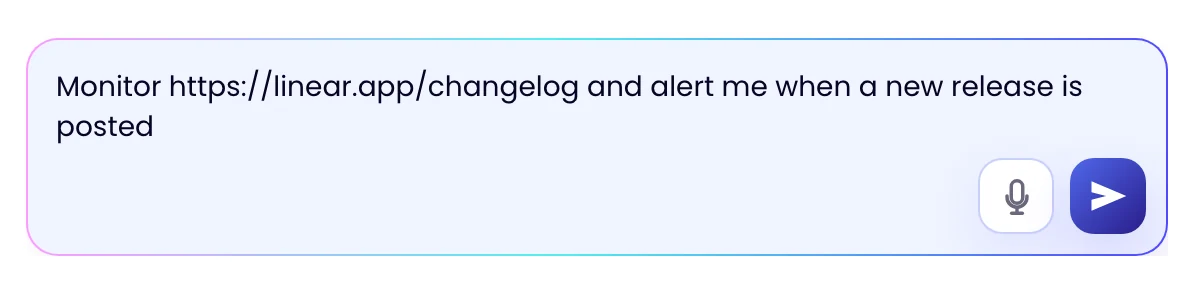
Name the page and the change that matters. “Alert me when…”, “Notify me if…” and “Let me know when…” all work. -
Review the first check
The assistant creates the task, loads the page and runs a first check. It then confirms what it will watch and how often, and the page itself appears on the left of the editor.
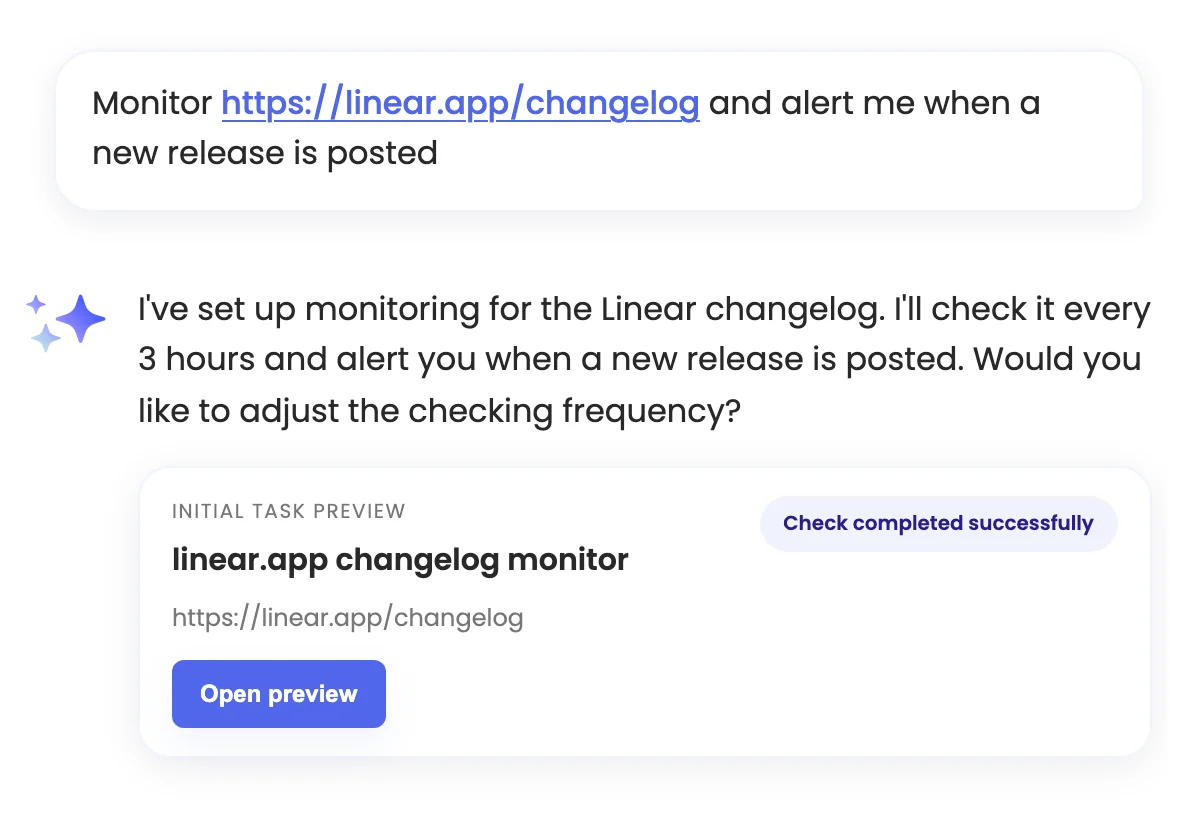
The first check records how the page looks today. Later checks are compared with it, so you won’t get an alert yet. To change anything, reply in the chat, for example “check every hour” or “only tell me about the Enterprise plan”.
-
Check the settings
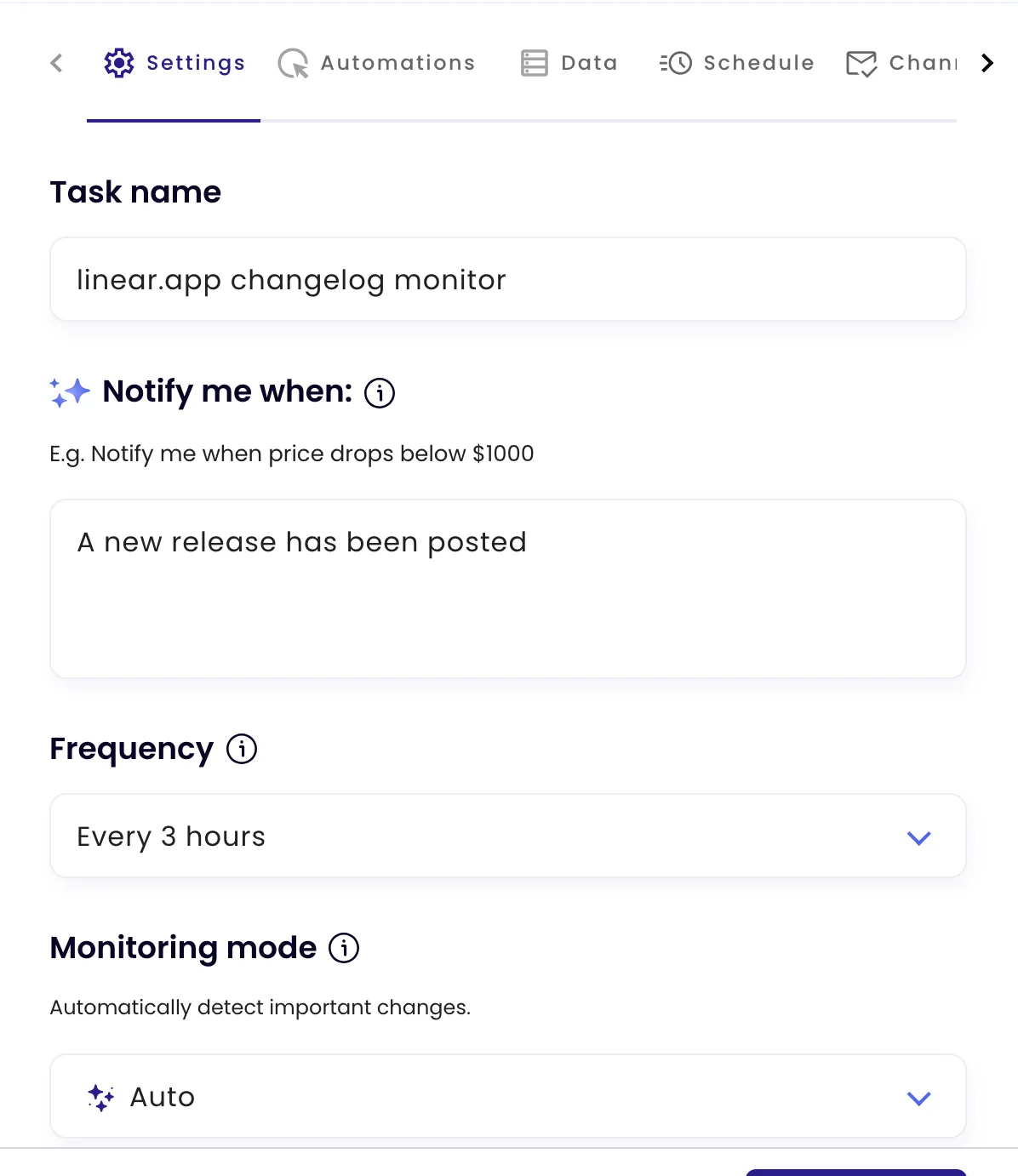
Open Configure to see exactly what the assistant set up: the task name, the Notify me when rule, how often the page is checked, and the monitoring mode. You can edit any of them; click Update task to save.
-
Choose where alerts go
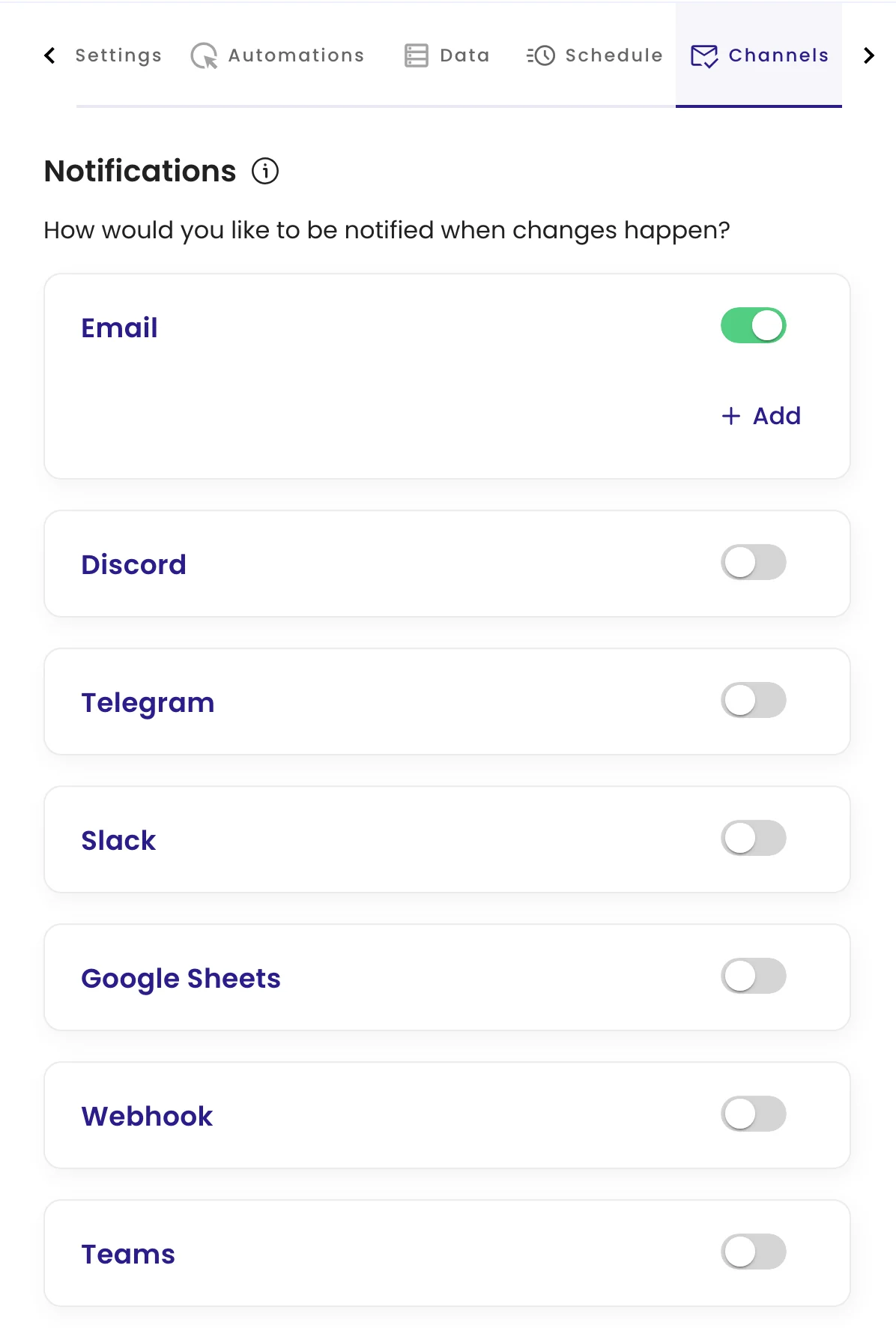
On the Channels tab, Email is on by default and every member of the workspace gets the alert. To send a copy to other people, add their addresses under Email. You can also switch on Slack, Microsoft Teams, Discord, Telegram, Google Sheets or a webhook.
What happens next
monity.ai checks the page on schedule. When a check finds a change that matches your rule, you get an alert with a short AI summary of what changed and a link to the before and after. Checks that find nothing that matches stay quiet.
Switch to Configure before you write anything, paste the URL, pick the monitoring mode and fill in the settings by hand. Everything the assistant does can also be done there.
Next steps
- Track how a page looks with visual monitoring
- Choose how often and when checks run
- Send alerts to more people