
Choose a monitoring mode
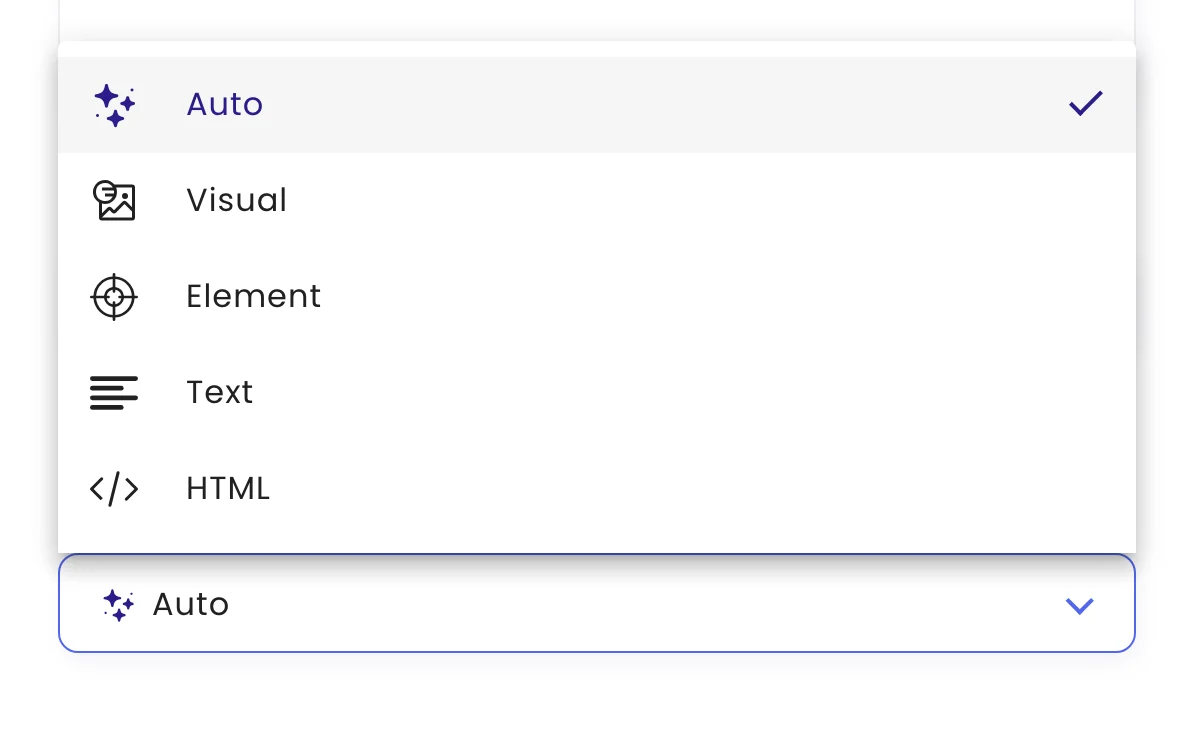
The monitoring mode decides what monity.ai compares on each check: how the page looks, the text on it, one element, its code, or the pages of a whole site. Pick it on the task’s Settings tab under Monitoring mode.
| Mode | Use it when |
|---|---|
| Auto | You want to hear about meaningful changes on a page and let AI ignore the noise. The default, and right for most pages. |
| Visual | How the page looks matters: layout, images, banners, design. |
| Element | You care about one part of the page, such as a price, a stock badge or a table. |
| Text | You want the page’s wording, or alerts when certain keywords appear or disappear. |
| HTML | You need exact changes to the page source, such as meta tags, scripts or structured data. |
| Crawler | You want to know about new pages on a site, or changes across a list that spans several pages. |
Whatever the mode, a Notify me when rule narrows alerts to the changes you describe, and data extraction pulls out a value you can alert on. PDF links are handled automatically; see Monitor a PDF.
Was this page helpful?