
Import tasks in bulk
Create many tasks in one go by pasting a list of pages into a sheet, straight from a spreadsheet if you like. Every page gets the same settings, and each row can have its own alert rule.
-
Open the import page
In Tasks, click Import tasks next to New task. Import is available on Business accounts. The page is headed Bulk import tasks.
-
Fill the sheet
Each numbered row is one task, with three columns:
Column Content Page address The address to monitor. Required. Name The task name. Optional; without it the task is named after the page. Notify me when The alert rule for this page only. Optional; leave it empty to use the rule in the settings panel. Copy one column of addresses, or all three columns, from Google Sheets or Excel and paste into any cell: the rows fill from there. You can also type, and move between rows with Enter and the arrow keys. A page’s icon appears once its address is complete.
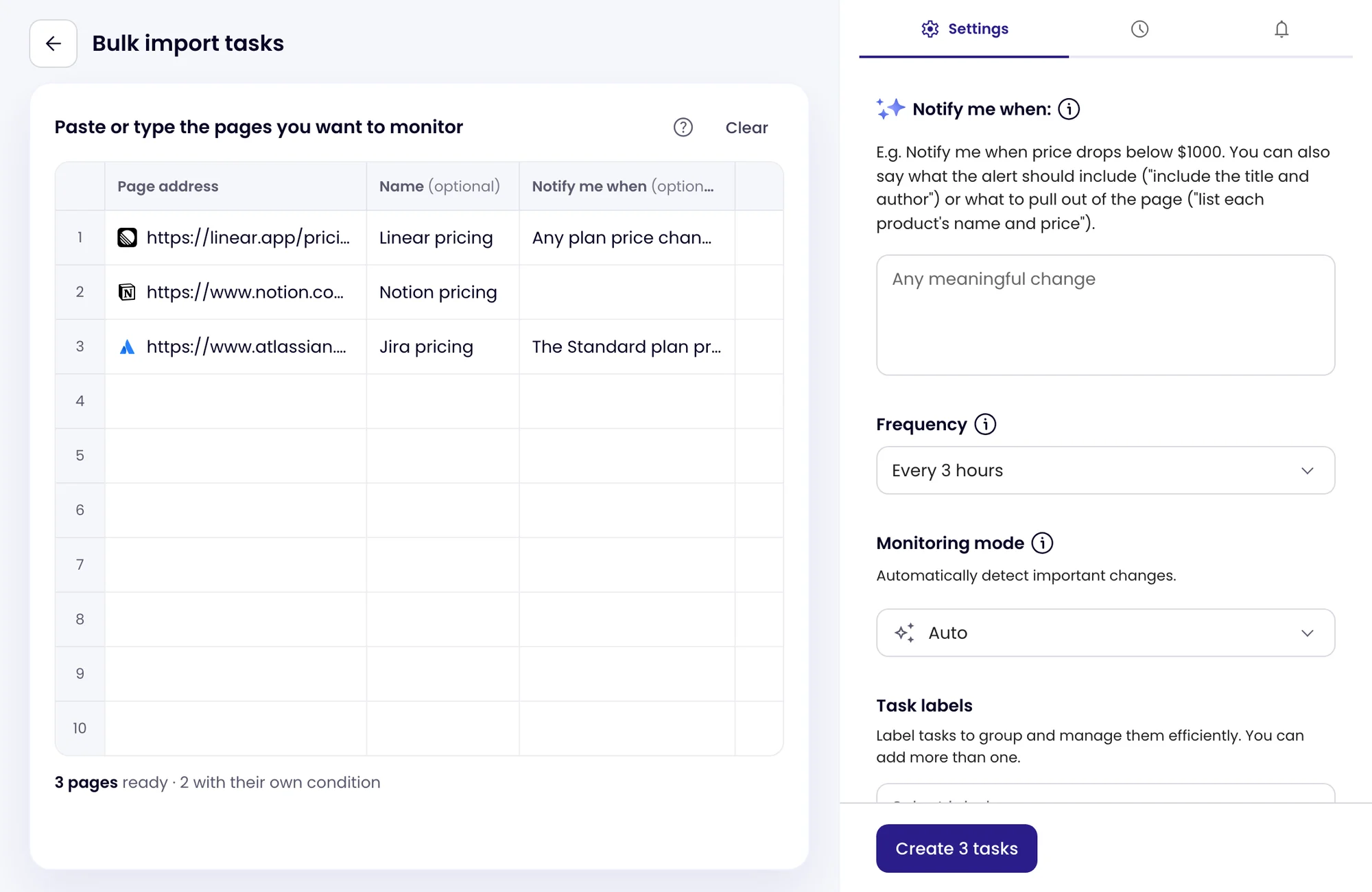
Under the sheet, monity.ai counts the pages that are ready and how many have their own condition. A row that can’t be used is left out and marked with a warning; hover over it to see why. The same page twice is created once. Clear empties the sheet.
-
Choose the shared settings
On the right, set the default Notify me when rule, the frequency, the monitoring mode and labels. The schedule and channels tabs apply to every task too.
-
Create the tasks
Click the button under the settings; it says how many tasks it will make, for example Create 3 tasks. Each one runs a first check to record how its page looks today, and appears in the task list.
Imported tasks count towards your plan’s task limit like any other task. See Tasks on the plan on the Billing page (click your avatar at the top right, then Billing). One import takes up to 250 pages.