
Maintenance windows: pause uptime checks for planned work
A maintenance window pauses chosen uptime monitors while you deploy, upgrade a database or patch a server. During the window they are not checked, send no alerts and count no downtime, and your status pages tell visitors the work is planned.
Schedule a window
-
Open the Maintenance card
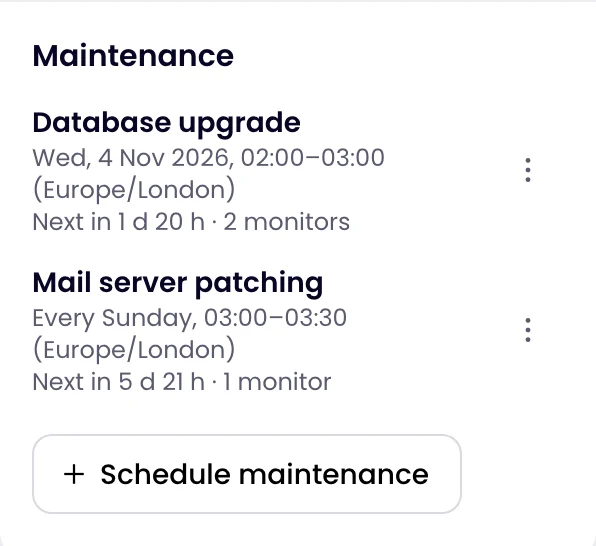
On the Uptime page, find Maintenance on the right and click Schedule maintenance.
-
Name it
Give it a Name such as “Database upgrade”. Visitors of your status pages see it, so write it for them.
-
Set when it runs
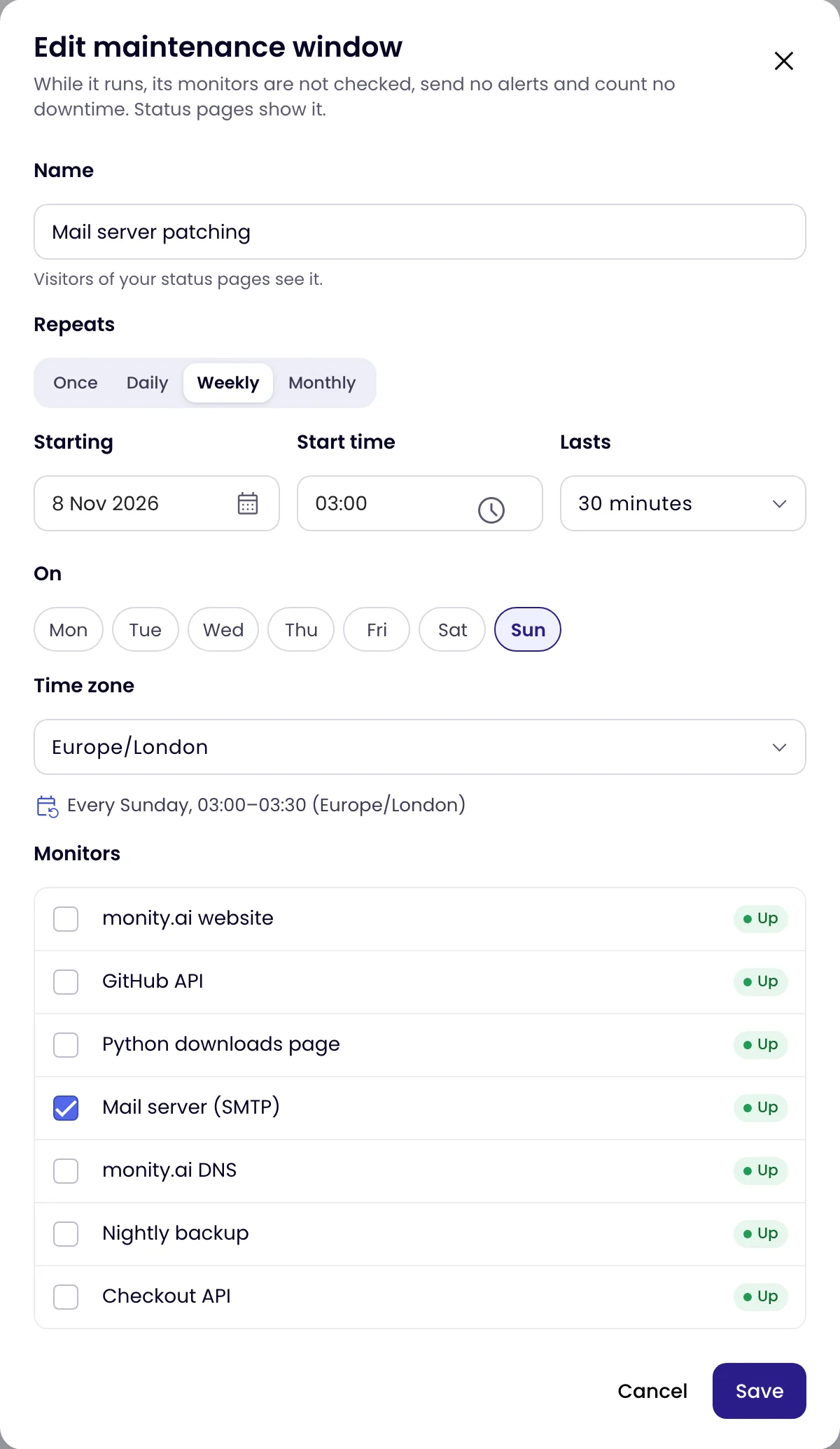
Under Repeats, choose Once, Daily, Weekly or Monthly. Pick the Date (or the date it starts Starting, for a repeating window), the Start time and how long it Lasts, from 15 minutes to 7 days. For a weekly window, choose the days under On. Times are in the Time zone you pick, yours by default, and a line under it sums the schedule up.
-
Choose the monitors and save
Tick the monitors the work affects and click Schedule.
A repeating window follows the clock in its time zone, including when the clocks change. A daily or weekly window must end before the next one starts, and a one-off window cannot be in the past.
What happens during a window
- Its monitors are not checked, so they use no credits, send no alerts and count no downtime in uptime figures and reports.
- An open incident on one of them ends, without an alert.
- The monitors show Maintenance and when the window ends. On their pages, Check now is hidden until then.
- On status pages, the monitors show Maintenance and the headline reads Scheduled maintenance in progress.
- When the window ends, the first check decides each monitor’s status. A heartbeat monitor gets a full interval and grace period from the end of the window.
A window starts within about half a minute of its start time, even for monitors that check only once an hour.
Where planned work shows
A monitor’s page names its next window:

Status pages that show any of its monitors list the windows of the next 7 days, with their names, times and the monitors they affect:

To change or remove a window, click it in the Maintenance card, or use ⋮ and Edit or Delete. A one-off window that has passed is marked Ended; one running now is marked Now.