
Two-factor authentication (2FA)
Two-factor sign-in adds a second step to signing in to monity.ai: after your password, Google or Apple, you enter a 6-digit code from an authenticator app on your phone. Someone who learns your password still can’t get in.
Turn it on
-
Open your profile
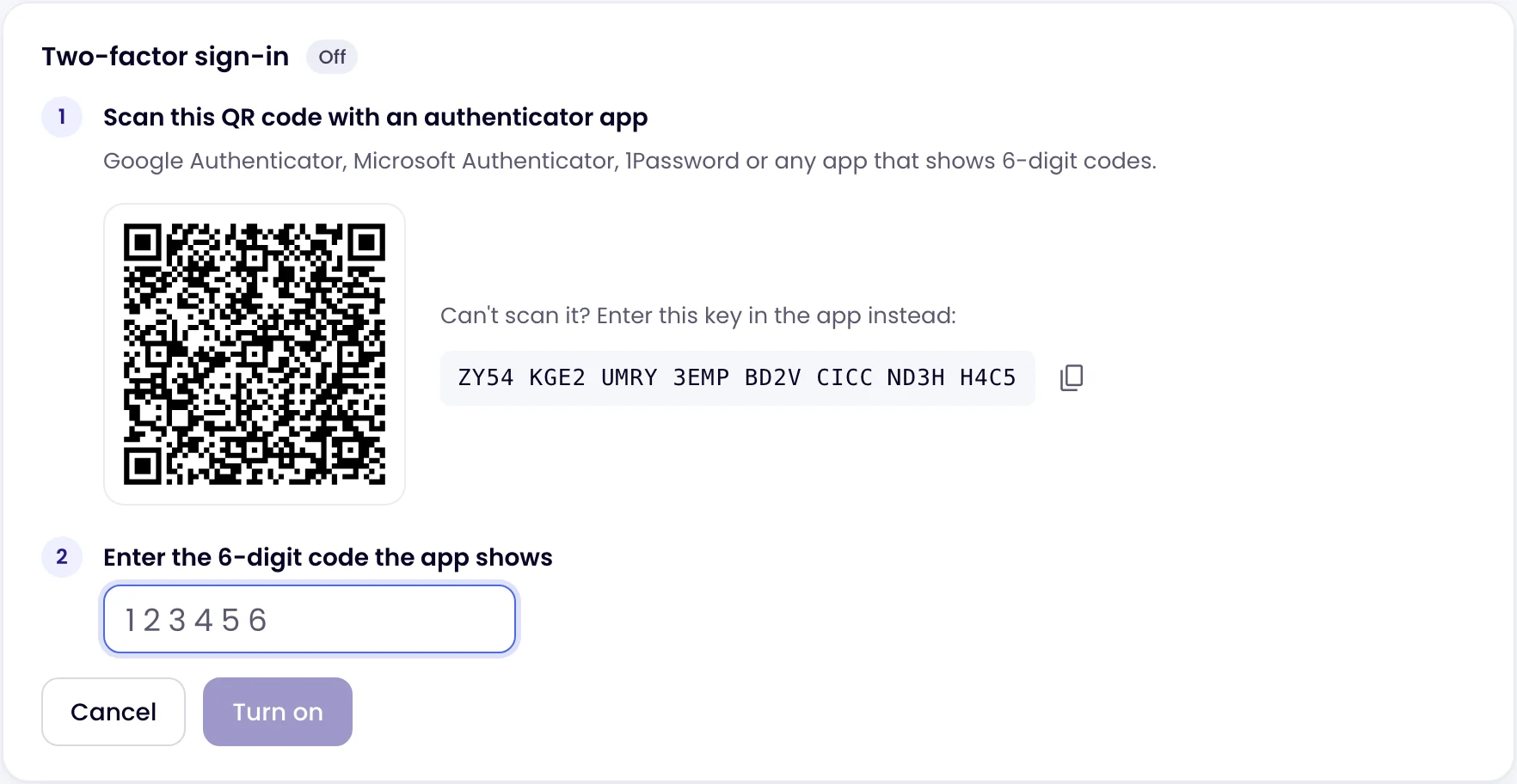
Click your avatar at the top right and choose Profile. Scroll to the Two-factor sign-in card and click Turn on.

-
Scan the QR code
Open an authenticator app on your phone, such as Google Authenticator, Microsoft Authenticator or 1Password, and scan the QR code. If you can’t scan it, type the key shown next to it into the app instead. On a phone, Add to my authenticator app opens the app with the key filled in.
-
Enter the code
Type the 6-digit code the app shows for Monity under Enter the 6-digit code the app shows, then click Turn on.
-
Save your recovery codes
Monity shows 10 recovery codes, once. Each one signs you in a single time if you lose your phone. Click Copy or Download, keep them somewhere safe such as your password manager, then click I’ve saved them.
The card then says On, since when, and how many recovery codes you have left.

Sign in with a code
Sign in as usual with your email and password, Google or Apple. Monity then asks you to Enter your code: open your authenticator app, type the 6-digit code for Monity under Authentication code and click Verify. Codes change every 30 seconds, so use the one on screen now.
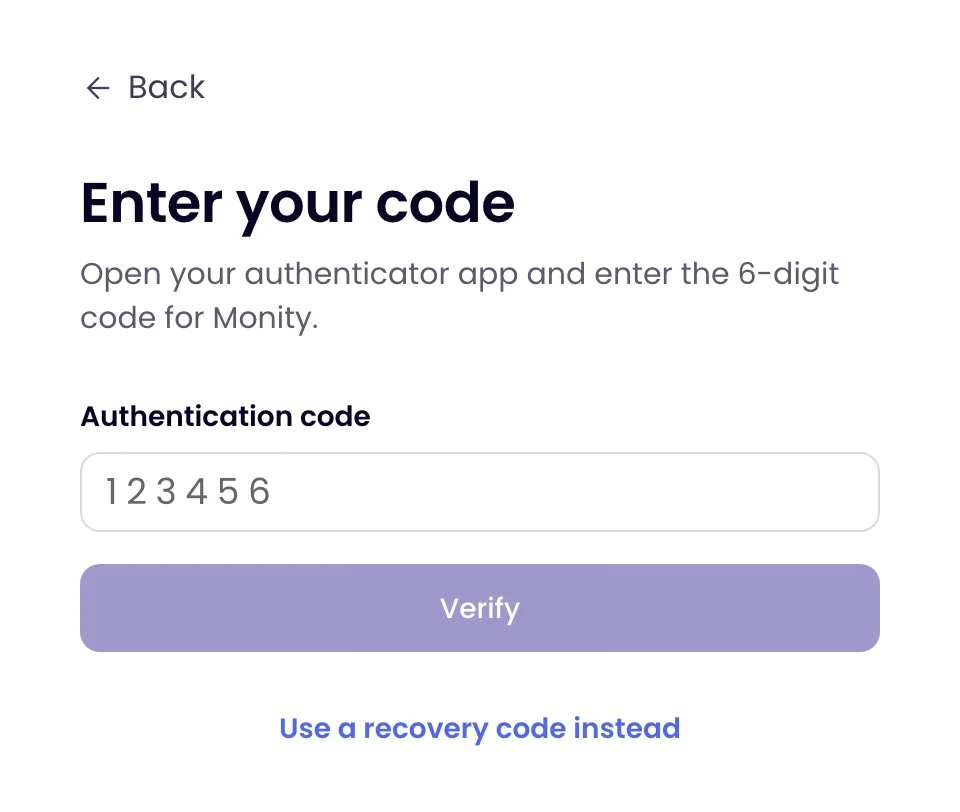
You have 10 minutes after your password to enter the code. After that, start again from the sign-in page.
Lost your phone
On the code step, click Use a recovery code instead and enter one of the codes you saved. Each code works once. Once you are in, make new codes or set up your new phone (see below).
If you have no recovery codes left and no phone, email hello@monity.ai from the address you sign in with.
New recovery codes
When you are running low, the card warns you. Click New recovery codes, enter a code from your app and click Make new codes. You get 10 new codes, and the old ones stop working.
Turn it off
Click Turn off on the card, enter a code from your authenticator app (or Use a recovery code instead) and click Turn off. Signing in then needs only your password, Google or Apple again, and your recovery codes stop working.
While you still have the old phone, turn two-factor sign-in off with a code from it, then turn it on again and scan the new QR code with the new phone. Some authenticator apps can also move their codes to a new phone themselves.
Two-factor sign-in is set for each person, not for the whole account: every teammate turns it on in their own profile.