
Extract data and alert on conditions
Data extraction pulls a value out of the monitored area, such as a price, a count or a piece of text, and stores it with every check. Add conditions to be alerted only when the value meets them.
-
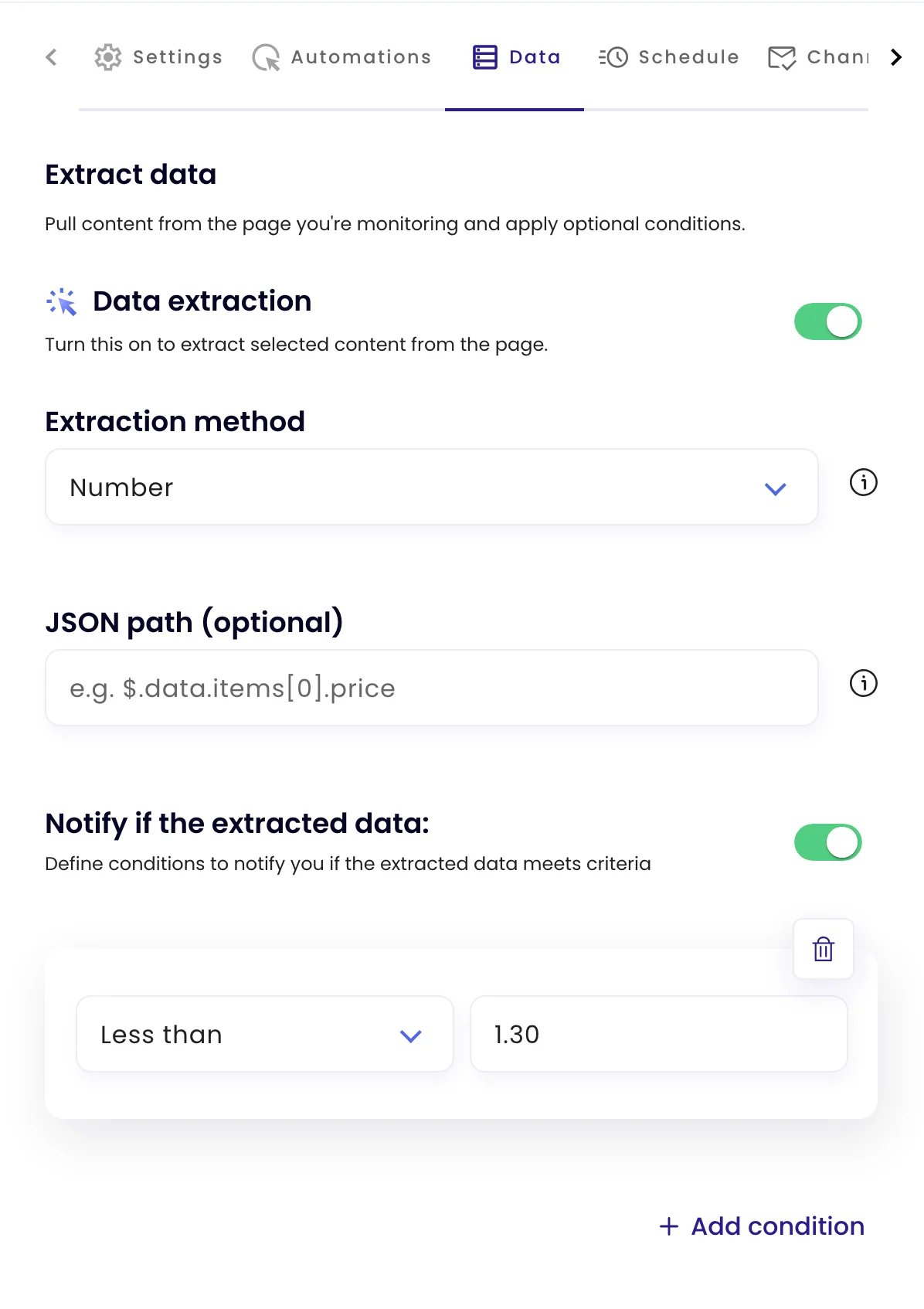
Turn on Data extraction
Choose the area or element on the Settings tab first. Then, on the Data tab, switch on Data extraction.
-
Choose the extraction method
Method Stores Full text All the text in the area. Number The first number found, such as a price or a count. Regex pattern The first capture group of your regular expression, or the whole match, for example /price: \$([\d.]+)/i.For JSON sources such as APIs or
.jsonaddresses, enter a JSON path like$.data.items[0].price. -
Add conditions (optional)
Switch on Notify if the extracted data and add conditions: Equals, Not equals, Not equals prev output (it changed since the last check), Contains, Greater than, Greater or equal than, Less than or Less or equal than. Click Add condition for more.
-
Save
Click Update task.
Where the value goes
The extracted value is saved with every check, shown in the task’s history, and included in Google Sheets rows (Output) and webhook payloads (output), which makes a simple price or stock log.
Conditions apply when the task has no Notify me when rule; with a rule, the rule decides. In Visual mode, extraction covers the selected area up to 1440×1080; for larger areas use Element mode. Data extraction isn’t available in Text or HTML mode.