
Delete a workspace
Delete a workspace you no longer need. To protect your monitoring history, a workspace can only be deleted once it has no tasks.
Before you delete
- Move or remove its tasks. Select them in the task list and use Move to send them to another workspace, or Delete to remove them. See Change many tasks at once.
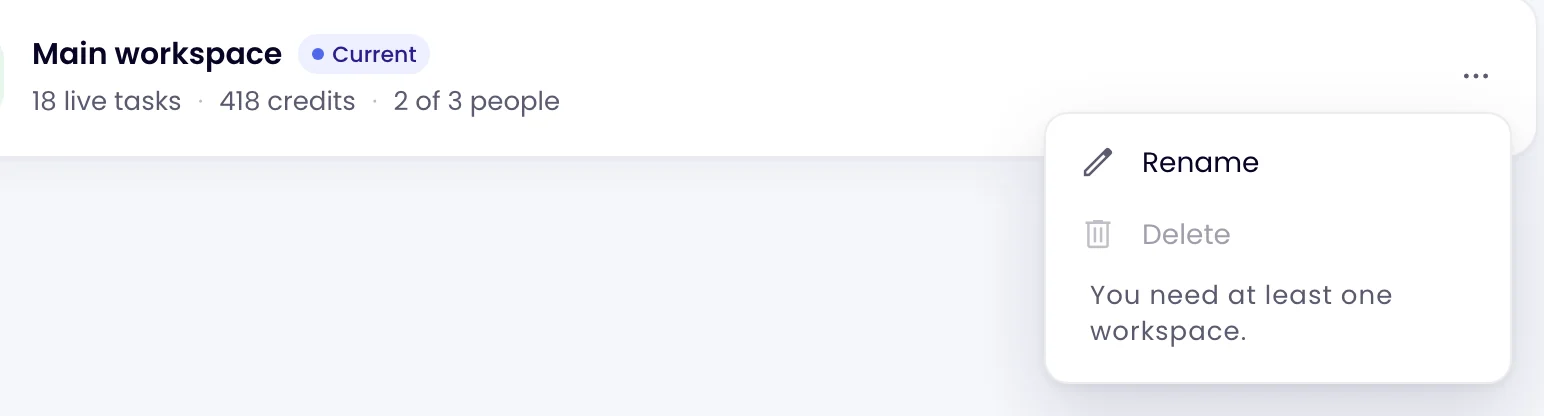
- Keep one workspace. Your account needs at least one active workspace, so the last one can’t be deleted.
Delete it
-
Open the workspace menu
Click Workspaces in the left sidebar, click the three dots at the end of the workspace’s row and choose Delete.
-
Confirm
Click Delete in the Delete workspace dialog. Its credits go back to your account’s pool. This can’t be undone.
If the workspace can’t be deleted yet, Delete is greyed out in the menu, with the reason: “Move or delete its tasks first.” or “You need at least one workspace.”
Was this page helpful?