
Google Sheets alerts
Add a row to a Google Sheet for every alert, building a running log of changes you can filter, chart or share. The connection uses the free Webhooks for Sheets add-on.
1. Get a webhook URL from your sheet
-
Install Webhooks for Sheets
Install the Webhooks for Sheets add-on from the Google Workspace Marketplace and accept its permissions.
-
Create the webhook
Open the spreadsheet, click the Webhooks icon in the side panel, follow the setup prompts, choose the tab that should receive rows and click Create. If asked, click Authorise and then create the webhook again.
-
Copy the URL
Copy the generated URL. It starts with
https://script.google.com/.
2. Connect it to the task
-
Paste and connect
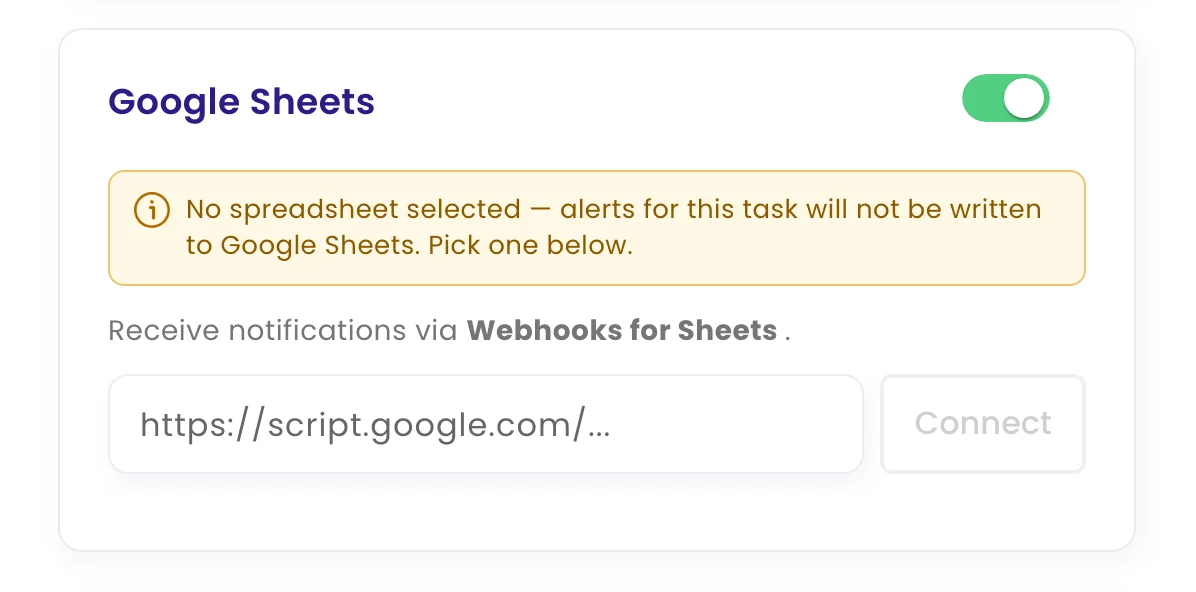
Edit the task, open Configure › Channels, switch on Google Sheets, paste the URL and click Connect.
-
Test and save
Click Test: a sample row with the task name “Test” appears in the sheet. Then click Update task.
The columns
| Column | Content |
|---|---|
| Datetime | When the check ran, in your timezone |
| Last alert | When this task last alerted before, if ever |
| Task name | The task’s name |
| URL | The monitored page |
| View changes | A link to the check in monity.ai |
| Label | The task’s labels |
| AI Summary | What changed, in a sentence or two |
| Output | The extracted value, if the task uses data extraction |
Several tasks can write to the same sheet, which gives you one log across all of them.