
Choose where alerts go
Every task decides for itself where its alerts go. Turn on as many channels as you like; each one gets the same alert, with a short AI summary of what changed and a link to the before and after.
Find the channels
Edit a task, open Configure and go to the Channels tab. Switch a channel on, finish its setup, then click Update task.
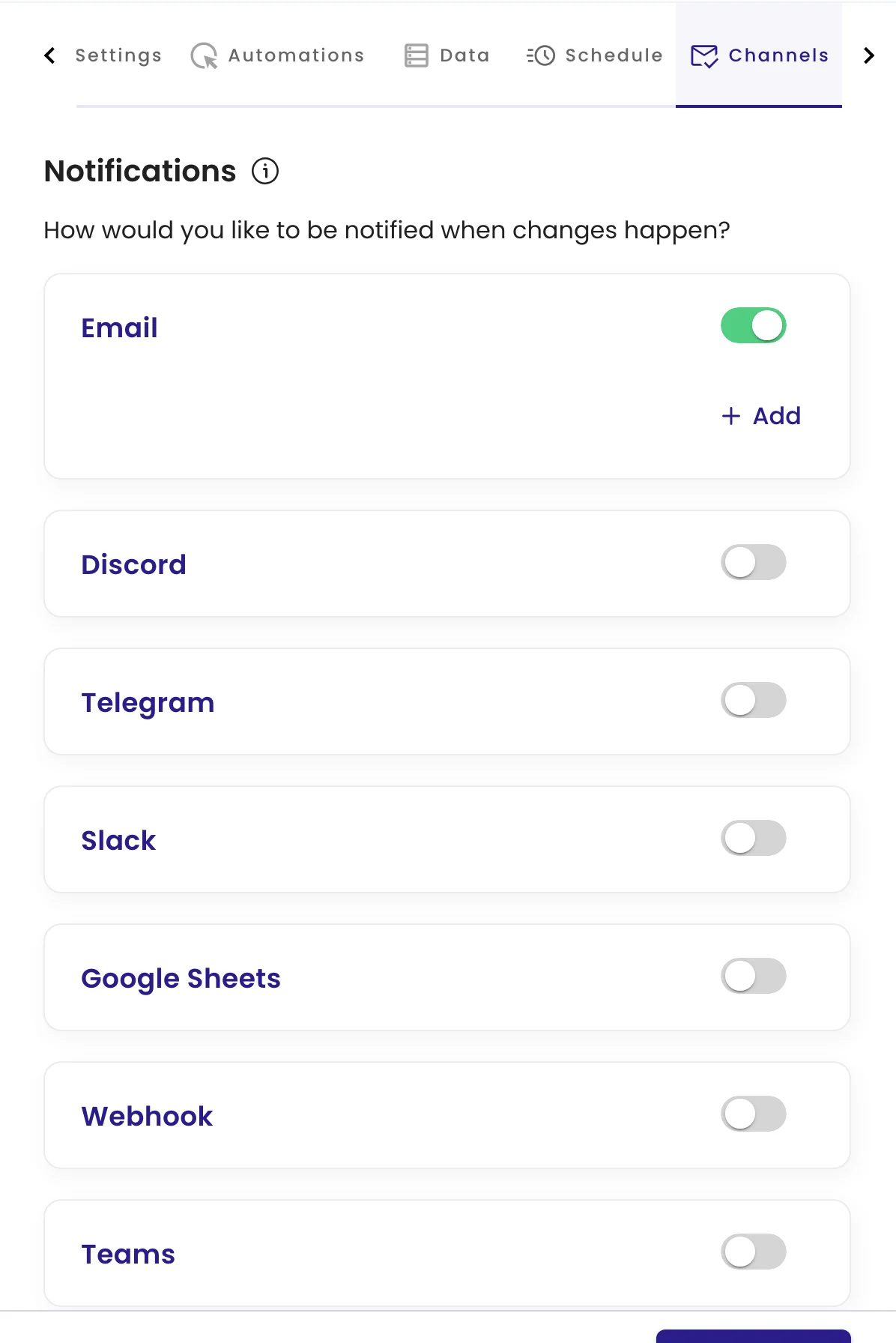
| Channel | Setup |
|---|---|
| On by default. Goes to every member of the workspace, plus any extra addresses you add. | |
| Slack | Connect your Slack workspace once, then pick channels. |
| Microsoft Teams | Paste a Teams Workflows webhook URL. |
| Discord | Paste a Discord channel webhook URL. |
| Telegram | Press Start in the monity.ai bot, or add the bot to a group. |
| Google Sheets | Paste a Webhooks for Sheets URL; each alert becomes a row. |
| Webhook | Paste any HTTPS endpoint; alerts arrive as signed JSON. |
Check the warning
If a channel is on but has nowhere to send, for example Slack with no channel picked, a yellow note appears in its panel. Until you fix it, that channel’s alerts go nowhere.
Related
Was this page helpful?