
Change your password
Set a new password from your profile. You’ll need your current one.
-
Switch on Change
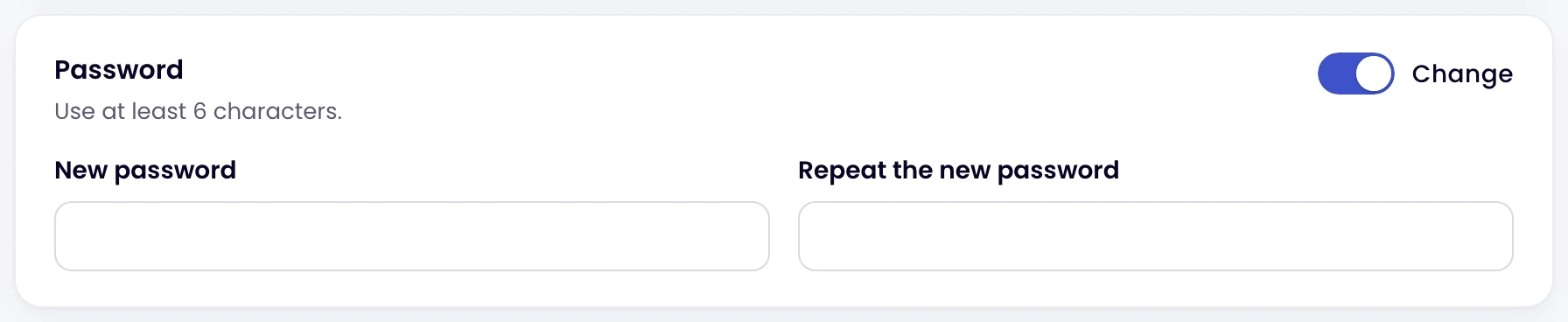
Click your avatar at the top right and choose Profile. On the Password card, switch on Change. Enter the New password, then Repeat the new password. It must be 6 to 40 characters.
-
Confirm it’s you
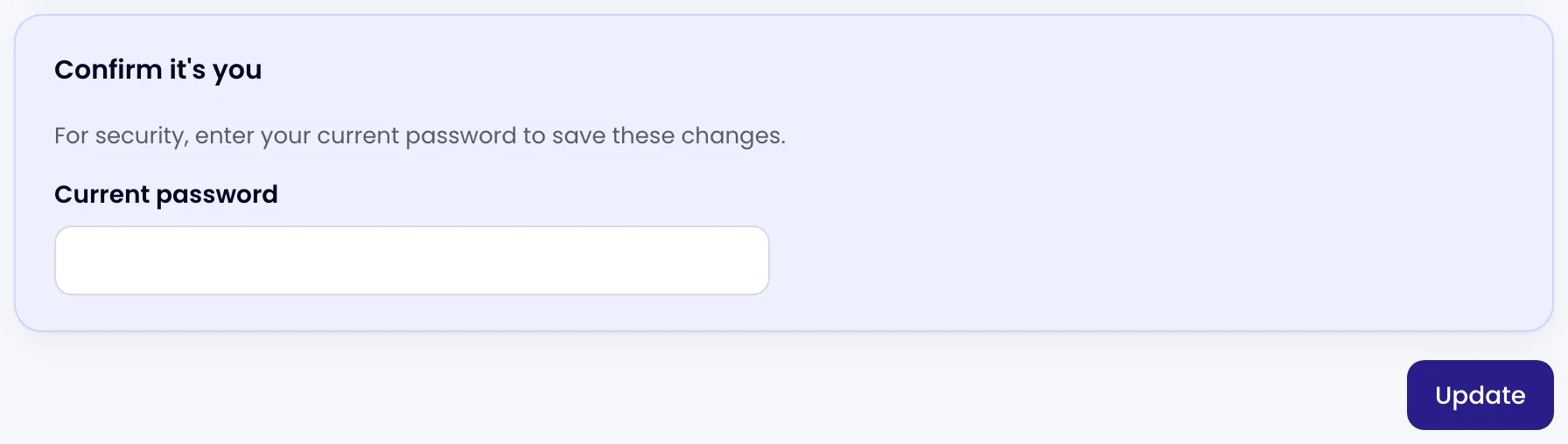
In the Confirm it’s you card that appears, enter your Current password and click Update.
Forgot your password?
On the sign-in page, next to “Forgot your password?”, click Reset and follow the link we email you. If you signed up with Google, you can keep using Sign in with Google, or set a password here to sign in with email as well.
Was this page helpful?