
Browser tests
Write the journeys that earn you money as steps that read like sentences: sign up, log in, add to cart, check out. Monity runs them in a real browser on a schedule or after every deploy, and tells you which step broke, with a screenshot of it.
- No code: steps in plain words
- Runs after each deploy or on a schedule
- Screenshot of every step
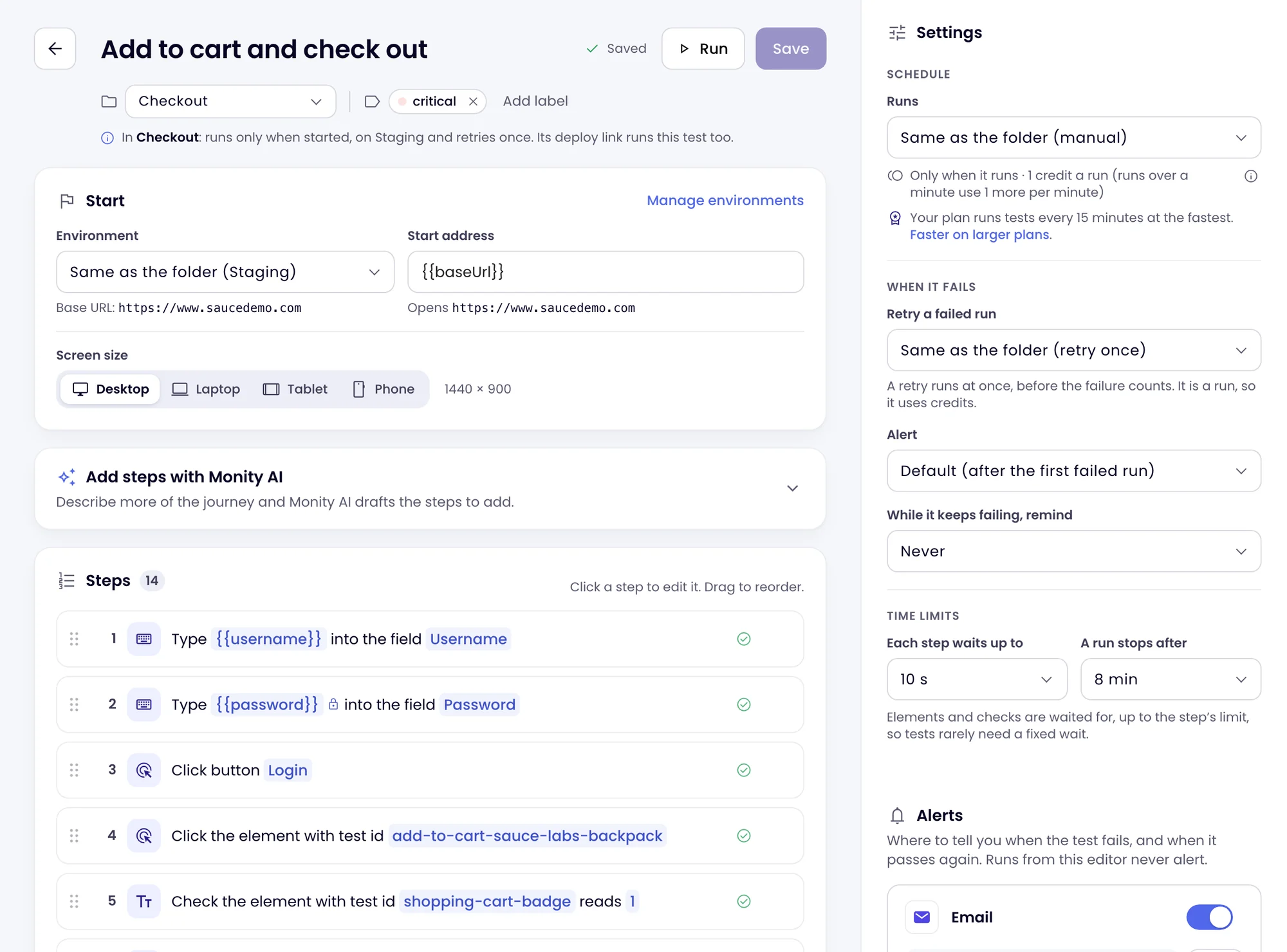
The step editor
Steps that read like sentences, checks that say what they found.
Add steps from a searchable menu: go to an address, click, type, choose an option, tick, press a key, scroll, wait for an element. Then check what matters: a text, an element, the address, the page title, a field’s value, the number of results, or that the page logged no errors. Every step reads back as a sentence, such as Click button “Sign up”.
- Find an element by its role and name, label, text, placeholder or test id, or by CSS or XPath
- Up to five fallbacks per element, tried in order when the first way no longer matches
- Checks wait for the page on their own, up to the step’s limit, so fixed waits are rarely needed
- Run up to here tries the steps so far while you write
Write with AI
Describe the journey. Monity AI writes the first draft of the steps.
Type a sentence or two, such as “log in with the demo account and check the dashboard shows the projects”. Monity AI opens the start page, reads it and drafts up to 30 steps with the page’s real buttons, labels and texts. Nothing is saved until you have read the steps, and you can run them before you keep them.
- Add the draft after your own steps, or replace them
- It is told never to pay, place orders or delete anything
- Drafting uses no credits

Environments and secrets
One test for staging and production. Passwords and 2FA codes stay secret.
An environment holds a base address and variables, so the same test runs against staging, a preview build or production. Mark passwords, API keys and two-factor seeds as Secret: they are encrypted, never shown again, and appear as •••• in results, logs and alerts. Fields that hold a secret are blurred before each screenshot.
- Two-factor sign-in: save the seed once and type {{totp.NAME}} for a fresh code
- Built-in values for sign-up tests: a random email, a random string or number, today’s date
- Save a value keeps text from one step for the next, such as an order number

After every deploy
One POST from your pipeline runs the test, or a whole folder.
Every test and every folder has a deploy trigger URL. Call it from CI or a deploy hook and Monity starts the runs; poll the run’s address to wait for the result. The test page gives you the curl line and a ready GitHub Actions workflow that fails the job when a test fails and prints the step that broke.
- Pick the environment per call, for example staging after a staging deploy
- The URL works like a key; rotate it from the test page
- Group tests in folders that share a schedule, an environment and alerts

When a step fails
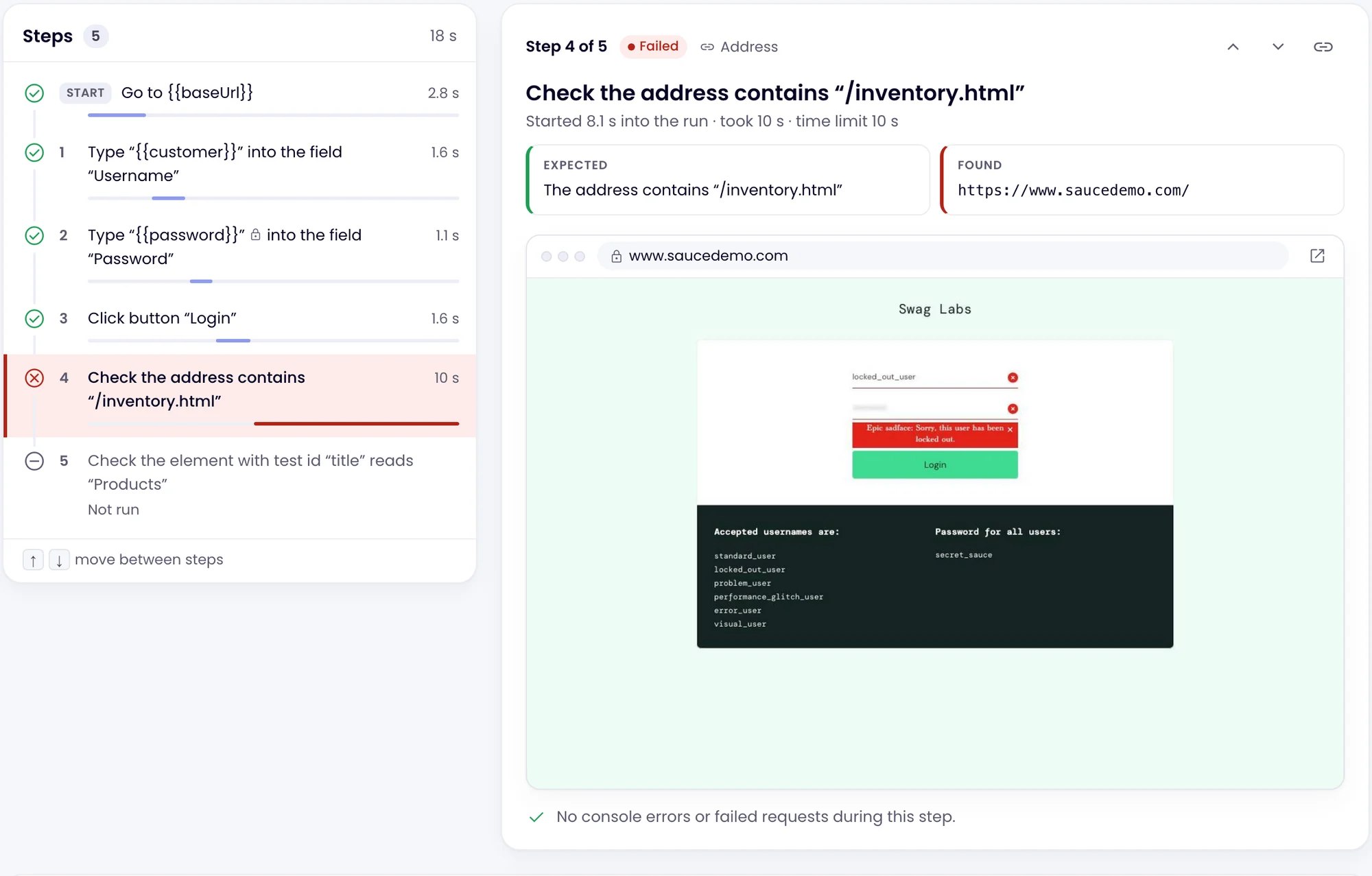
See the step, what it expected, what it found and why it likely failed.
Each run keeps a screenshot of every step, the page’s console messages and its failed requests. A failed step shows what the check expected and what the page showed, with a likely cause, such as a cookie banner in the way or an element that was renamed, and you can compare the screenshot with the last passing run.
- A retry runs at once, before a failure counts
- Choose per step: stop the test, carry on and fail, or only warn
- Failed runs are kept for 90 days, passing runs for 30

Schedules and alerts
On a schedule between deploys, with an alert where your team works.
Run a test by hand, or every 5 minutes up to once a day, as often as your plan checks pages. Choose how many failed runs in a row it takes to alert, and whether to remind you while it keeps failing. When the test passes again, you hear that too.
- Email, Slack, Microsoft Teams, Discord, Telegram, Google Sheets, webhooks and push in the mobile app
- The overview shows what is failing now and the pass rate over 7 days
- Webhook events: test.failed, test.recovered, test.reminder

Examples
The journeys worth a test.
Each one is a few steps and a check at the end. The alert names the step that broke.
-
 Checkout: add the trail shoe to the cart, go to checkout, check the total shows
Add to cart and check out failed Step 4: Click button “Checkout” failed. Button “Checkout” is covered by another element, so it could not be clicked within 10 s.
 Slack · #shop-alerts
-
Sign-up: create an account with a random email, check the welcome screen
Sign up works is passing again It passes again after failing for 25 minutes.
 Email · dev@company.com
-
Client login: sign in with a two-factor code, check the dashboard shows “Projects”
Client portal login failed Step 6: Check the page contains “Projects” failed (3 runs in a row). The page does not contain “Projects” after 10 s.
 Microsoft Teams · Client sites
-
Contact form: fill it in, send it, check the thank-you message
Contact form sends failed Step 5: Check the page contains “Thanks” failed. The page does not contain “Thanks” after 10 s.
 Webhook · your incident tool
Examples. Your alerts name your own tests and steps.
FAQ
Questions about browser tests
What are browser tests in Monity?
Do I need to write code or Playwright scripts?
How much do tests cost?
How often can a test run?
Can a test sign in with two-factor authentication?
How do I run tests from GitHub Actions or another CI?
Which browser do tests run in?
How is this different from monitoring a page for changes?
Test the journey your customers take most.
Describe it in a sentence, read the steps, run it. Then call it after every deploy.
- Free plan: 3 tasks, no card
- 7-day Business trial
- Every alert channel on every plan