Dataset schedule, alerts and settings
A dataset’s Settings tab holds everything besides its steps: its name, how it signs in and which network it uses, how often it runs, which row changes are worth an alert and where alerts go, the limits of a run and what a run costs. An alert lists the rows that are new, changed or gone, on any of your channels.
Datasets are in early access. If your account doesn’t have them yet, open Datasets in the app and click Ask for early access, or write to us through the contact page.
Change what you need, then click Save at the bottom of the tab. Until then it says Not saved yet; Discard goes back.
Access and network
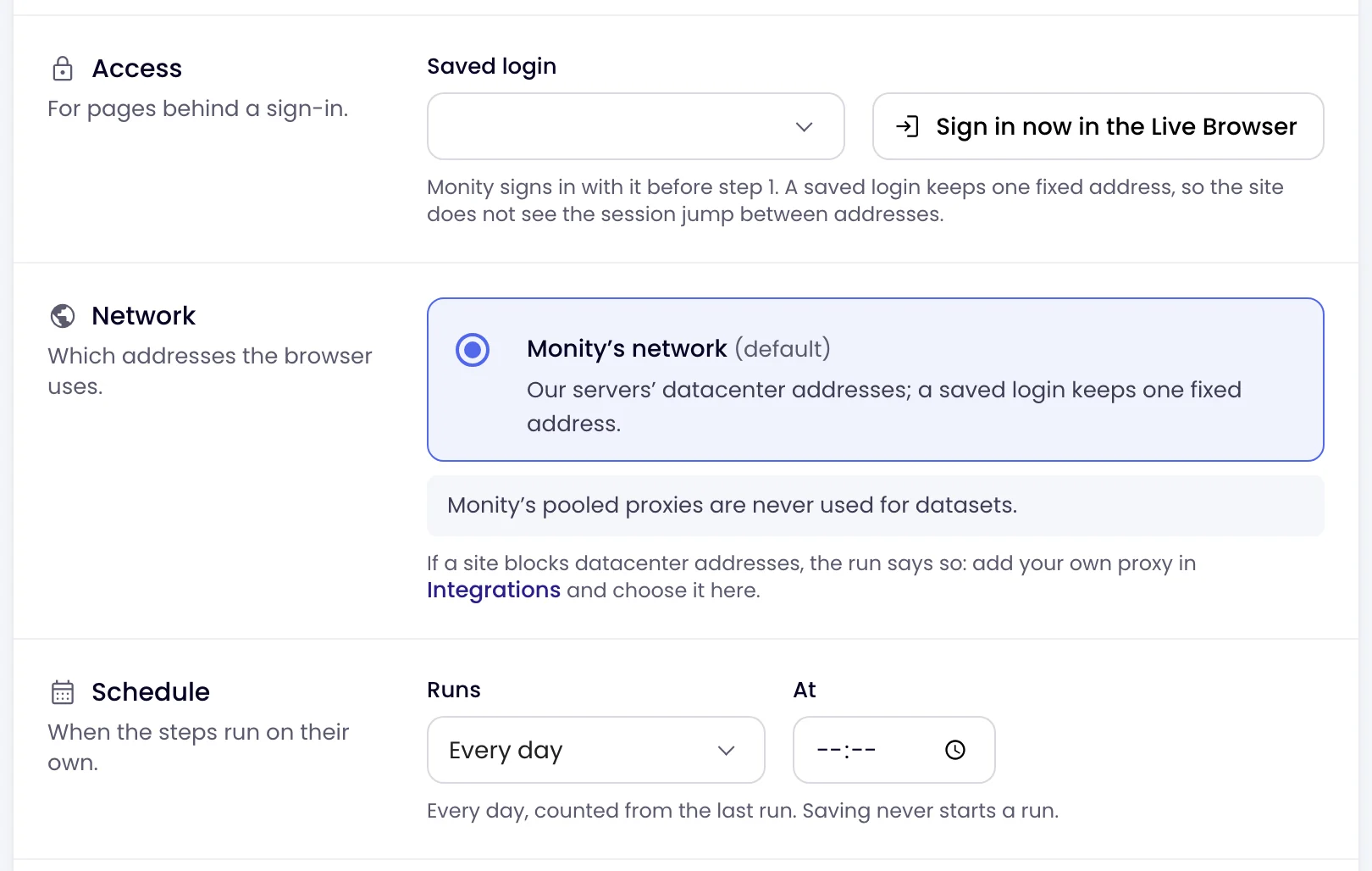
- Access: for pages behind a sign-in. Choose a Saved login, or Sign in now in the Live Browser and sign in to the site yourself. Monity signs in with it before the first step. Leave it empty for public pages.
- Network: Monity’s network (default) uses our servers’ datacenter addresses; a saved login keeps one fixed address. If a site blocks datacenter addresses, the run says so: an admin of the account can add your own proxy in Integrations, and you choose Your proxy (from Integrations) here. Monity’s pooled proxies are never used for datasets.
Schedule
- Under Schedule, set Runs to Every hour, Every 3 hours, Every 6 hours, Every 12 hours, Every day, Every week or Every month.
- For a daily, weekly or monthly schedule, choose the time under At and the Time zone.
- Click Save.
Only when I run it pauses the dataset and keeps its schedule for later: it runs only when you click Run now. A new dataset starts paused, and its first Run now switches it on, every day.
Which changes alert
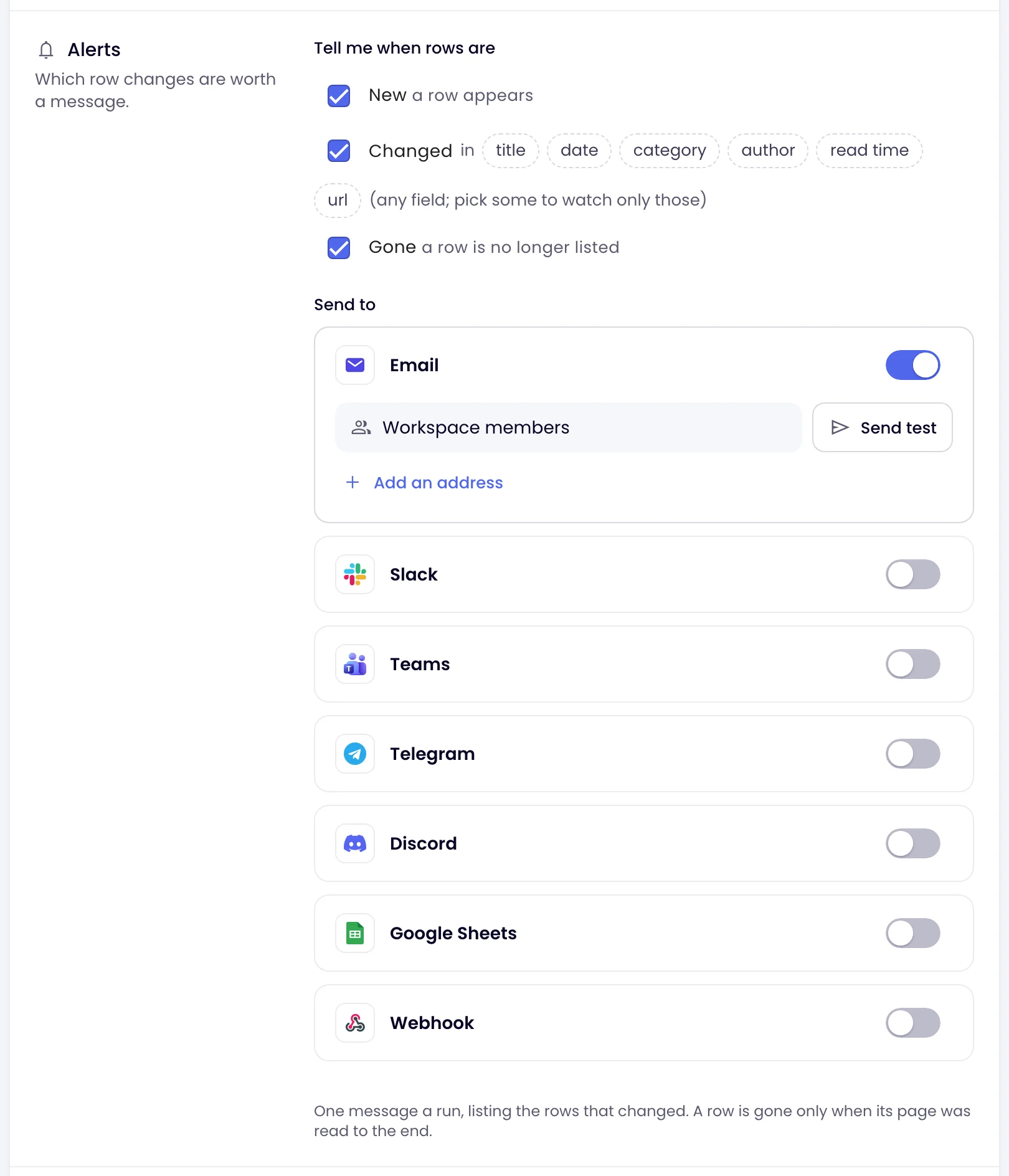
Under Alerts, Tell me when rows are:
- New: a row appears.
- Changed: a row’s value changes, in any field, or only in the fields you pick, such as the price.
- Gone: a row is no longer listed. A row is gone only when its input was read to the end.
The rows are still collected and shown on the Rows and Changes tabs; only the alert follows your choice.
Where alerts go
Under Send to, switch on the channels you want: email to the workspace’s members and any address you add, Slack, Microsoft Teams, Telegram, Discord, Google Sheets and webhooks, set up as for any task (see Choose where alerts go). Send test sends a sample dataset alert, so you can see how it looks before a real one. The mobile app also shows dataset alerts as push notifications.
What an alert says
One message a run, when the run finds rows that are new, changed, gone or back. It lists them the way the Changes tab does, with a link to it:
| Channel | What it carries |
|---|---|
| A summary and up to 10 rows of each kind, with the changed fields. | |
| Slack, Teams, Discord, Telegram | A summary and up to 5 rows of each kind. |
| Google Sheets | One sheet row for each new, changed, gone or back row, up to 50 an alert: when, the kind, the page, the dataset’s fields, what changed and a link. |
| Webhook | The rows and their changes as JSON, up to 50 of each kind. |
The Changes tab and the export always have every row.
Limits
Under Limits, each run has at most a number of Pages (list pages for each input, up to 100), Rows (up to 10,000) and Minutes (up to 60). A new dataset starts at 10 pages, 1,000 rows and 15 minutes. A run stops at the first limit it reaches and says which. The pages For each item opens count as credits too, one a row.
Cost
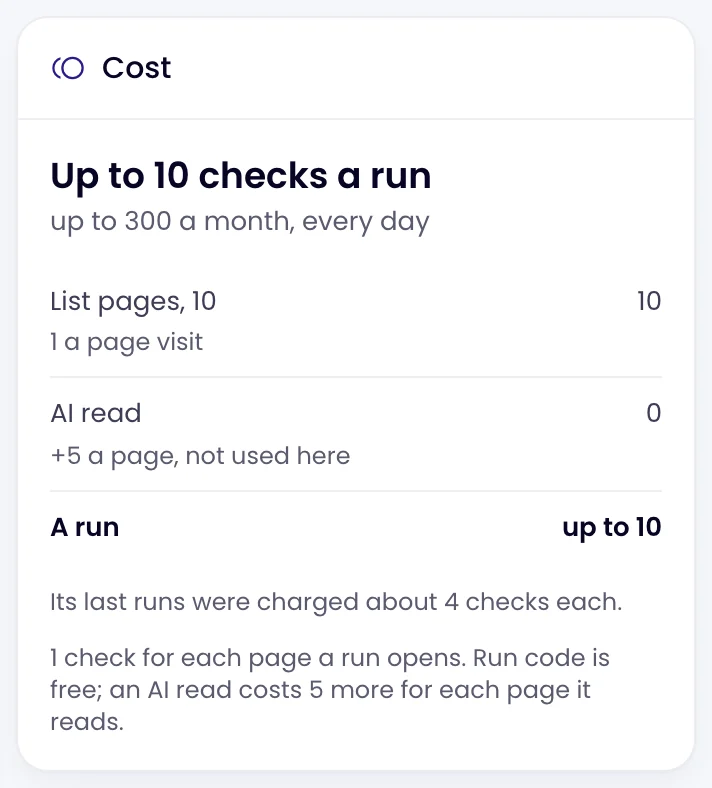
The Cost card works out the most a run can cost from the steps and the limits, line by line: the list pages, the pages For each item opens, Run code (free), AI read and a saved login, and what that comes to in a month on this schedule. Once the dataset has run, it also says what its last runs were charged. See Credits for datasets.