
Dataset inputs and Find pages
Inputs are where each run of a dataset starts. The steps run once for every input, so one set of steps covers many pages of the same kind: several blogs, every category of a shop, a search for each of your products. An input is an address, values of your own, or both. Find pages can also find the pages for you, from a site’s sitemap and links.
Datasets are in early access. If your account doesn’t have them yet, open Datasets in the app and click Ask for early access, or write to us through the contact page.
The list of inputs
In the steps editor, open the Inputs tab. The address you started from is the first row. The first step, Go to with {{input.url}}, opens each row’s address in turn.
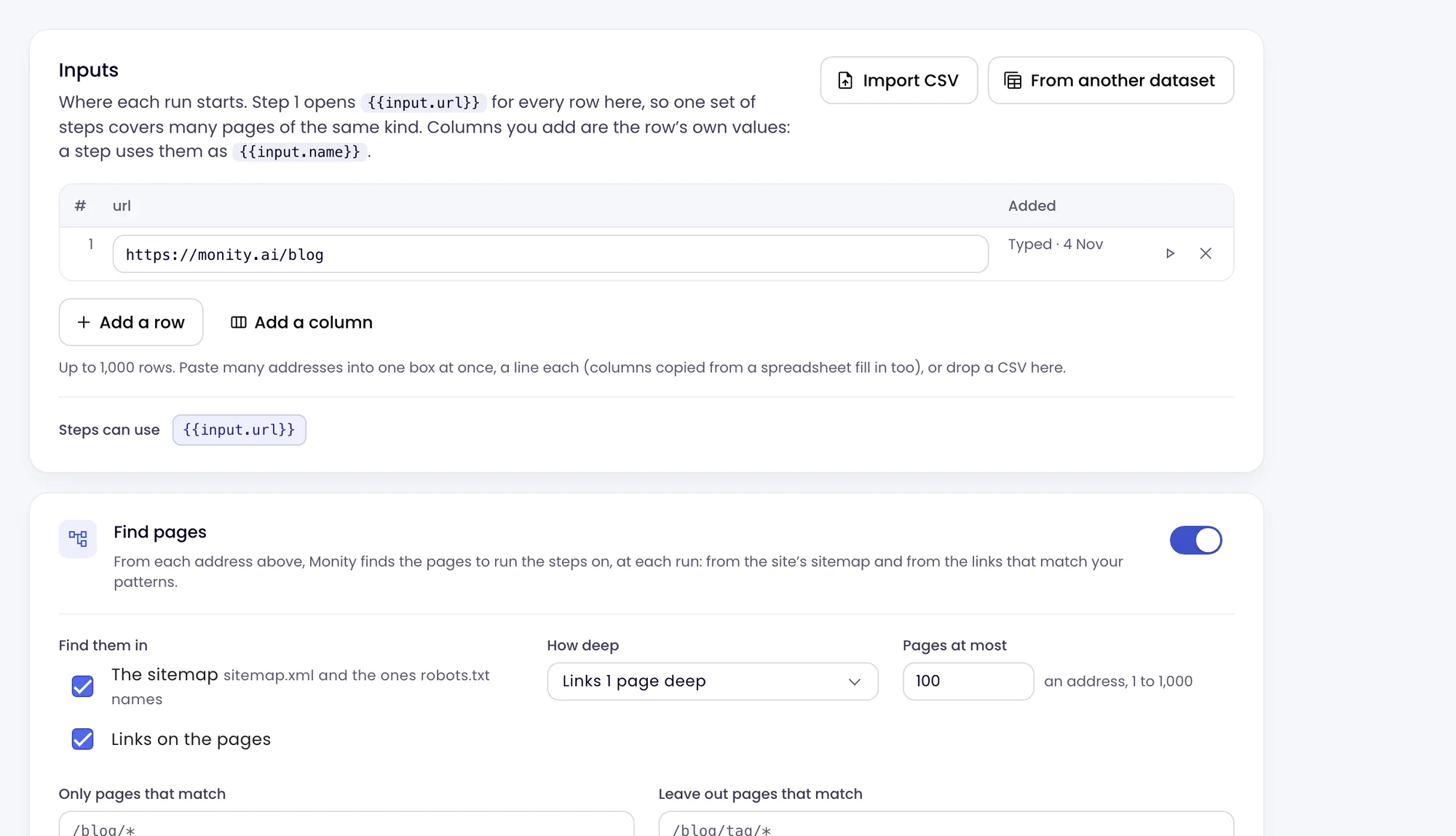
- Add a row adds an address. To add many, paste them into one box at once, one a line; columns copied from a spreadsheet fill in too.
- Add a column gives each row a value of its own, such as a search term. A step uses it as
{{input.term}}, for example in a Type step or in a Go to address likehttps://shop.example.com/search?q={{input.term}}. A row with values and no address needs a first Go to like that one, with the site written out. - The play button on a row runs Run to here on that address, so you can check the steps work on every kind of page.
A dataset has up to 1,000 inputs, each with up to 20 columns. An address must be on the public internet. Save keeps the inputs with the steps.
Import a CSV
- Click Import CSV, or drop a CSV file on the list.
- Monity finds the column with the addresses, by its name (such as url, address, link or website) or by its values, and keeps the other columns as the rows’ values. A file of addresses without a header works too.
- Choose Replace the list or Add to it.
Commas, semicolons and tabs all work, up to 1,000 rows and 20 columns.
Start from another dataset’s rows
Chain two datasets: a list of articles, then a dataset of each article’s details. Click From another dataset, choose the Dataset and The field with each row’s address, and click Use these rows.
Each run then starts from the rows of that dataset’s latest finished run. Its other fields come along as each row’s values, so the steps can use them. Use a typed list instead goes back to a list of your own. Both datasets must be in the same account.
Find pages
Turn on Find pages to let Monity find the pages to run the steps on, from each address in the list, at each run.
| Option | Means |
|---|---|
| Find them in | The sitemap (sitemap.xml and the ones robots.txt names) and Links on the pages. |
| How deep | The sitemap only, or links 1, 2 or 3 pages deep from the address. |
| Pages at most | For each address, 1 to 1,000. 100 by default. |
| Only pages that match | Paths to keep, such as /blog/*. * stands for anything within one part of the path, ** for any depth (/docs/**). With no pattern, every page found is used. |
| Leave out pages that match | Paths to skip, such as /blog/tag/*. |
| Stay on the same site | Only pages on the address’s own site, never the sites it links to. |
| Respect robots.txt | Pages the site asks robots to leave alone are left out. Keep it on unless the site is yours. |
The pages found replace each address for that run: the steps run on every one of them. Reading the sitemap and the links costs nothing; each page the steps then open is a page visit, at 1 credit.
Inputs on the dataset’s page
Once a dataset has run, its Inputs tab shows each input with how its last runs went. See Read a dataset.