
Datasets: collect data from many pages, kept up to date
A dataset is a table of rows that Monity collects from one or many pages in a real browser: the articles of a blog, the products of a shop, the open roles on a careers page. You set the steps once, such as open the page, collect the list and go to the next page. Every run replays exactly those steps, on a schedule, and tells you which rows are new, changed or gone.
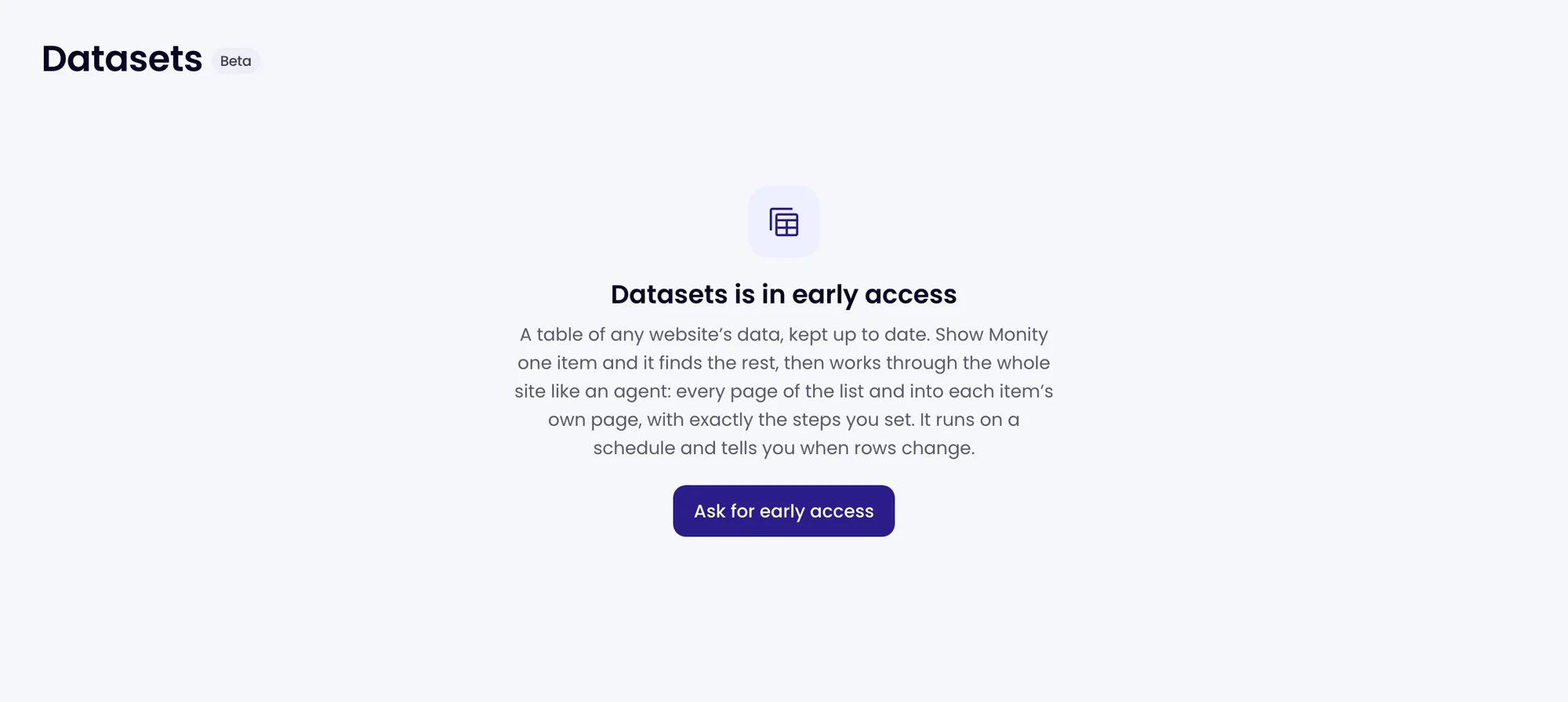
Datasets are in early access. If your account doesn’t have them yet, open Datasets in the app and click Ask for early access, or write to us through the contact page.
Where to find it
In the sidebar, under Data, open Datasets (marked Beta). The list shows each dataset with its pages, its rows, its schedule, when it last ran and its status. New dataset opens the steps editor (see Make a dataset). Before your first dataset, the page asks for an address under Start from a page.
A dataset is also a task: it appears in Tasks, marked Dataset, and opening it there brings you to its page. Its alerts use the same channels as your other tasks.
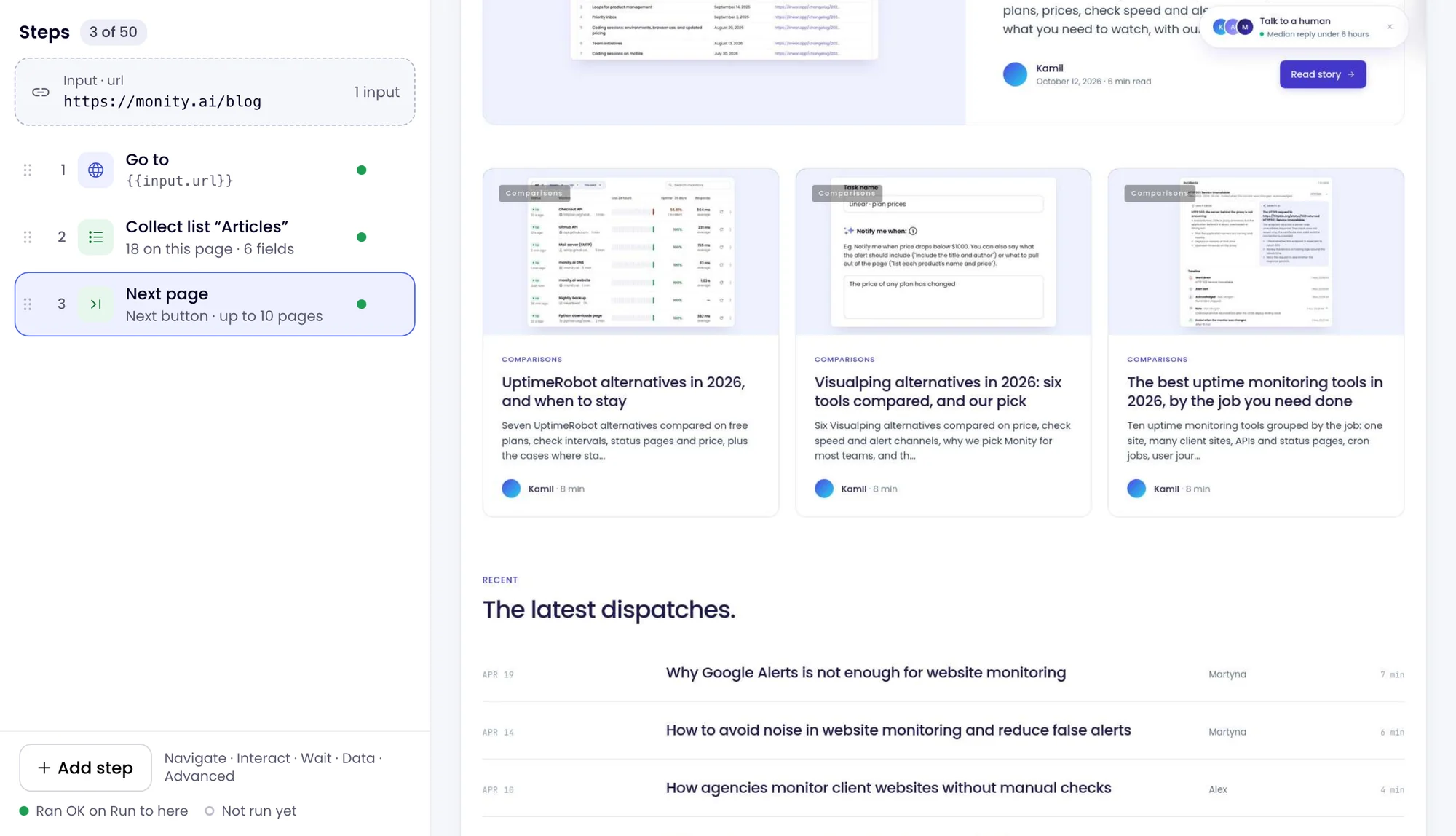
How a dataset works
- Inputs: where each run starts. One address, a list of up to 1,000, a CSV, the rows of another dataset, or the pages Monity finds from a site’s sitemap and links. See Inputs and Find pages.
- Steps: what a run does on each page, in order: Go to, Click, Type, Collect list, Next page, For each item and more. See Steps, fields and transforms.
- Fields: what each row holds, such as a title, a date, a price and a link, each read from the same place in every item. A field marked Key tells one row from another between runs.
- Runs: Run to here in the editor shows the page and the rows as you build, for free. Once saved, each run replays the steps exactly and compares its rows with the run before.
What a dataset does
- Pick one, get them all. Click one item of a list on the page; Monity finds the others like it, and each becomes a row.
- Every page of the list. Next page reads the pages after the first, by a Next button, page numbers in the address, a Load more button or scrolling. For each item opens each item’s own page and collects there.
- The same steps every run. A run does what the steps say and nothing else, so its rows are predictable. The run’s record shows what each step did, with screenshots.
- Alerts on what changed. New, changed and gone rows go to the dataset’s channels: email, Slack, Microsoft Teams, Discord, Telegram, Google Sheets, webhooks and push notifications in the mobile app.
- Sign-ins and your own proxy. A page behind a sign-in is read with a saved login, and a site that blocks datacenter addresses can be read through your own proxy.
- Out of Monity. Export the rows as CSV, JSON, JSON Lines, Markdown or Excel, or let Claude and Codex read them over MCP.
A task or a dataset?
| Task | Dataset | |
|---|---|---|
| Watches | One page | One or many pages, with their pages of results and each item’s own page |
| You set up | An address and what to watch on it | Steps, set once and replayed on every run |
| You get | What changed on the page, with screenshots and an AI summary | Rows, and which of them are new, changed or gone |
| Best for | A price, a policy, a list, a document | A blog, a catalogue, many listings, a market across several sites |
| Credits | 1 credit a check | 1 credit for each page a run opens |
| Available | On every plan | Early access |
A dataset’s page
The top of the page shows the dataset’s name and status, its rows, inputs and steps, when it last ran and when it runs next. Its buttons are Run now (collect at once), Edit steps (back to the steps editor) and Export.

The status next to the name says how it is doing: Up to date, Needs a look (a run read a page only in part, or not at all), Last run failed, Paused, Not run yet or Needs steps. While a run goes, it says Starting, Collecting or Comparing. Below it are five tabs:
| Tab | Shows |
|---|---|
| Rows | Every row of the newest run, searchable, with the new and changed ones marked. |
| Changes | What the newest run found new, changed, gone or back, against the run before. |
| Inputs | Each start address, how its last runs went, and what to do when one needs a sign-in or is blocked. |
| Runs | Every run: when, what started it, the rows, what moved, the pages and the credits, and each run’s record step by step. |
| Settings | The name, the saved login and network, the schedule, the alerts, the limits and the cost of a run. |
Read a dataset goes through the first four, and Dataset schedule, alerts and settings through Settings.
What it costs
Datasets spend the same credits as your tasks, from the dataset’s workspace: 1 credit for each page a run opens. An AI read step costs 5 more for each page it reads, and a saved login 2 a minute while a run uses it. Run code and Run to here are free. Credits for datasets has the details.
Get access
Datasets are in early access. In the app, open Datasets in the sidebar and click Ask for early access: it opens a message to our team with the request filled in, ready to send.
You can also write to us through the contact page with the pages you want covered and the fields you need. We switch Datasets on for your account; you can create a free account first.
Most needs are one page per task, and tasks are on every plan. A task can also read a list or a table on one page: see Setup verification and Extract data.