
Make a dataset: pick the items, set the steps once
You make a dataset in the steps editor. Open the page with the list you want, click one item, and Monity finds the others like it and proposes the fields. Add Next page for the pages after it, check the rows with Run to here, then save. Every run repeats the same steps.
Datasets are in early access. If your account doesn’t have them yet, open Datasets in the app and click Ask for early access, or write to us through the contact page.
The example on this page collects the articles of the Monity blog, monity.ai/blog: a list of article cards over several pages, each with a title, a date and a link.
Open the page
- In the sidebar, open Datasets under Data and click New dataset. On your first dataset, paste the address under Start from a page instead and click Open the page.
- Under Where does the dataset start?, paste the page with the items you want, such as
monity.ai/blog, and click Open the page. - Monity adds a Go to step that opens the address, names the dataset after the site, and opens the page in a real browser. The preview shows a screenshot of it after a few seconds.
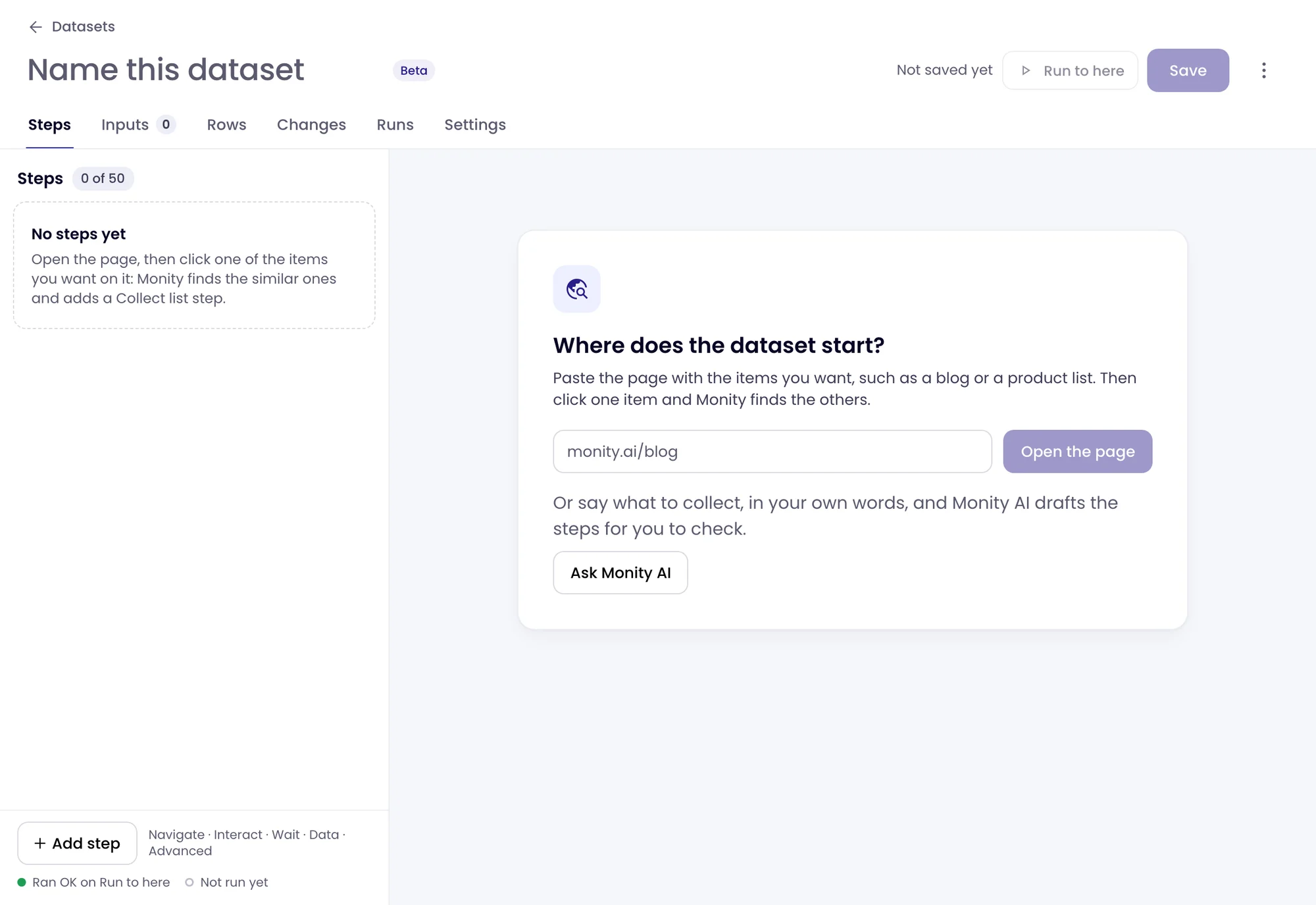
Type another name in the box at the top if you like; once the dataset is saved, its name is on the Settings tab. Until you save, the top says Not saved yet.
Pick the items
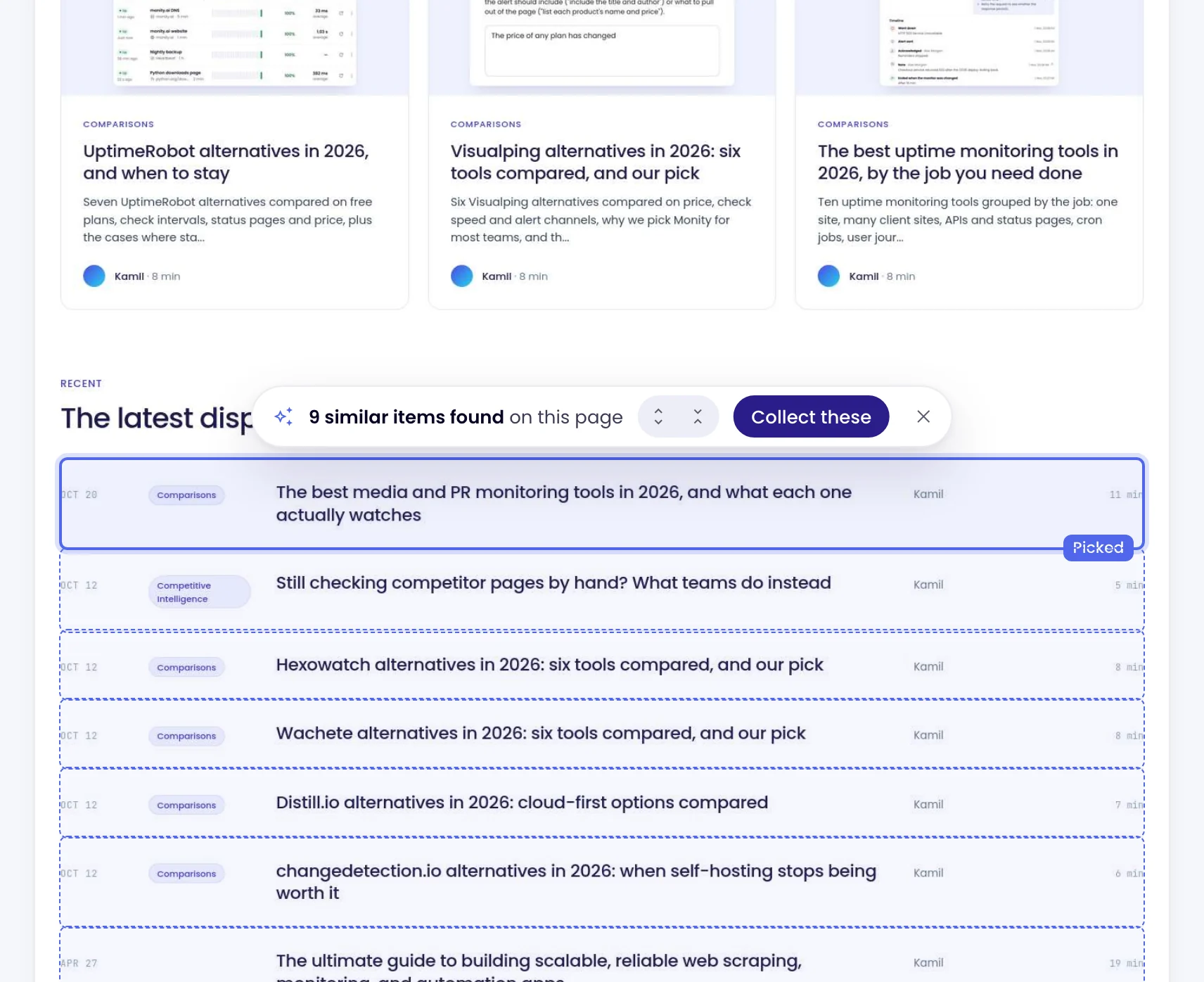
- On the preview, click one item you want, such as the title of the first article.
- Monity outlines the items like it and says how many it found, for example “9 similar items found on this page”. If it outlined the wrong thing, the buttons on that label go one level up (the element around each item) or one level down (an element inside it).
- Click Collect these. Monity adds a Collect list step: one row for each item.
Check the fields
A new Collect list step starts with up to six fields Monity found in the item: its link, its heading, a date, a price, short labels and an image. Each field shows a Sample read from the page.
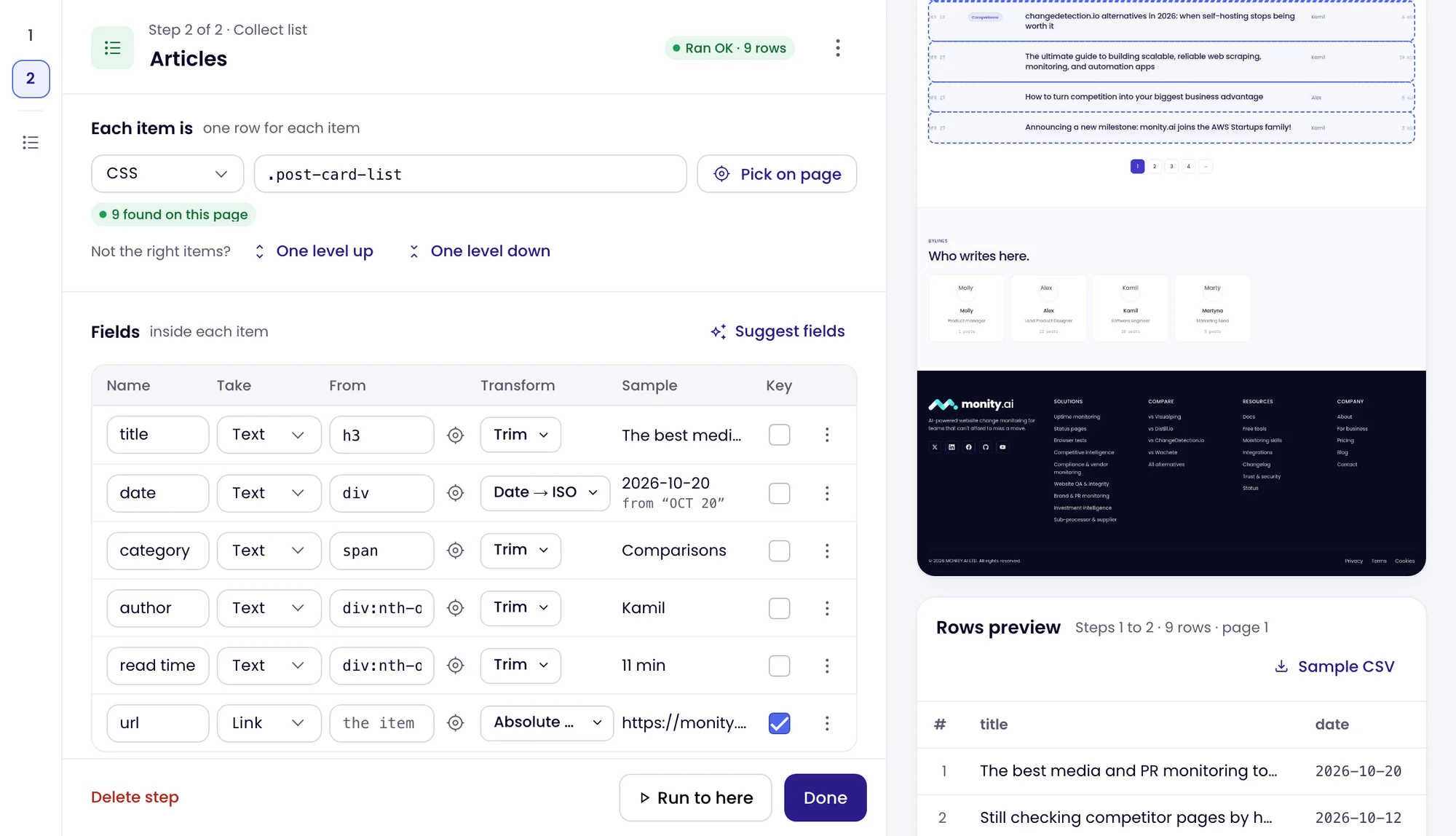
- Rename a field in its Name box. The names are the columns of your rows and exports.
- Add a field with Add field, then Pick on page and click the value inside one of the outlined items. Suggest fields adds the ones Monity sees in the item that are not there yet.
- Clean a value with Transform: Date → ISO writes “OCT 20” as 2026-10-20, Price keeps 1299 from “$1,299.00”. A date or a price gets its transform at once.
- Choose the row key. Monity ticks Key on the item’s link. The same key on the next run is the same row, so a new value elsewhere is Changed, not New.
Steps, fields and transforms lists every option.
Read every page of the list
- Click Add step under the steps and choose Next page.
- Under Reach the next page by, keep Next button, then click Pick on page and click the site’s Next link on the preview. For sites without one, choose Page numbers in the address, Load more button or Scrolling down.
- Set Read up to the number of pages to read, the first included. A run stops at the last page, at that number, or at a page with nothing new.
To collect from each item’s own page as well, such as an article’s author or a product’s stock, add For each item and put the steps for that page inside it. Each item’s page costs 1 credit.
Run to here
Run to here, at the top, runs the steps up to the selected step in a real browser and shows the page after it and the rows it collected. It is free and saves nothing. Each step in the list gets a dot: green when it ran fine on the last Run to here. A step that failed is marked, with the reason under its name.
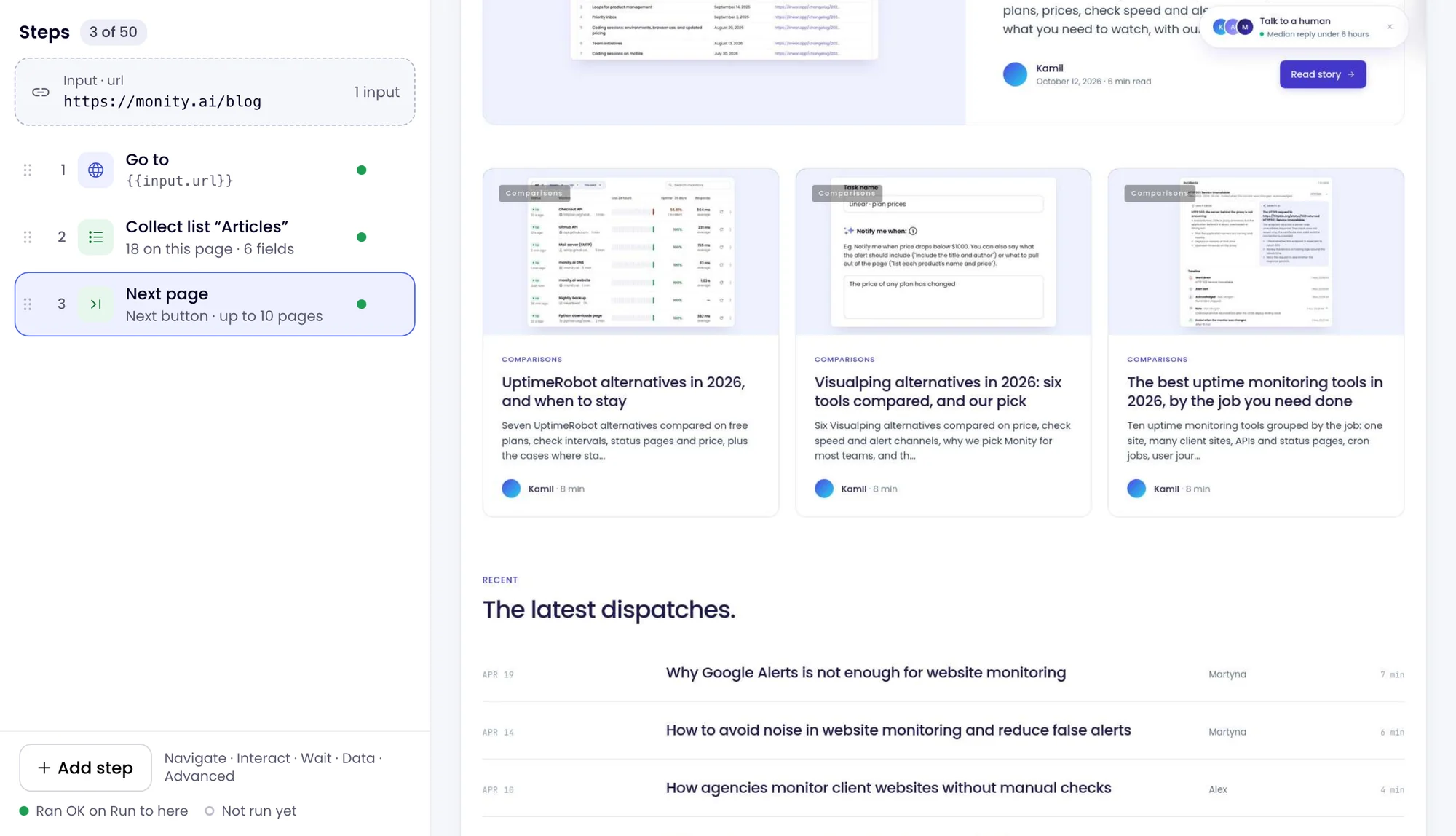
A preview opens at most 5 pages, moves Next page once and keeps at most 50 rows, so a full run collects more than the preview shows.
Save and run
- Click Save. A new dataset is saved paused: nothing runs yet.
- Open the dataset with Rows, or from the editor’s ⋮ menu, Open the dataset.
- Click Run now. The first Run now also switches the dataset on, to run every day, when your plan has room for another task. Change the schedule on Settings.
For the Monity blog, one run read the article list over its 4 pages: 29 rows, for 4 credits.
Let Monity AI draft the steps
Instead of picking, you can say what to collect in your own words. On a new dataset, click Ask Monity AI under the address box, or choose Describe the data to Monity AI from the ⋮ menu, and write what you want, for example “every article on monity.ai/blog with its title, date and link”. Monity AI looks at the page and proposes the steps in a box above the editor, Monity AI drafted the steps.
Use this draft puts its steps and row key in the editor in place of yours; your inputs and access stay. Nothing is saved or run: check the rows with Run to here, then Save. Dismiss drops the draft.
Change a dataset later
On the dataset’s page, click Edit steps. Change what you need, check it with Run to here and click Save; the next run replays the new steps. Discard changes in the ⋮ menu goes back to the saved steps. The same menu can copy or download the steps as JSON.
If the dataset was changed somewhere else while you edited, such as in another tab, Save says so: reload, then make your change again.
Pages behind a sign-in
A dataset reads a page that needs a sign-in with a saved login: on the dataset’s Settings tab, under Access, choose the Saved login, or Sign in now in the Live Browser and sign in to the site as you would yourself. Monity signs in with it before the first step. Don’t type a password in a Type step: the step would keep it in plain text.