Some of the most expensive failures leave the site up. The site answers, the uptime monitor stays green, and the checkout button does nothing because a script failed to load. Nobody notices until sales drop or a customer writes in.
An automated browser test catches that. It opens your site in a real browser, does what a customer does (log in, search, add to the basket, pay) and checks at every step that the right thing happened. Run it every hour and after every deploy, and you hear about a broken journey within the hour instead of within the week.
This guide uses Monity’s browser tests, which we make. You build a test as a list of steps in plain language, so nobody needs to write Playwright or Selenium code.
Uptime monitoring, browser tests and tests in CI
| What it checks | What it misses | |
|---|---|---|
| Uptime monitoring | The server answers, with the right status or text, every minute | Anything that needs a click |
| Browser tests on a schedule (synthetic monitoring) | A whole journey works in a real browser, on the live site | Parts of the site no test walks through |
| End-to-end tests in CI | Code works before it ships, on a test environment | Problems that only happen live: third-party scripts, payment providers, expired keys |
They don’t replace each other. A sensible setup is an uptime monitor on each key address, and browser tests on the three to five journeys that matter most.
Step 1: choose the journeys worth testing
Start with the ones where a failure costs money or trust, and that someone would otherwise check by hand after each release:
- Log in, with a test account.
- Sign up, with a new email address every run.
- Search and see results.
- Add to the basket and reach the payment page. Stop before paying, or use your payment provider’s test mode on staging.
- Send the contact or demo form, if leads come through it.
One journey per test keeps failures easy to read: “Checkout failed at step 6” tells you more than “the big test failed”.
Step 2: write the test as steps
- Open Tests in the sidebar and click New test. Choose Blank test, or Write with AI to have the steps drafted from a sentence.
- Click Untitled test and name it after what should work: “Log in and see the dashboard”.
- Enter the Start address, the first page the test opens, and pick a Screen size: Desktop, Laptop, Tablet or Phone.
- Add steps with Add step. Each one is something a person does (Go to, Click, Type, Choose an option) or something that should then be true (Text, Address, Element is visible, Page has no errors).
A login test looks like this in the editor:
- Go to
/login - Type
{{username}}in the field labelled “Email” - Type
{{password}}in the field labelled “Password” (marked Secret, so it’s never shown in results) - Click button “Log in”
- Check the address contains
/dashboard - Check the page contains “Welcome back”
- Check the page has no errors
With Write with AI, you describe the journey, for example “Log in with {{username}} and {{password}} and check the dashboard shows Welcome back”, and Monity’s AI opens your start page, reads its real buttons and labels, and drafts the steps with a check after each action. It never submits a payment, places an order or deletes anything: it stops before that step and tells you. Drafting is free. Writing tests with AI explains what it can and can’t see.
Step 3: make the test stable
A test that fails for no reason gets ignored. Four habits prevent most of that:
- Find elements the way a person would. Choose Role and name (button “Log in”) or Label (the field labelled “Email”) rather than a CSS selector, which breaks when a developer renames a class.
- Check after every action. A click that “worked” proves nothing until the next page shows what it should.
- Let checks wait instead of adding waits. Every step waits up to 10 seconds by default for its element, and every check keeps checking until it’s true, so you rarely need a fixed Wait.
- Use fresh test data.
{{random.email}}gives each sign-up run a new address, and secrets such as passwords live in an environment, encrypted, not in the steps. Environments, variables and secrets covers staging and live with the same test.
A failed run is run again at once before it counts (Retry once by default), so a single hiccup doesn’t alert anyone.
Step 4: run it before you save
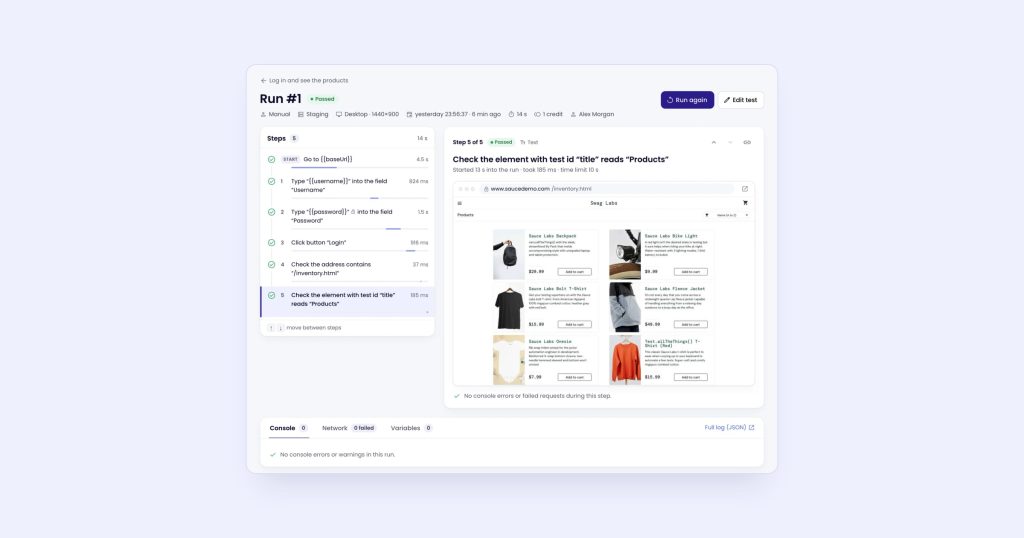
Click Run. The test runs in a real browser, and the panel on the right fills in step by step with a screenshot of each. Runs from the editor never alert anyone. When it passes, click Create test.
Step 5: run it on a schedule and after every deploy
- On a schedule: every hour unless you choose otherwise, from every 5 minutes to daily. The fastest schedule is your plan’s fastest page check.
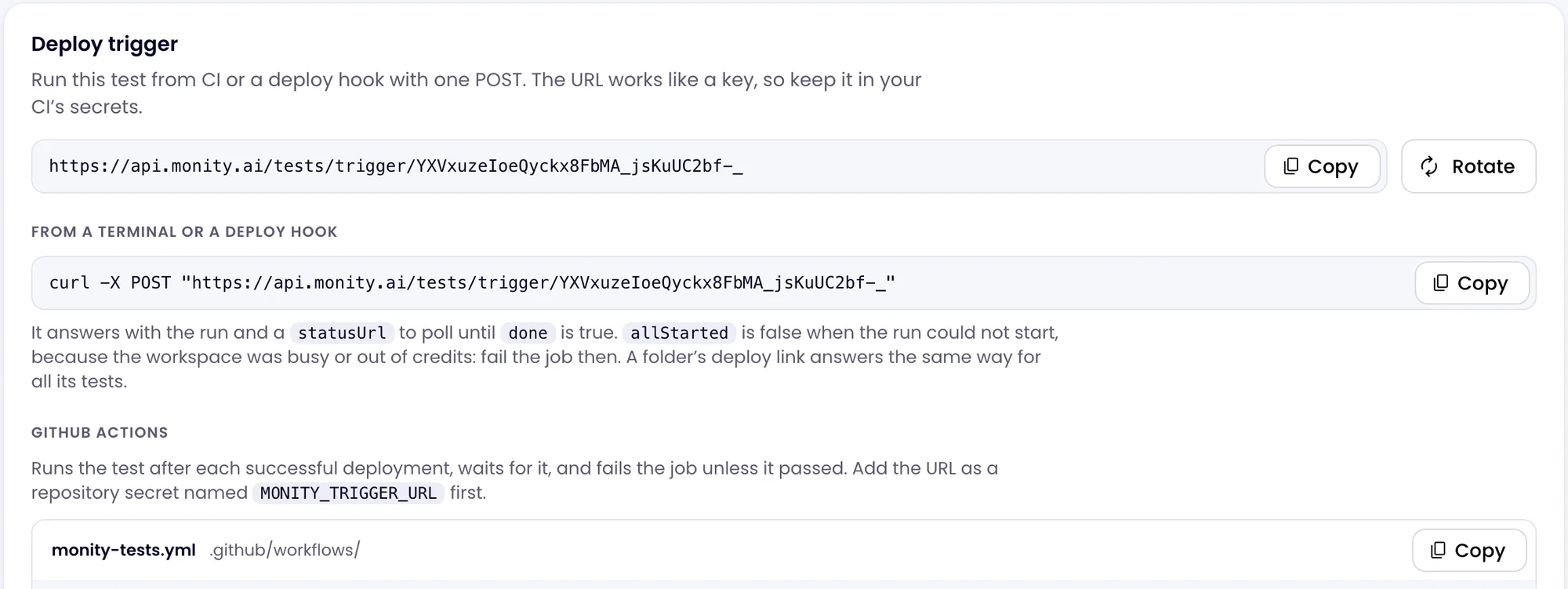
- After a deploy: each test, and each folder, has a deploy trigger URL. Your CI or deploy script calls it with a POST, and Monity runs the test or the whole folder.
The test’s page gives you the curl line and a ready-made GitHub Actions workflow that runs after each successful deployment, waits for the results and fails the job if a test failed. The short version:
curl -X POST "$MONITY_TRIGGER_URL"Keep the trigger URL in a secret: anyone who has it can start the test.
Step 6: decide who hears about a failure
A failing test alerts through the same channels as Monity’s other monitors: email, Slack, Microsoft Teams, Discord, Telegram, Google Sheets, webhooks and push. You choose how many failed runs in a row it takes (after the first by default, or after 2, 3, 4, 5 or 10), whether to send reminders while it keeps failing, and you get a “passing again” alert when it recovers.
The alert names the step that failed and why, for example that there was no “Checkout” button on the page after 10 seconds, with a link to the run.
Reading a failed run
The run’s page shows the step timeline next to the screenshot of the selected step, what the step expected and what it found, the browser console’s errors and the failed requests. You can compare the failed step with the last run that passed, which usually shows the difference at a glance: a missing button, a changed label, an error message, a cookie banner covering the page.
When a step was right and the site changed on purpose, edit the step. When the site broke, you have the screenshot and the console errors to hand to whoever fixes it.
What it costs
A run uses 1 credit for each started minute of its steps, so a run of up to a minute is 1 credit, the same as a page check. A Check with AI step adds 1 credit. Runs Monity couldn’t complete are free. Each active test counts as one task towards your plan’s limit. Passed runs are kept for 30 days, failed runs for 90. See pricing for the credits in each plan.
Other ways to do it
- Checkly runs Playwright checks that your developers write as code, alongside uptime monitors. Its free Hobby plan includes 1,000 browser checks a month, and Starter is $24 per month billed annually with 3k. It suits teams that keep tests in their repository.
- Ghost Inspector is a codeless browser testing tool; every plan starts with a 14-day free trial.
- Playwright or Cypress in CI cost nothing to run in your pipeline, but someone has to write and maintain the code, and they test before release, not the live site every hour.
Monity puts codeless tests, uptime monitors, status pages and website change monitoring in one account, with one set of alert channels. More on the browser tests page and in the browser tests docs.
Write your first test on the free plan: start with Monity. Write a browser test explains every step type.