A status page is a public page that says whether your service is working, and if not, what’s wrong and when it will be fixed. A good one answers “is it down?” before people email you, and it builds trust because it doesn’t hide the bad days.
The simplest way to keep one honest is to drive it from uptime monitors, so it changes the moment something goes down, and to add your own words on top during an incident. This guide shows how with Monity, which we make; the advice on what to show and what to write applies to any tool.
What a status page should show
- A headline that anyone can read in a second: everything works, something is degraded, or something is down.
- The parts of your service, named the way customers know them: “Website”, “Checkout”, “API”, “Email notifications”. Never internal host names.
- History: the uptime of each part over the last few months, so visitors can see a bad hour was a bad hour, not a bad year.
- Incident updates in plain words: what’s affected, what you’re doing, when you’ll update next.
- Planned maintenance, announced before it starts.
- A way to subscribe, so people hear about the next incident without refreshing.
What it should never show: server addresses, error messages, stack traces, or anything that helps an attacker more than a customer.
Step 1: monitor each part you’ll show
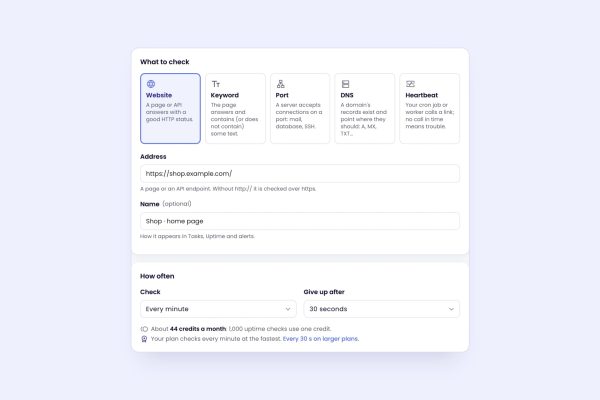
A status page is only as good as the checks behind it. In Monity, open Uptime, click New monitor and add one monitor per part of the service:
- the website (a Website monitor on the home page);
- the app or checkout (a Keyword monitor that requires text only a working page shows);
- the API (a Website monitor on a health endpoint, with a check on its JSON such as
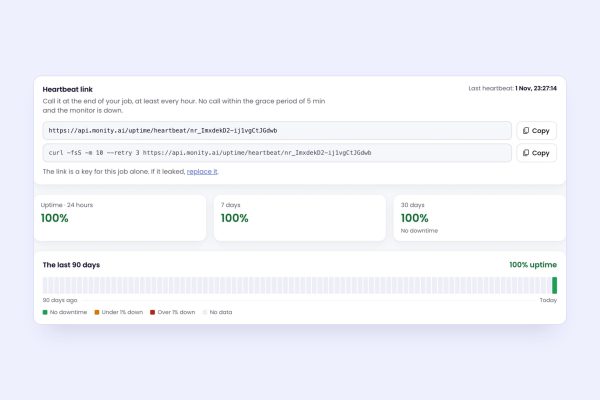
$.statusequalsok); - background jobs (a Heartbeat monitor; see cron job monitoring).
Give each one a Name customers will understand, because the status page shows monitor names. How to get an alert when your website goes down covers the settings in detail.
Step 2: create the status page
- On the Uptime page, go to Status pages and click New status page.
- Enter a Title (usually your product’s name) and, if you like, a Description.
- Choose its Address: the page is public at
app.monity.ai/status/followed by what you choose. - Tick the Monitors on the page. The dialog flags any monitor still named after its host name, so you can Rename it before customers see it.
- Add a Logo (an HTTPS image address) and an Accent colour to match your brand.
- Leave Show the last two weeks’ incidents on unless you have a reason not to.
- Save, then use Copy link to share it.
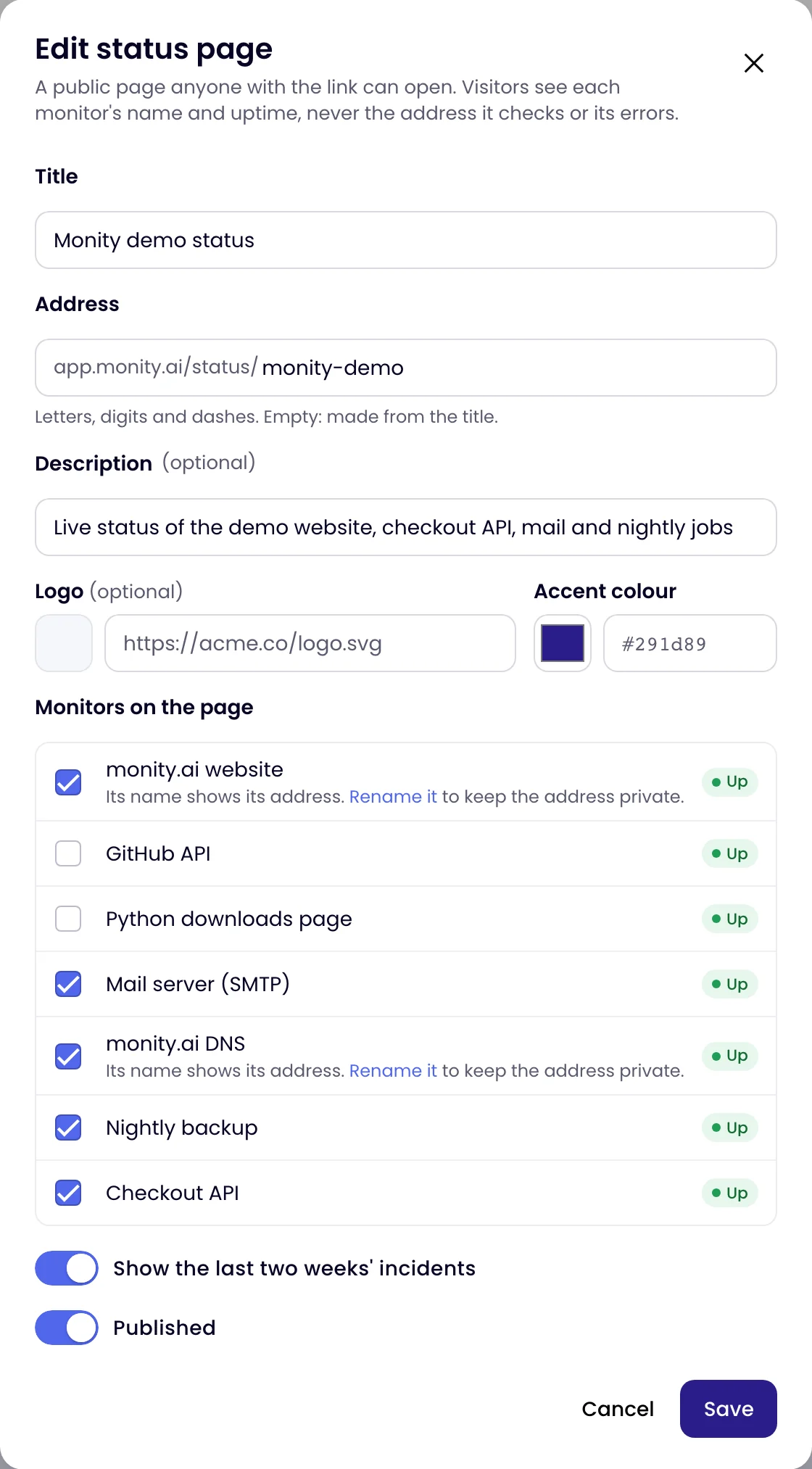
Status pages are on every Monity plan, the free one included, up to 20 per account. Visitors see each monitor’s name, status, uptime and 90 days of daily bars, never the address it checks or its errors. The headline says all systems are operational only when every monitor on the page answered up.
Step 3: link to it from where people look
- The footer of your website and app, next to “Contact”.
- Your help centre and the auto-reply of your support inbox.
- Your API docs and README. Copy badge gives you Markdown for an SVG badge that shows the page’s status, live.
- Error pages: a 500 page that links to the status page saves a support ticket.
Step 4: post updates during an incident
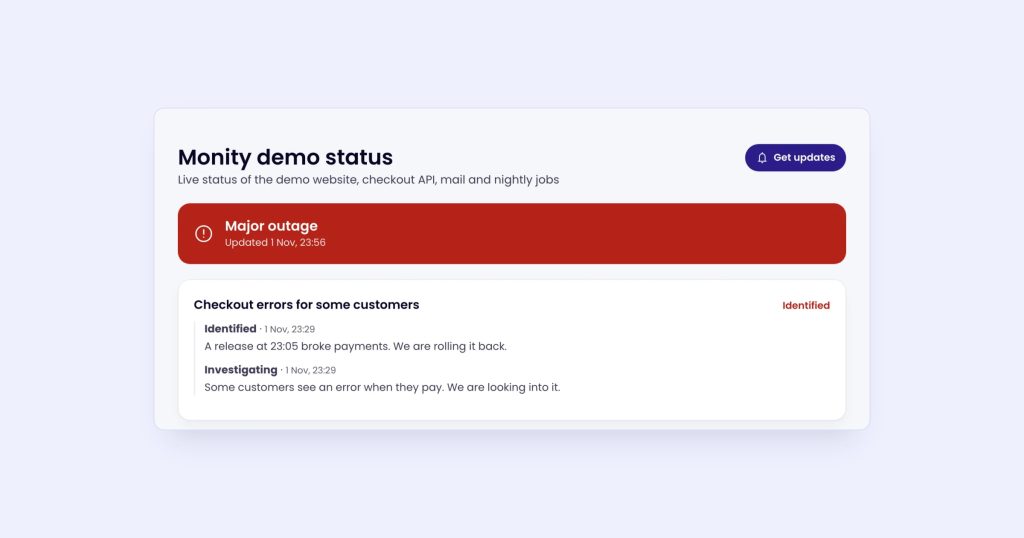
Monitors tell visitors that something is down. Your words tell them what it means for them. In the status page’s menu, open News and updates and Post an incident or maintenance:
- Title: what’s affected, from the customer’s side (“Checkout is slow”, not “DB replica lag”).
- Impact: minor, major or maintenance. An open post can raise the page’s headline (major shows an outage) but never lowers what the monitors say.
- Status: Investigating, Identified, Monitoring, Resolved.
- Message: what people see, what you’re doing, when you’ll update next.
- Tick Email it to subscribers when the update is worth an email.
Post the first update quickly, even if all you know is that you’re looking into it. Then Add an update each time something changes. A sequence that works:
- Investigating: “Some customers can’t complete checkout. We’re looking into it and will update within 30 minutes.”
- Identified: “A payment provider is timing out. We’ve switched to the backup provider for new orders.”
- Monitoring: “Checkout is working again. We’re watching it closely.”
- Resolved: “Checkout was affected from 14:05 to 14:50 UTC. Orders placed in that window that show as failed were not charged.”
Resolved posts stay on the page for 14 days.
Step 5: announce maintenance before it starts
On the Uptime page, under Maintenance, click Schedule maintenance: once, daily, weekly or monthly, from 5 minutes to 7 days, for the monitors it affects. The status page lists the windows of the next 7 days, shows the monitors as in maintenance while a window runs, and doesn’t count that time as downtime. Monity doesn’t check those monitors or send alerts during the window.
Step 6: let people subscribe
Visitors click Get updates on the page and enter their email address. They get a confirmation email and hear nothing more until they confirm. After that, they get the posts you send with Email it to subscribers, each with a one-click unsubscribe link. A page can have up to 20,000 subscribers.
Subscribers get your posts, not automatic down and up emails: a site that flaps for a minute shouldn’t send your customers three emails.
Hosted status page tools compared
| Tool | Free plan | Paid plans from | Notes |
|---|---|---|---|
| Monity (ours) | Up to 20 status pages per account, with uptime monitoring | Personal 1k: $10/mo billed annually | Driven by its own uptime monitors; posts and email subscribers |
| Atlassian Statuspage | 100 subscribers, 25 components, two team members | Hobby: $29/month, with a custom domain | A dedicated status page product; monitoring comes from elsewhere |
| Better Stack | 1 status page with the free plan for personal projects | Extra public status page: $12 per month billed annually | 1,000 subscribers included |
| UptimeRobot | 1 basic status page | Solo: 3 status pages with your own domain, €9/month billed annually | Status pages come with its monitors |
Prices from each vendor’s pricing page on 2 November 2026.
Create one on the free plan: start with Monity. Every option is in the status pages docs.