


Change many tasks at once
Select tasks in the list to change, run, export or remove them together.
Select tasks
Tick the box at the start of each row. A bar appears at the bottom of the screen with the number of tasks selected. On a narrow window it shows icons only; hover one to see its name. Select all selects every task in the current list, including the ones on other pages, and respects any search or filter you’ve applied.

| Action | What it does |
|---|---|
| Bulk edit | Change settings, schedule and channels for all selected tasks at once. Needs at least two tasks. |
| Run | Starts a check on each selected task now. Each check uses credits, as a scheduled one would. |
| Export | Opens the Export dialog: the selected tasks’ Checks over a period as Excel, CSV or PDF (Business accounts), or the Monitors themselves as a CSV. |
| Move | Moves the tasks to another workspace (Business account admins). |
| Deactivate | Stops checks on the selected tasks. In Inactive monitors this becomes Activate. |
| Delete | Removes the tasks and all of their checks permanently. |
Bulk edit
Click Bulk edit. The selected tasks are listed on the left; on the right, the Settings, Schedule and Channels tabs work as they do for a single task. Change what you need and click Update monitors.
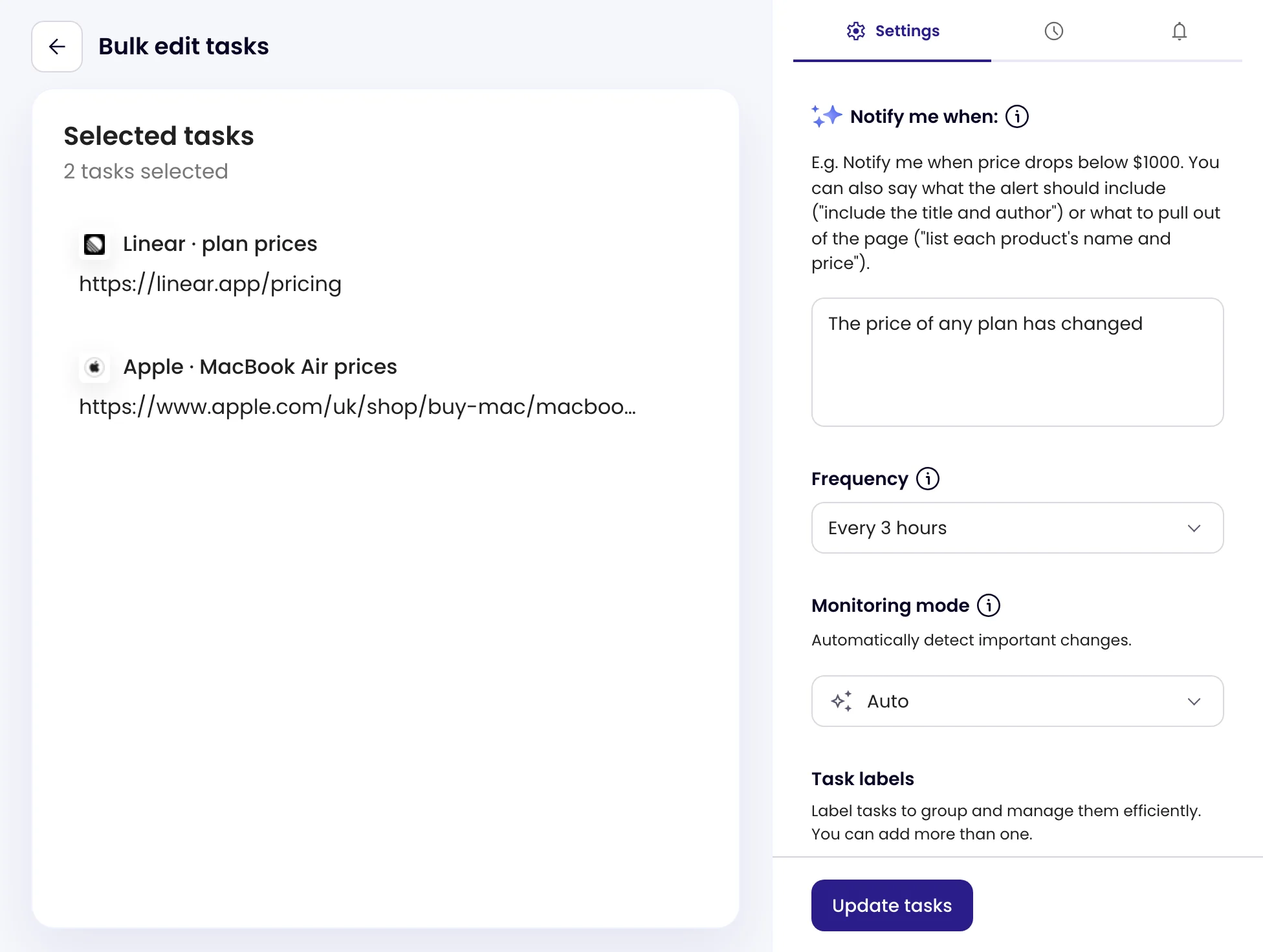
Settings that only make sense for one page, such as the selected area, the element selector or automations, aren’t offered here. Edit those task by task.
Export checks or tasks
Click Export. The dialog has two tabs.
- Checks (Business accounts): choose the period, whether to include every check or only those that sent an alert, and the format: Excel, CSV or PDF. Tick Include your team’s comments to add the comments on each change; it is off by default because files are often sent on to clients. Flags your team set are always in the file, and changes it hid are always left out (see Review changes with your team). Then click Export checks.
- Monitors: a CSV of the selected tasks: name, address, labels, mode, threshold, frequency, and the last check, next check and last alert. Click Download CSV.
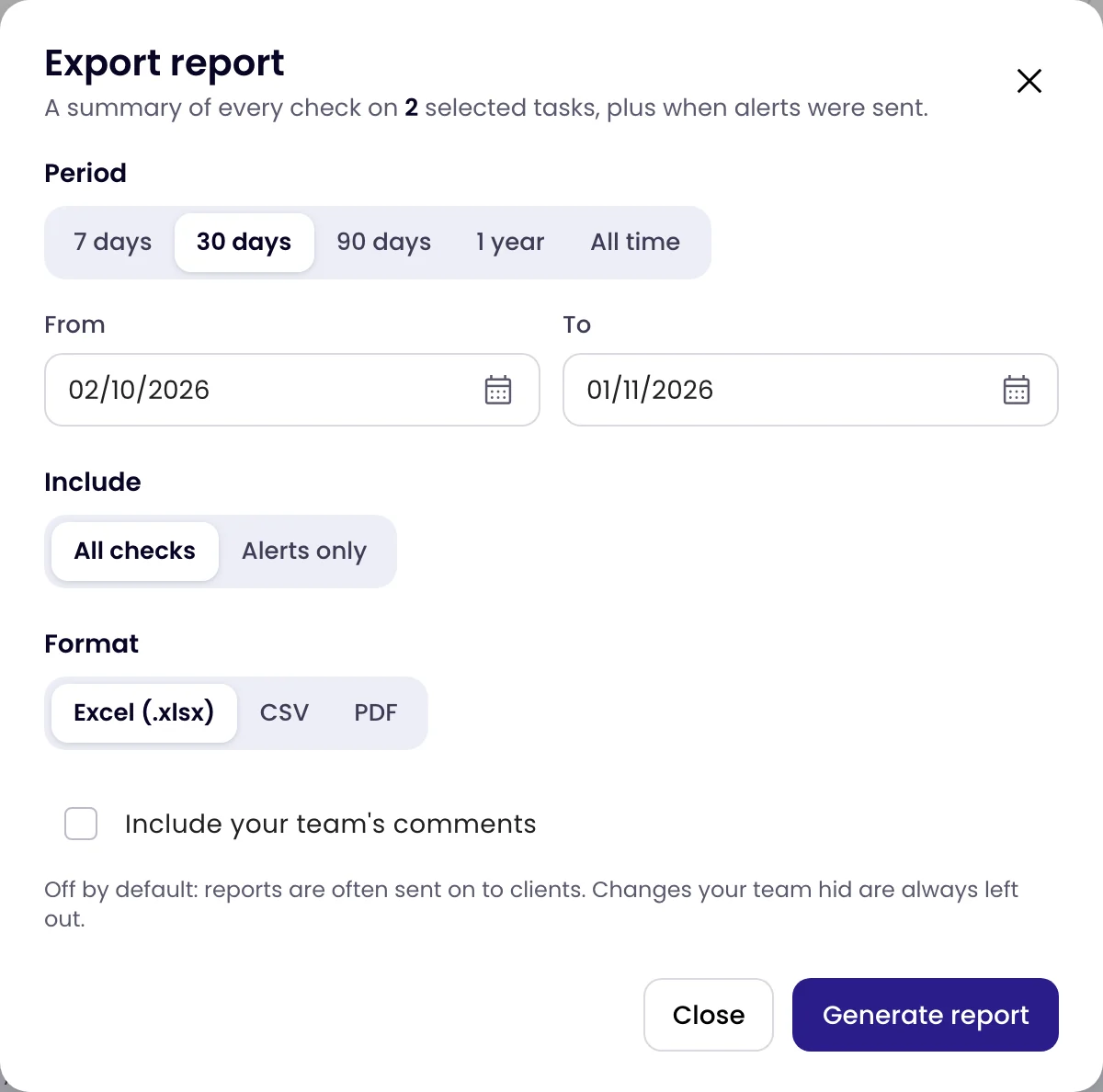
For a branded report you send to a client every week or month, use Create a report at the bottom of the dialog, or Reports in the menu.