
Screenshot setups, Playground and Runs
In the app, Developers › Screenshot API is where you try the API, save the pages you capture often as setups, and see every screenshot taken, from the API or from the app.

Overview
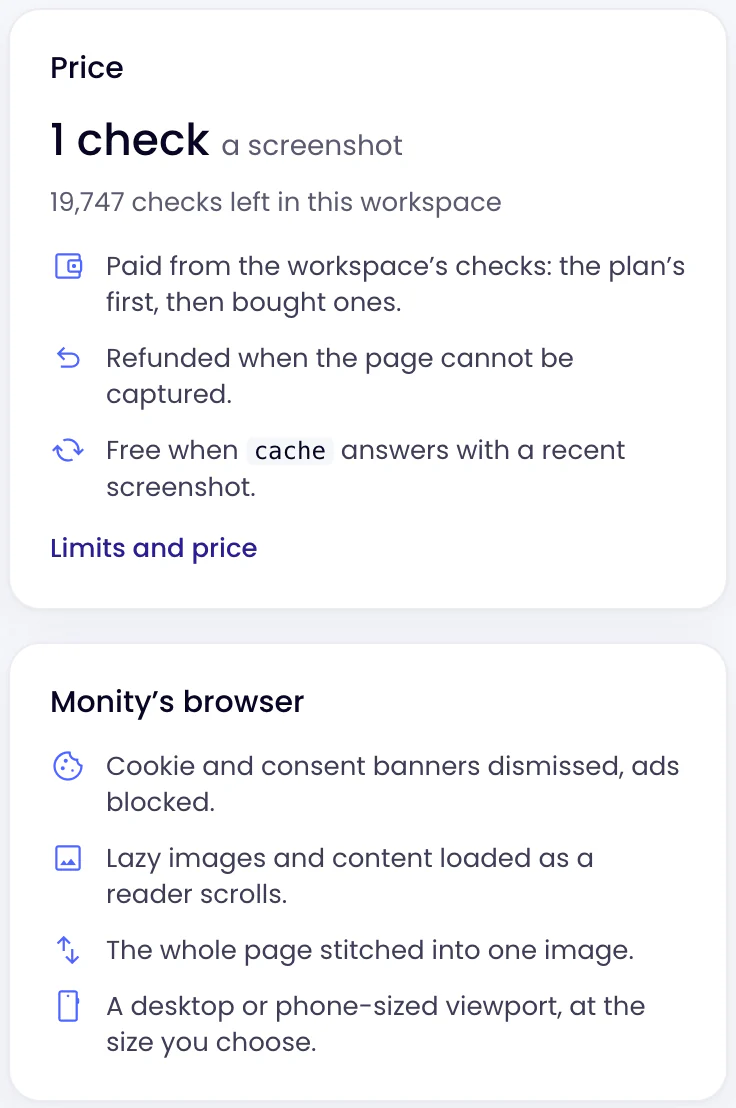
The first request to copy, as curl, JavaScript or Python, with YOUR_API_KEY where your key goes; whether you have a key that can take screenshots, with Manage keys; the price and the credits left in the workspace; and your latest screenshots.
Playground
A form with every option of the API, each labelled with its parameter’s name. Take screenshot takes it and shows the image with its format, size, file size, time and credits, and the same request as curl, JavaScript and Python to copy into your code. A screenshot from the Playground costs 1 check, refunded if it fails, like one from the API.
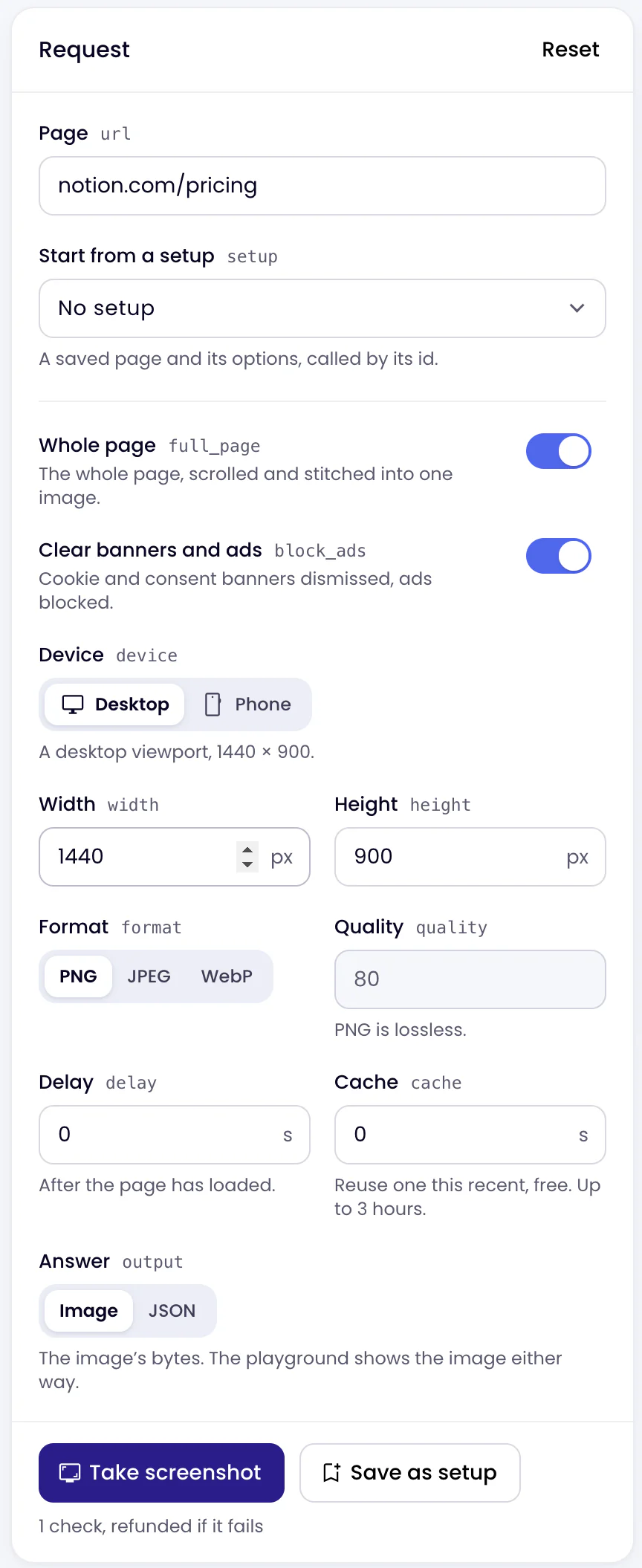
Save as setup keeps the page and the options as a setup.
Setups
A setup is a page and its options under a name, such as “Pricing page, desktop”. Each has an id: send it as setup= and the call takes the setup’s page, options and workspace. Change the setup in the app and every call that uses it follows.
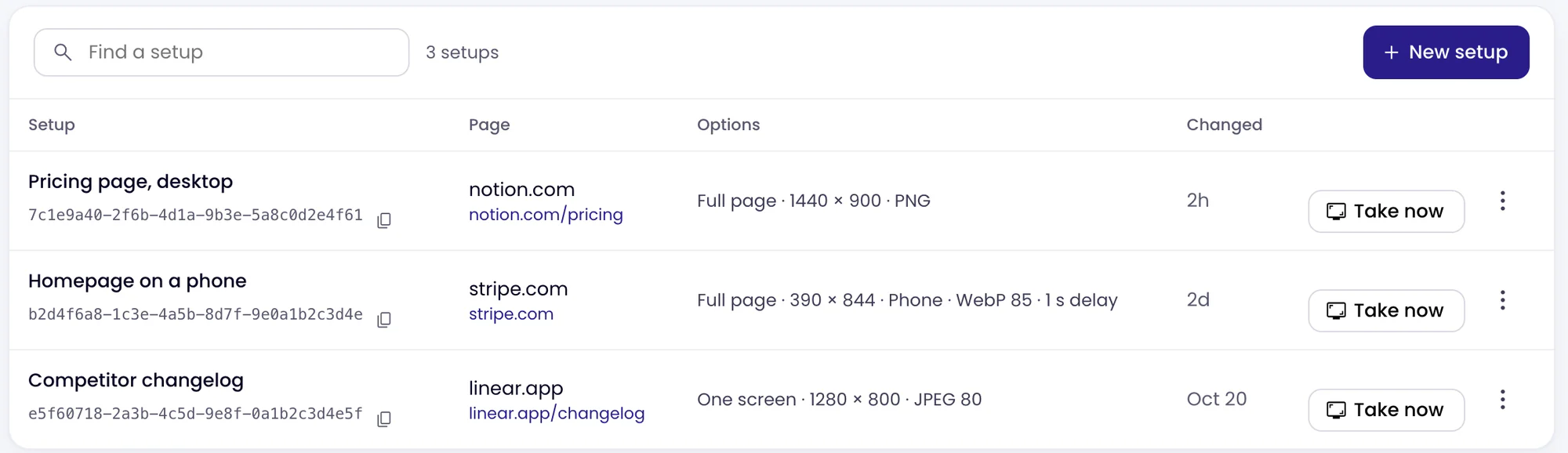
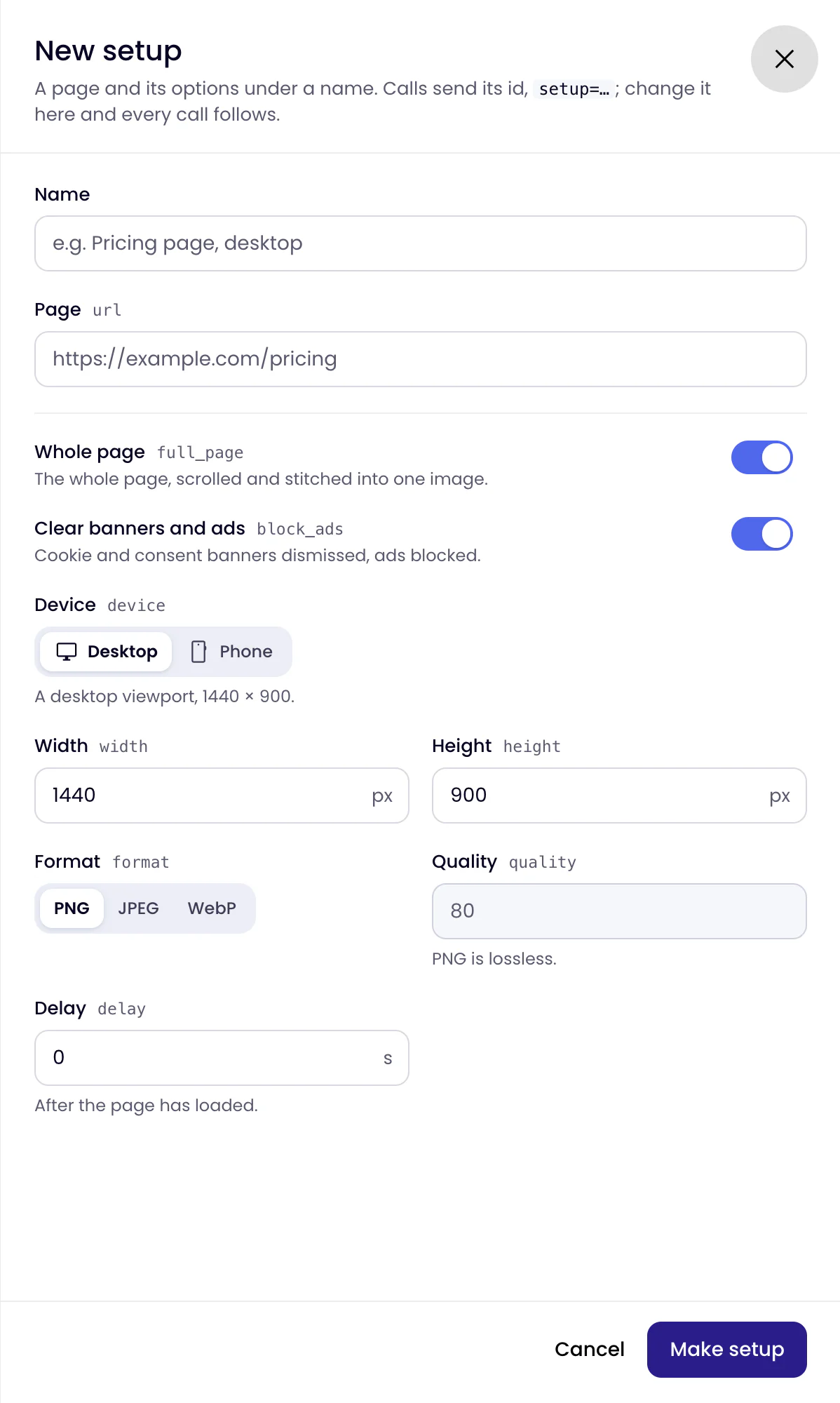
- On the Setups tab, click New setup.
- Enter a Name and the Page, and choose the options.
- Click Make setup. Copy its id from the list.
Call it like this; any other parameter you send overrides the setup’s:
curl -G https://api.monity.ai/v1/screenshot \
  -H "Authorization: Bearer YOUR_API_KEY" \
  -d setup=YOUR_SETUP_ID \
  -o screenshot.png
Take now takes a setup’s screenshot from the app. The ⋮ menu changes or deletes it; the runs of a deleted setup stay. An account can have up to 200 setups.
Runs
Every screenshot, newest first: when, the page, its setup, whether it came from the API or the app, its status, how long it took, its checks and the image while it is kept. Filter by Done or Failed, or by setup. Click a run to see its details and the same request in code.
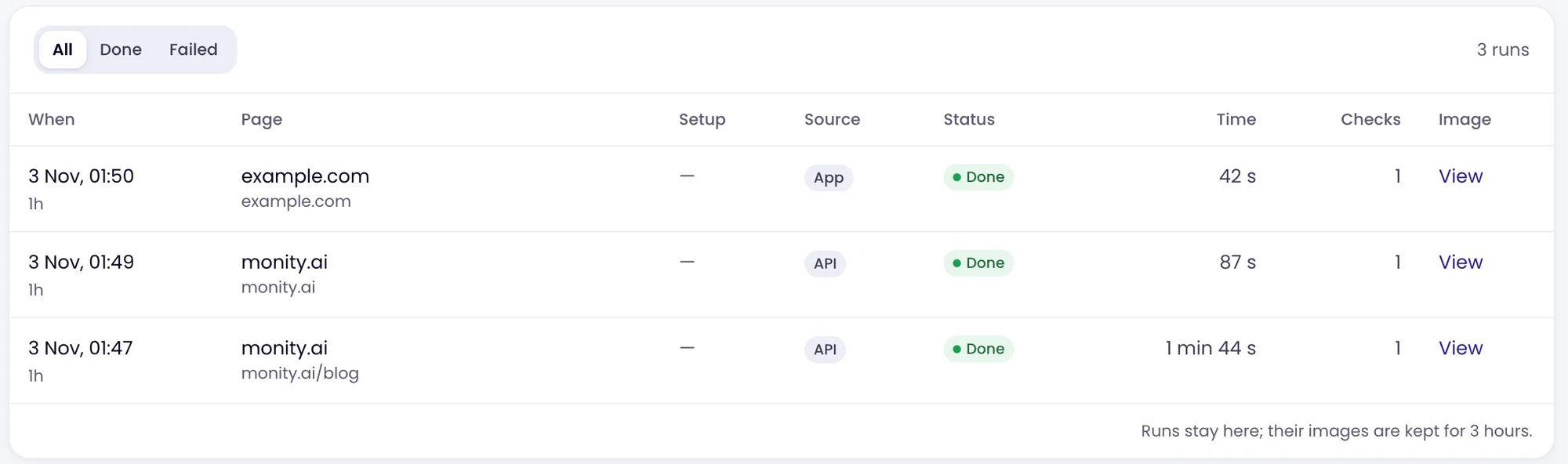
Runs stay in the list; their images are kept for 3 hours.
Who can do what
Everyone in the account sees the Screenshot API, its setups and its runs. Taking screenshots in the app and changing setups needs the Admin or Editor role.