
Read a dataset: rows, changes, inputs and runs
A dataset’s page has five tabs. Rows holds what Monity collected, Changes what moved since the run before, Inputs how each start address is doing, and Runs every run with its record, step by step. Settings is in Dataset schedule, alerts and settings.
Datasets are in early access. If your account doesn’t have them yet, open Datasets in the app and click Ask for early access, or write to us through the contact page.
Rows
Every row of the newest run that finished, with a column for each field. The search box finds a word in any value. After a run that found new or changed rows, All rows, New and Changed filter the list, with a count on each, and the rows themselves are marked New, Changed or Back. With several inputs, Every source narrows the rows to one of them. A link field opens its page.
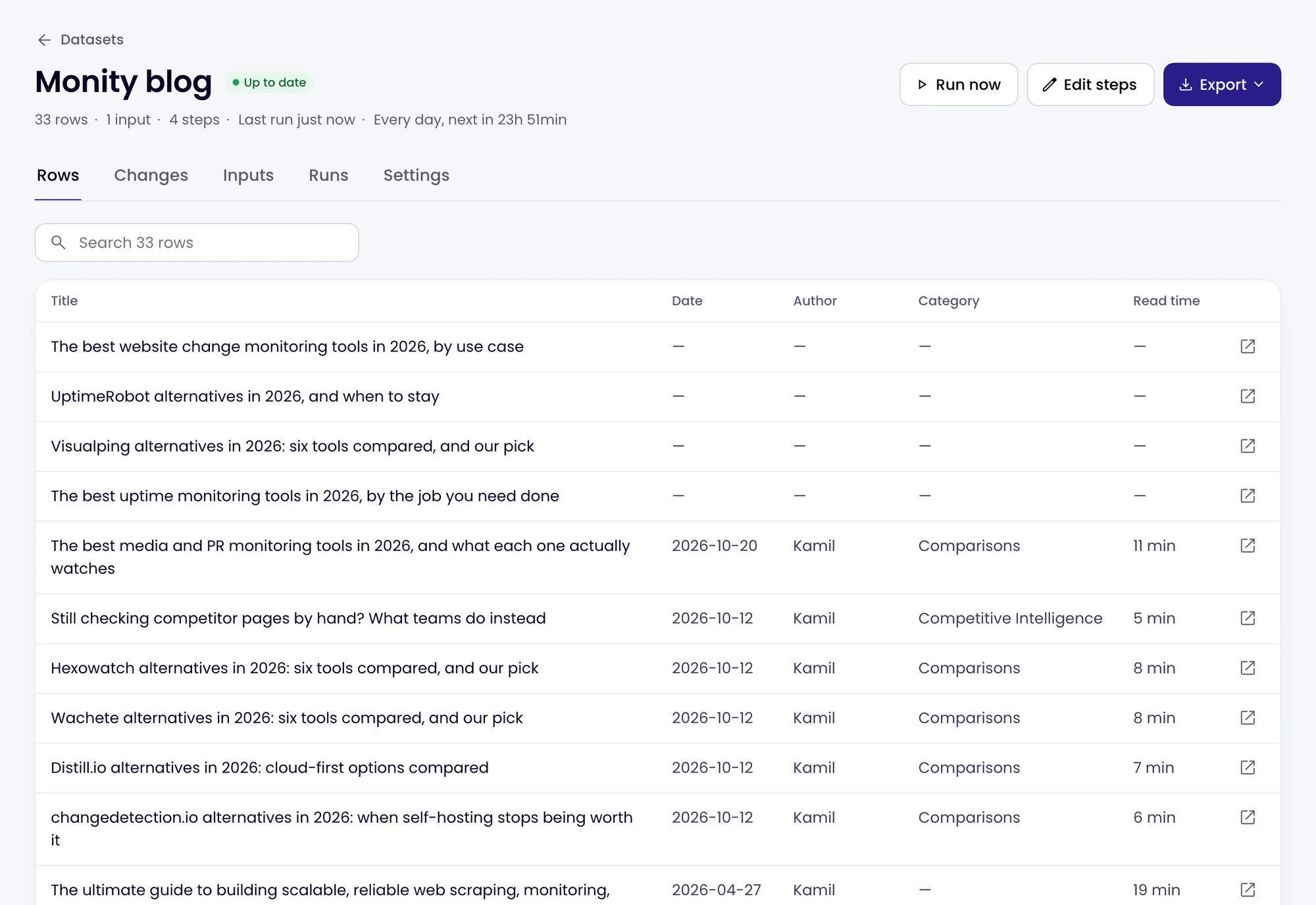
Click a row to see all its values, what changed in this run, and the page it was found on.
A run after you change the steps is a new first collection: its rows are compared from the next run on.
When a run does not finish, the tab says so and keeps showing the rows of the last run that did. Monity tries again on the schedule.
Changes
What the newest run found against the run before: the number of rows that are New, Changed, Gone and Back, and the rows themselves. A changed row shows each changed field with its old and new value. A row that was gone and comes back is listed as Back. The top says which run it compares with, and whether an alert was sent.
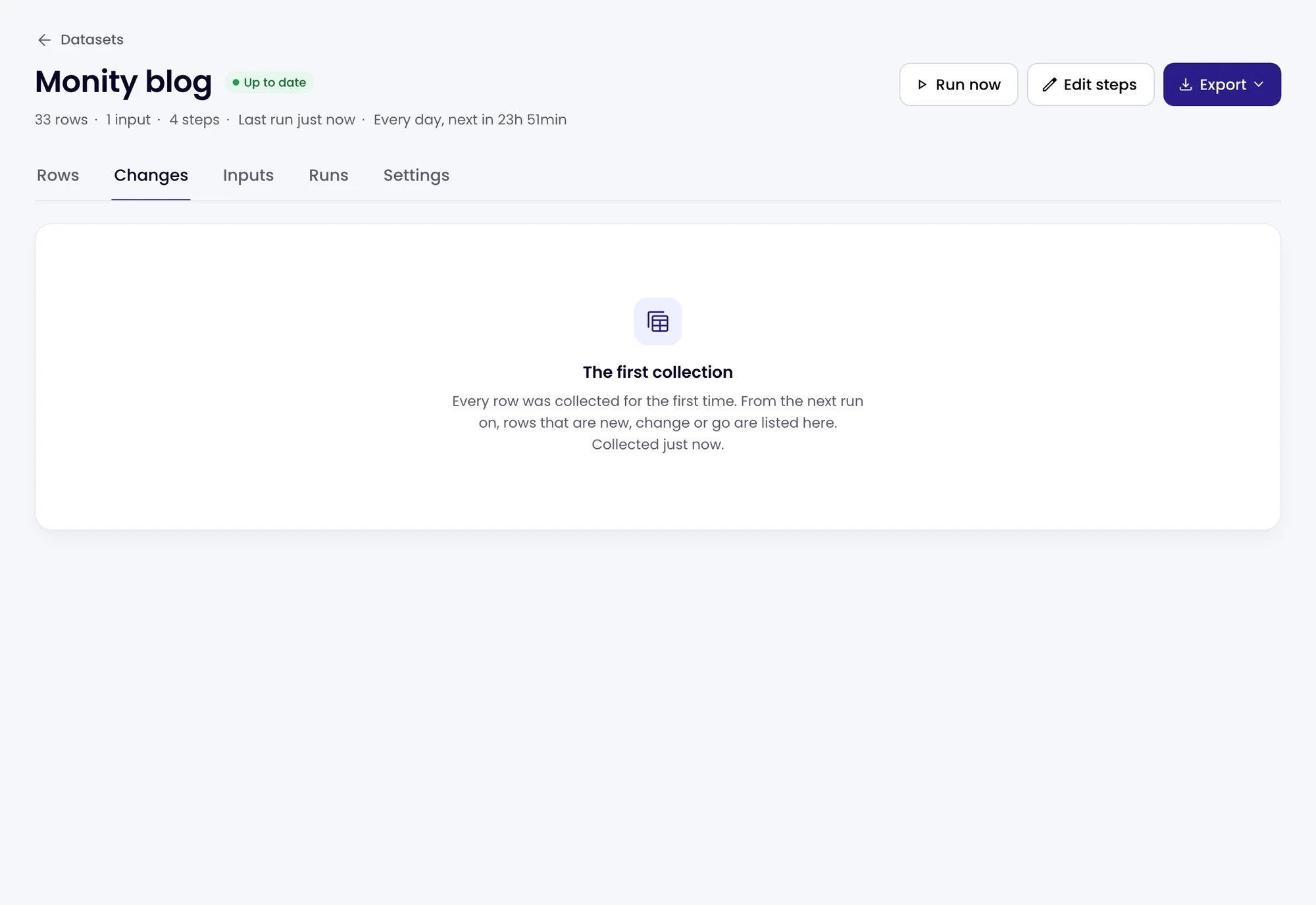
A row is Gone only when the run read its input to the end. A run that stopped early, at a limit or on an error, keeps the rows it read and removes none. Up to 500 rows of each kind are listed; the export has every row.
Inputs
Each input the dataset starts from, with how its last run went, the rows it gave, the pages walked, when it was last read and a mark for each recent run. Add pages opens the editor’s Inputs tab (see Inputs and Find pages).
| Status | Means |
|---|---|
| Working | The input was read in full. |
| Partly read | Only part of it was read on this run. |
| Nothing found | The page opened but the steps found no rows. Look again opens the editor on it. |
| Failed | It could not be read on this run; the reason is shown. Look again opens the editor on it. |
| Blocked | The site showed a security check. Admins can read it through their own proxy (Use my proxy). |
| Needs sign-in | The page is behind a sign-in. Sign in opens a live browser to sign in once. |
| Skipped | The run did not read it, for example because it reached a limit before it. |
Runs
Every run, newest first: when it ran, its status (Collected, Partly collected, Failed or Stopped), what started it (Schedule or Run now), the rows it collected, what moved (for example “No changes” or “First collection”), the pages it opened and the credits it used, under Checks. A bell marks a run that sent an alert.
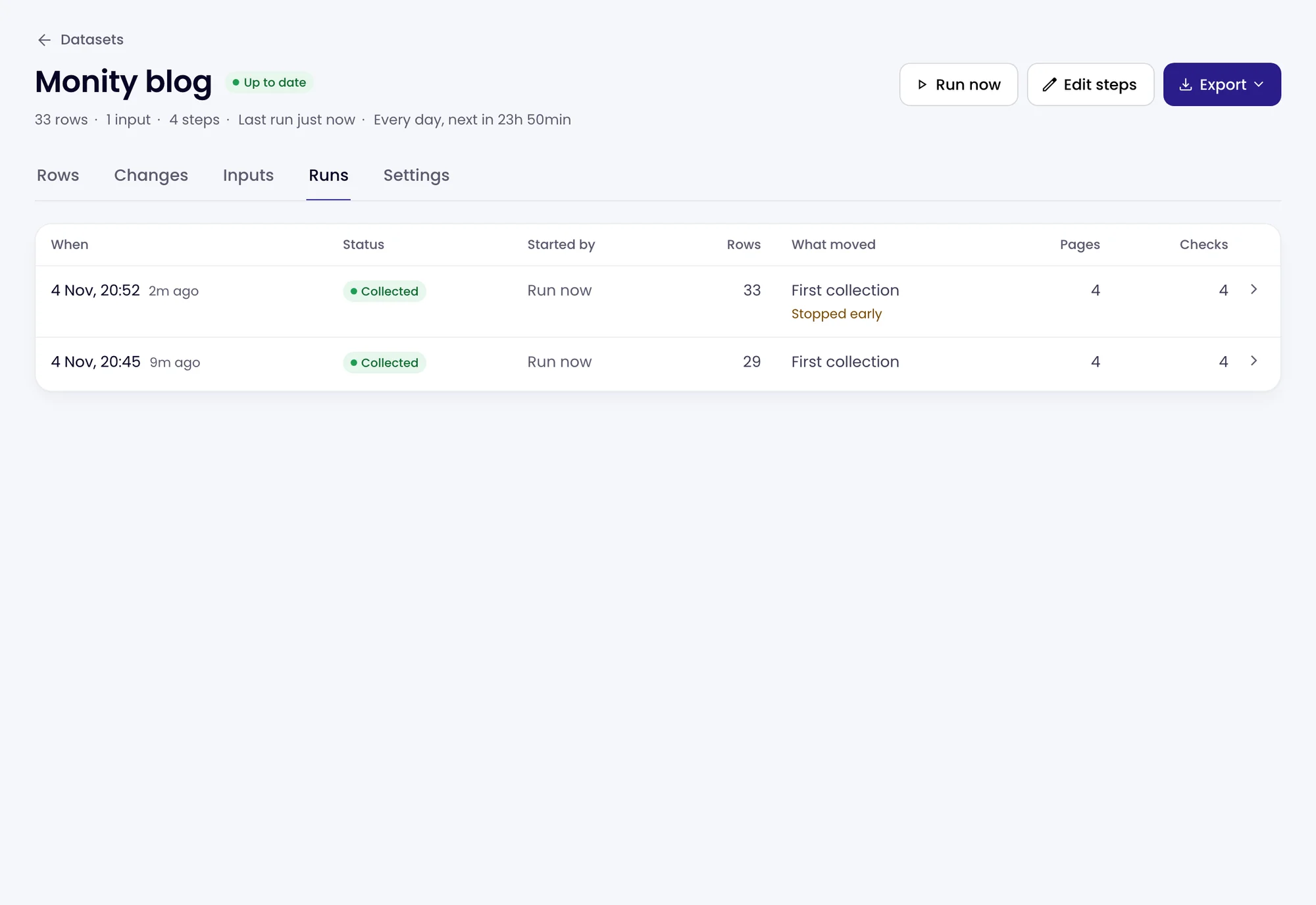
A run’s record
Click a run to open its record. The top says when it started, how long it took, its rows, the credits it used and where it ran. Rows as CSV downloads that run’s rows.
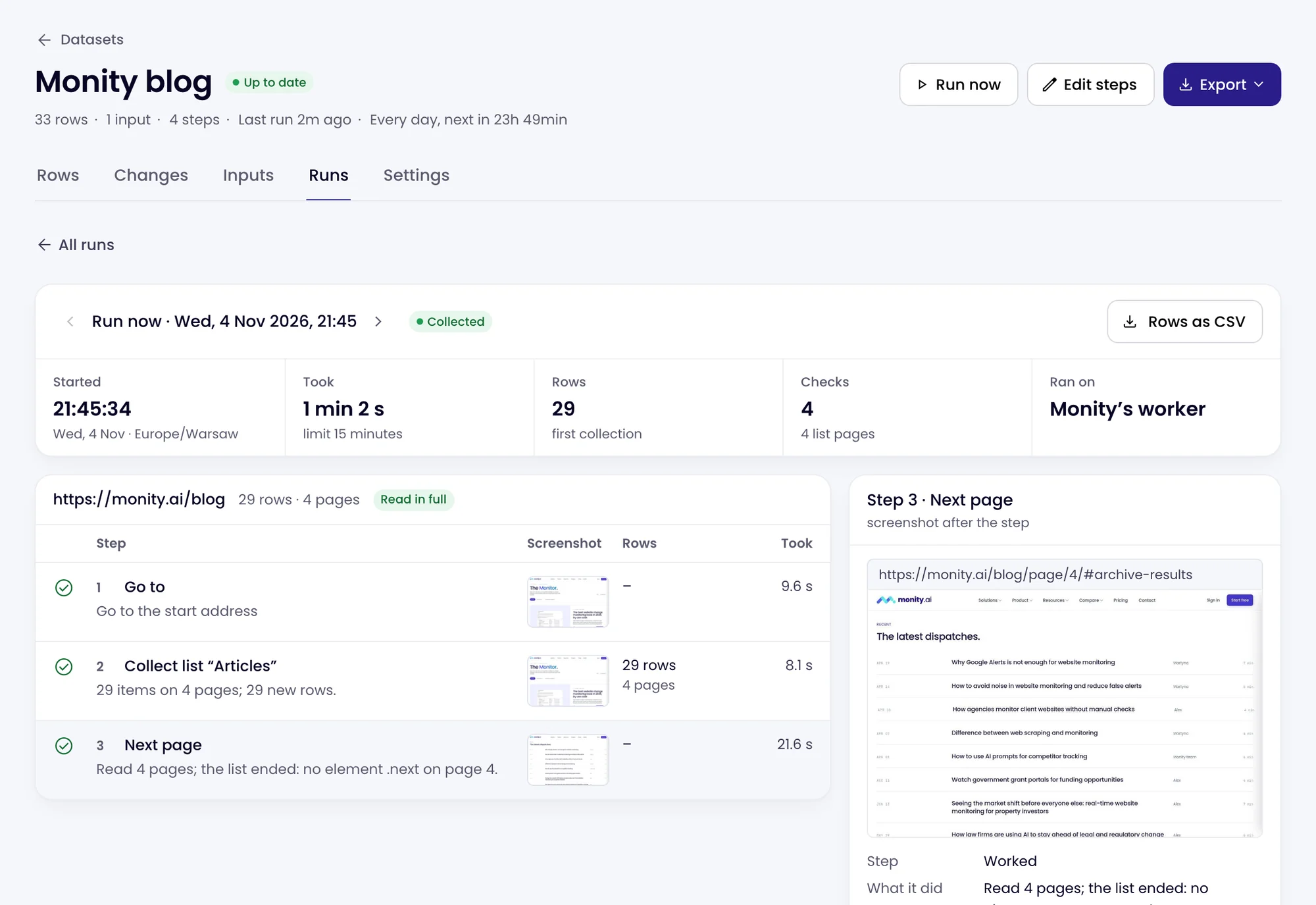
Below, for each input, every step with what it did, its rows, how long it took and a screenshot after it. A step says Worked, Worked, with a warning, Worked, after finding its element another way, Failed (with the problem) or Did not run. Edit this step opens it in the editor.
An input is Read in full when its lists really ended, or Stopped early when a limit, an error or a page that changed stopped it; then none of its rows are counted as gone. A run you start with Run now keeps a screenshot after every step; a scheduled run keeps them for failed steps and list pages.
Run now and Stop
Run now, at the top of the page, collects the dataset at once, outside its schedule. While a run goes, the status says Starting, Collecting or Comparing, and Stop ends it.