See what changed
Every check is kept. Open a task to see its history, then open a check to compare it with the one before, read the AI summary and go through each change.
A task’s history
In Tasks, click a task’s row. The panel that opens starts with the latest check, a chart of the last 30 days (checks, alerts sent and failed checks) and the task’s Recent alerts. Under them, Last checks lists every check, newest first, with what it found, how much changed, when and its status. A run of checks that found no change is folded into one line; click it to open the run.
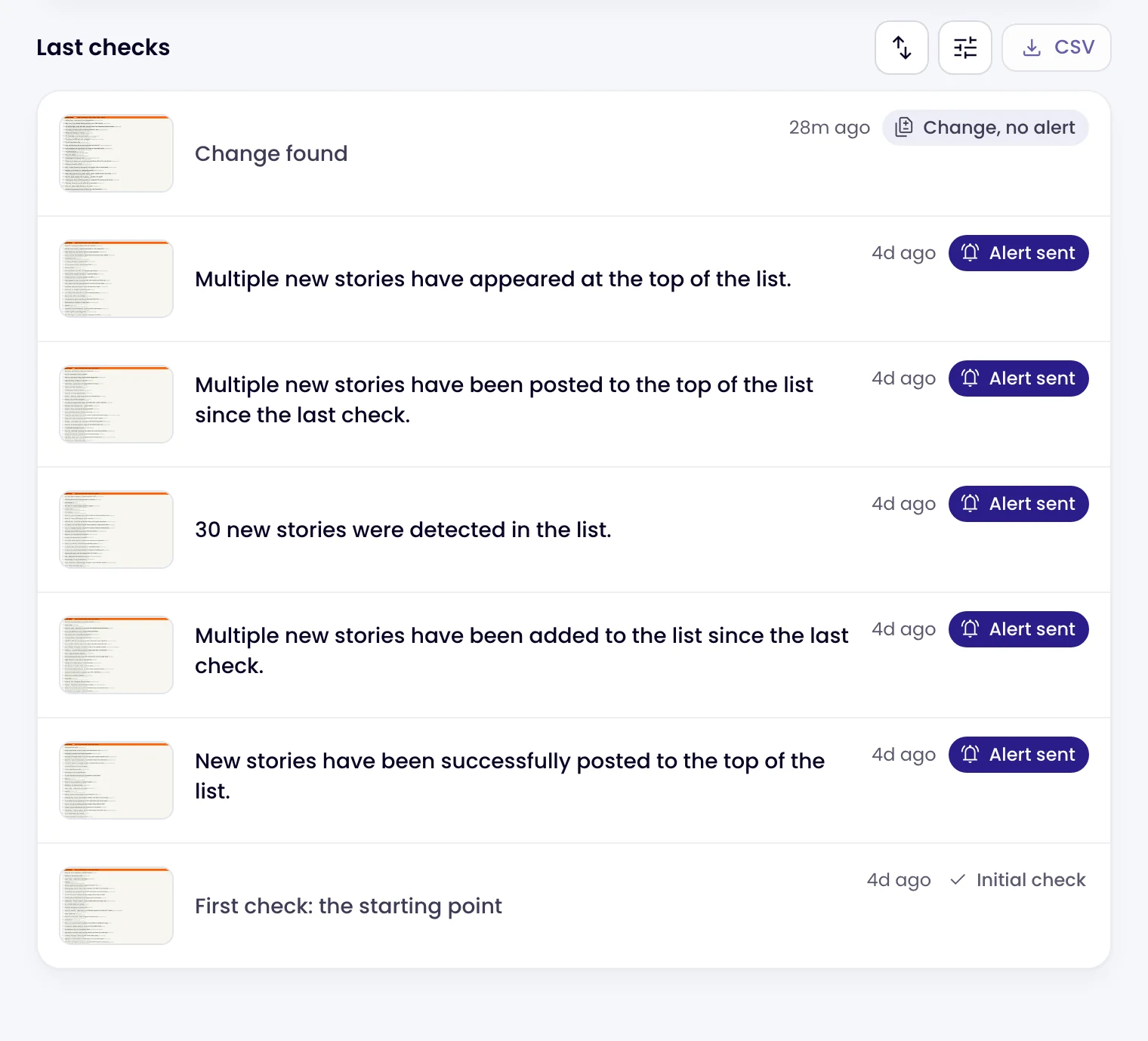
| Status | Meaning |
|---|---|
| Initial check | The first check, which records how the page looked when the task started. |
| Change, no alert | Something changed, but it didn’t meet the threshold or your Notify me when rule, so no alert went out. |
| Alert sent | The change met the task’s criteria and alerts went out. |
Use the sort and filter buttons above the list to narrow it, or CSV to download it. Changes your team flagged show their flag and comment count; hover over a change to flag or hide it from the row. Once something is flagged or hidden, filters for Flagged, each flag and Hidden appear above the list.
Open a check
Click a check to open it.
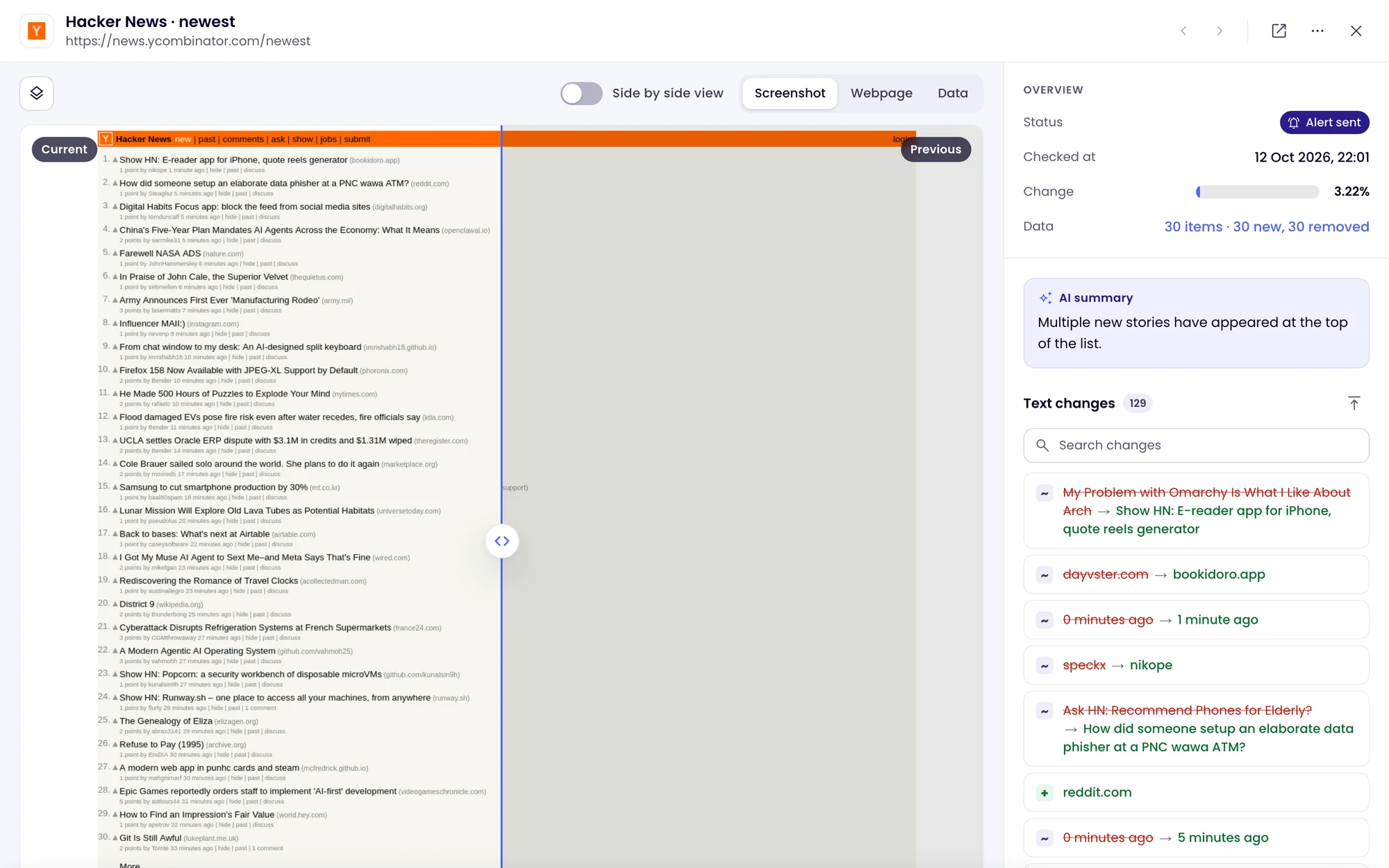
| Part | What it shows |
|---|---|
| Slider | The current screenshot and the previous one, with their dates. Drag the line to compare. Changed areas are highlighted; turn the highlight on or off with the overlay button. |
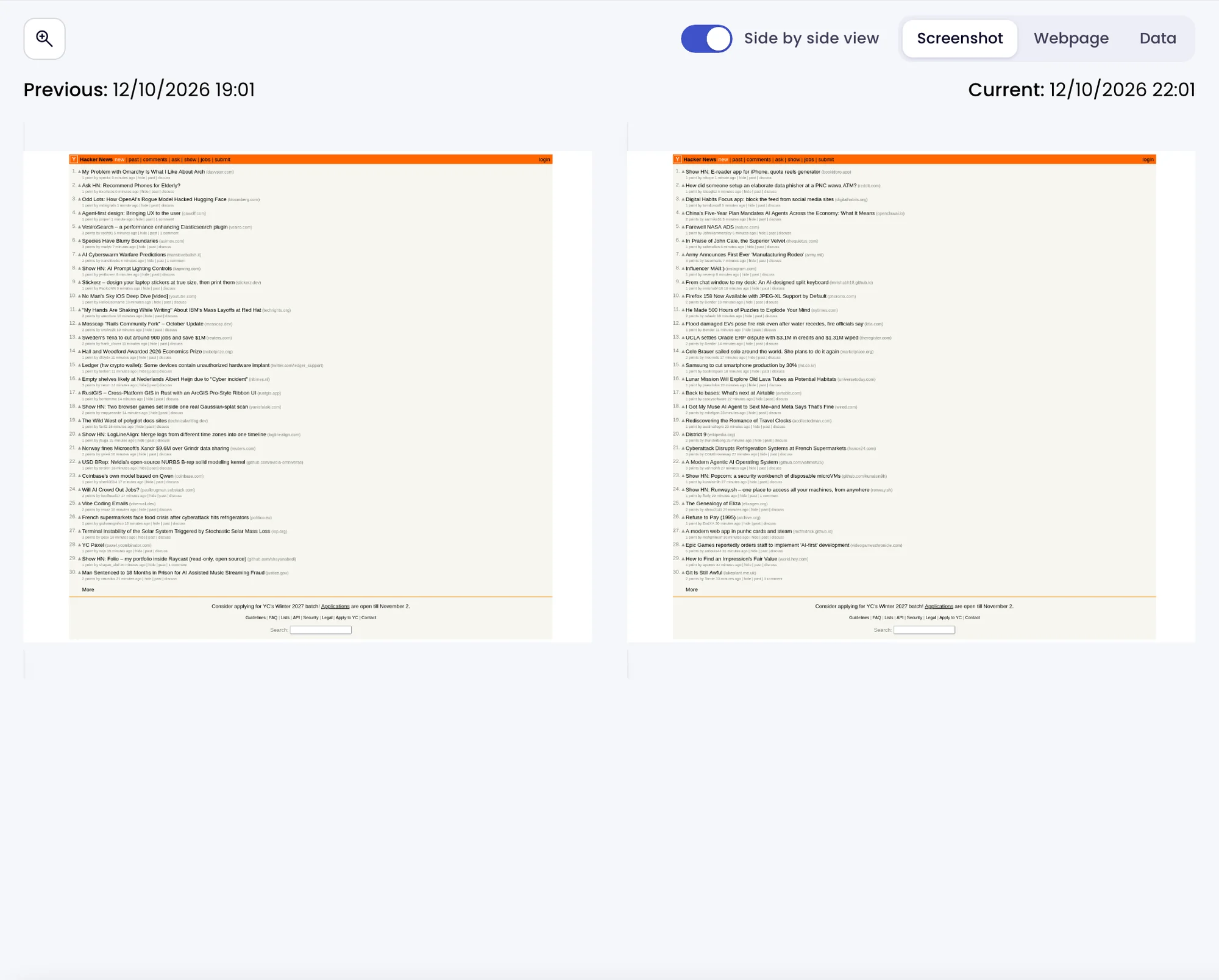
| Side by side view | The previous and current screenshots next to each other, with their dates. |
| Zoom | On the screenshot, click the page to magnify it. |
| Screenshot / Webpage | Switch between the screenshot and a saved copy of the page as it was. |
| Skills | What the task’s skills found on this check, when it has skills. |
| Data | The items and values the check read, with what was added and removed. See Extract data and alert on conditions. |
| Overview | When it ran, its status and how much changed. |
| AI summary | What changed, in plain words. |
| Text changes | Every text change, old struck through and new beside it. Search to find one. |
| Flag and Hide | In the header, on a change: flag it for your team, or hide it from the lists and reports. |
| Activity | Your team’s comments on this check, with replies and @mentions, and who flagged or hid it. See Review changes with your team. |
Next check and Previous check at the top step through the task’s checks. PDF checks also have a PDF Diff view.
Share a check
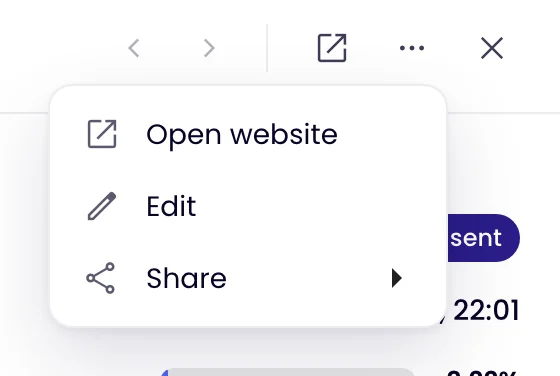
Open More options (the three dots at the top) to open the website, edit the task, or Share a link to this check by copying it or sending it by email or SMS. People outside your account can only open the link if Public checks is on in your Profile’s Preferences (click your avatar at the top right, then Profile).