
Review changes with your team: flags, comments and mentions
Review changes with your team in the check itself: flag a change so everyone knows where it stands, hide the noise so it drops out of reports, and discuss any check in comments, with replies and @mentions that tell the right person.
Everything here happens in the check view. Open a check from a task’s Last checks, from the Feed or from an alert. See See what changed for the rest of the check view.
Flag a change
A flag says what a change means for your team. Each change has at most one flag, and everyone on the account sees it.
-
Open the flag menu
In the check view’s header, click Flag. Once a change is flagged, the button shows the flag’s name instead.

-
Pick a flag
Choose one of the five flags. Remove flag takes it off again.
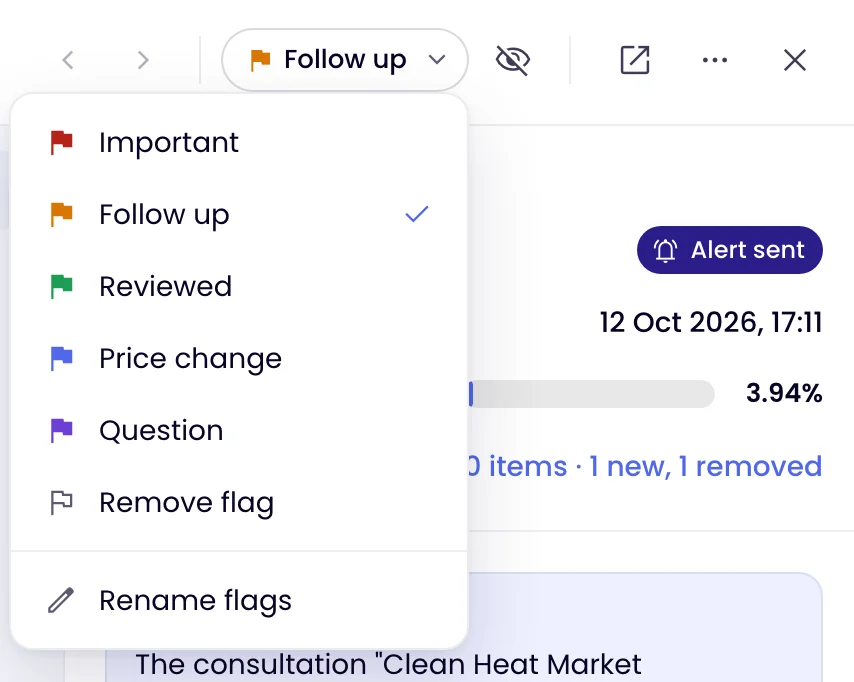
| Colour | Default name |
|---|---|
| Red | Important |
| Amber | Follow up |
| Green | Reviewed |
| Blue | Price change |
| Violet | Question |
Admins can rename the flags for the whole account with Rename flags at the bottom of the menu, up to 24 characters each. An empty name puts the default back. Everyone then sees the new names in the menu, the filters, the history and reports.
You can also flag a change straight from a list: hover over a change in a task’s Last checks or in the Feed and click the flag icon on its row.
Hide a change that is only noise
Click the eye icon next to the flag (Hide from the lists and reports). A hidden change is never deleted. It stays in the task’s history and in the Feed as one quiet line that says who hid it, with Unhide. It no longer counts as unread or appears in Recent alerts, and it is left out of reports and exports, including a checks report’s totals.
Only changes take a flag or can be hidden: a check that found a change or sent an alert. Uptime and browser test alerts are incidents and have their own pages.
Discuss a check
Under the AI summary, the Activity panel holds the team’s comments and the history of who flagged, unflagged, hid or unhid the change, in one thread. You can comment on any finished check, also one that found nothing or failed, which is useful when you expected an alert that didn’t come.
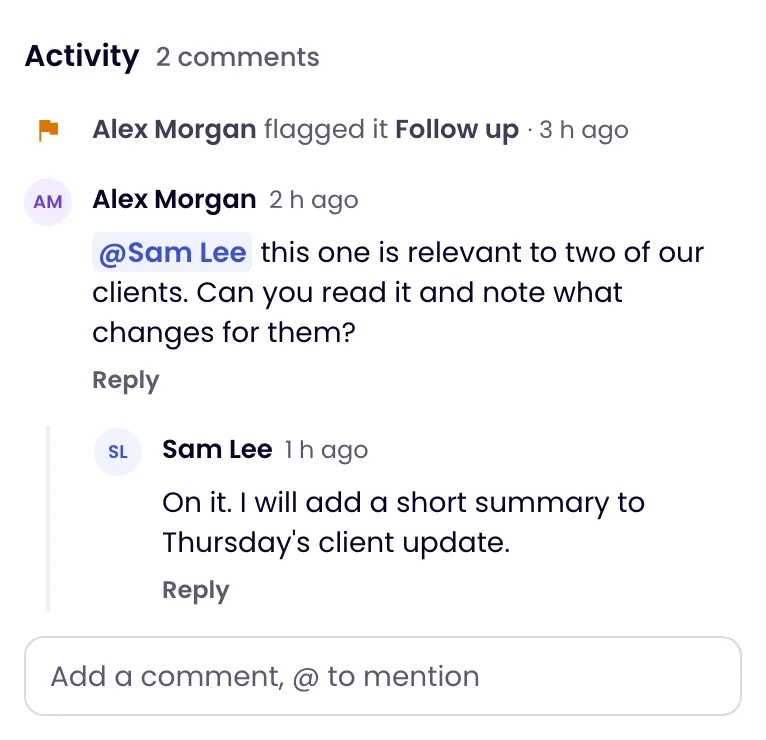
- Comment: type in the box under the thread and click Comment, or press ⌘ Enter (Ctrl Enter on Windows). Enter starts a new line. A comment can be up to 2,000 characters; links become clickable.
- Reply: click Reply under a comment. Replies stay in that comment’s thread.
- Edit or delete: hover over your own comment and use the pencil or the bin. An edited comment says “edited”. A deleted comment that has replies stays as “This comment was deleted” so the replies keep their place.
Mention a teammate
Type @ in the comment box, or click the @ button, and pick a person from the list. It shows the people on the task with their role, filtered as you type. The person becomes a chip in the comment, so it is clear who will be told.
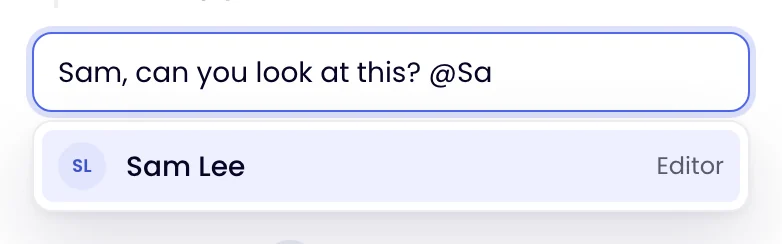
The people on a task are the account’s admins and the members of the task’s workspace. Only they can read and join its discussion, and only they can be mentioned. To add someone, an admin adds them to the workspace on the Users page. See Invite people to a workspace.
Who is told
When someone mentions you, or replies to your comment or to a thread you started, Monity emails you about two minutes later. The email quotes the latest comments and has one button that opens the check at the comment. Nothing is sent if you have already seen the comment in Monity, if it was deleted meanwhile, or if you muted notifications. Several comments on one check close together arrive as one email.
To stop these emails, click your avatar, choose Profile and switch off Mentions and replies by email under Preferences. It is saved at once.

Find flagged and hidden changes
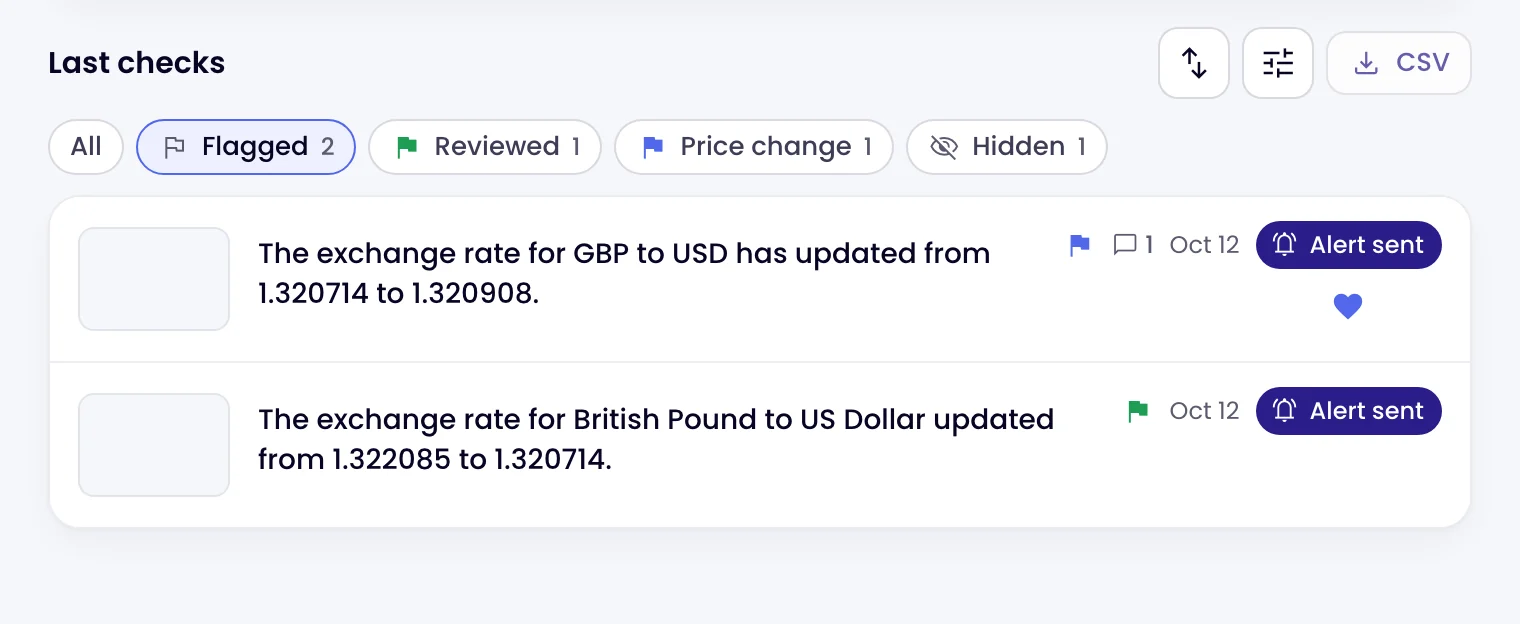
Once something is flagged or hidden, a row of filters appears above a task’s Last checks and at the top of the Feed: All, Flagged, each flag in use and Hidden, each with a count. Click one to show only those changes; click it again to go back to All. With a filter on, the Feed also lists changes you have already read.
Flags and comments in reports
Reports and exports show each change’s flag: a Flag column in CSV and Excel, and a coloured tag beside the status in the PDF. Comments are left out unless you tick Include your team’s comments when you create a checks report, because reports are often sent to clients. Mentions appear as names, never email addresses. See Change many tasks at once for creating a report.
Who can do what
| Role | Can |
|---|---|
| Guest | Read everything, comment, reply and mention. |
| Editor | All of that, plus flag and hide changes. |
| Admin | All of that, plus rename the flags and delete anyone’s comment. |
Everyone edits and deletes only their own comments; an admin can delete a comment but never edit someone else’s. On an account with one person, the Activity panel works as a place for your own notes.
You can also ask Monity AI how flags, hiding and mentions work.