
Test runs and failures: find why a test failed
Every run keeps what you need to tell why a test failed: the step that failed, what it expected and what it found, a likely cause, a screenshot of each step, and the console errors and failed requests from the page. This page shows where to find them and how to go from a failure to a fix.
Open a run
- From an alert: every test alert links to the run that failed.
- From the Tests page: click a failing test’s name in the red callout, a bar in its Last 20 runs, or the time under Last run.
- From a test’s page: click a bar in History, a point on the Duration chart, or a row under Runs.
Why it failed
A failed run starts with a red callout: Failed at step 4 and the step’s sentence, then the error in plain words.
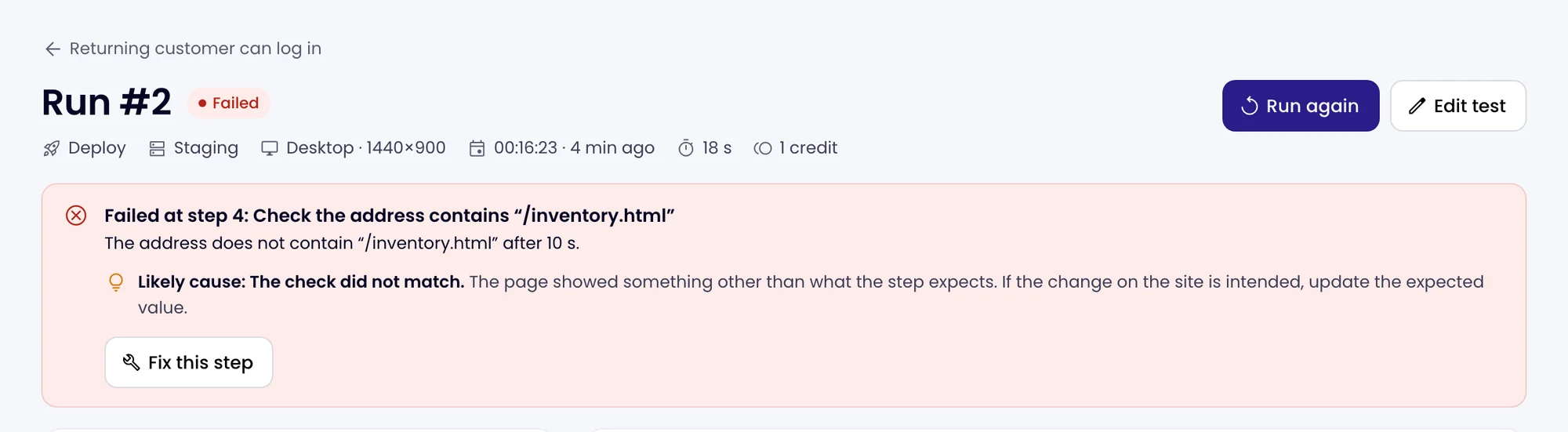
- Expected and Found say what the step was looking for and what was there instead: the text it wanted and the text on the page, the address it wanted and the address the page was on, or the buttons that were on the page when the one it looked for was not.
- Likely cause sorts the failure into one of a few kinds, such as Not found, The check did not match, Something was in the way, The page did not load, It took too long or The page reported errors, with what usually explains it.
- Fix this step opens the editor with that step open. When the test has passed before, Compare with the last passing run shows this run’s screenshot of the step beside the same step from the last run that passed, side by side or with a slider.
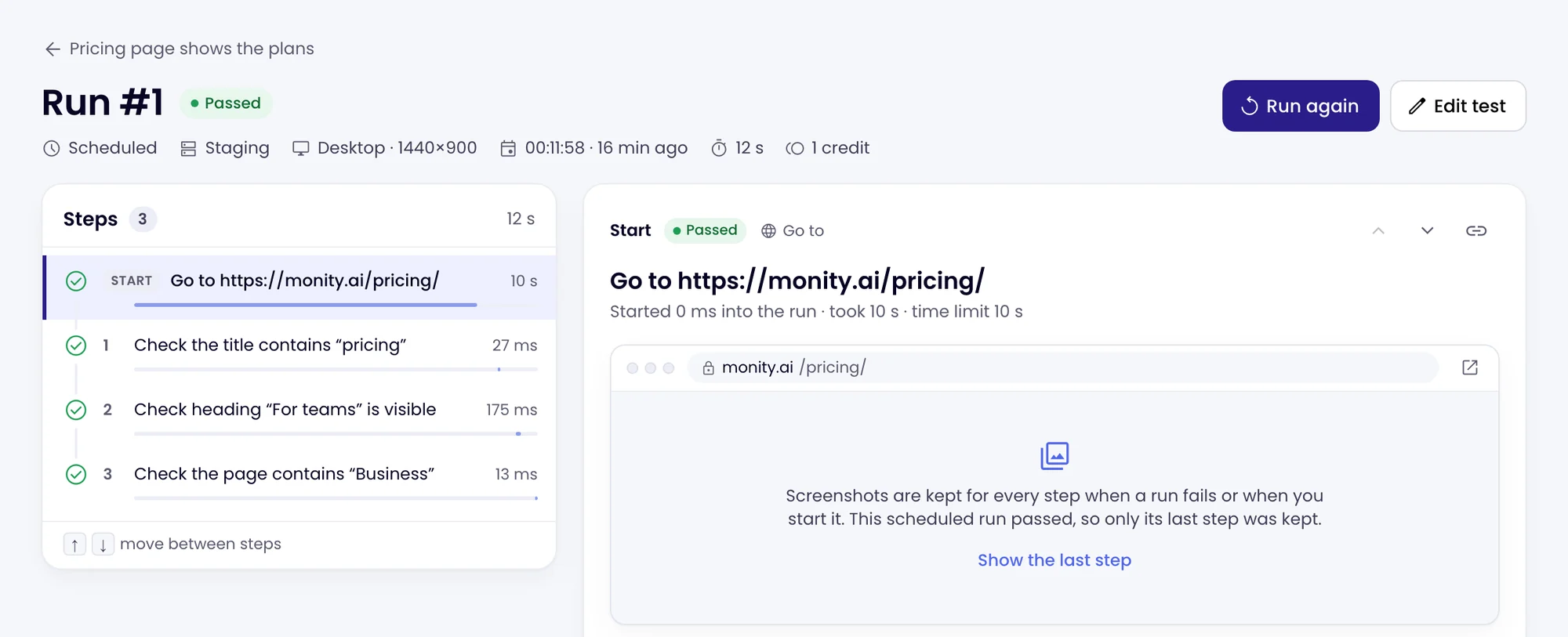
The line under the title says what started the run (Scheduled, Manual, Deploy, Editor, API or a retry), the environment, the screen size, when it started, how long it took, the credits it used and who started it.
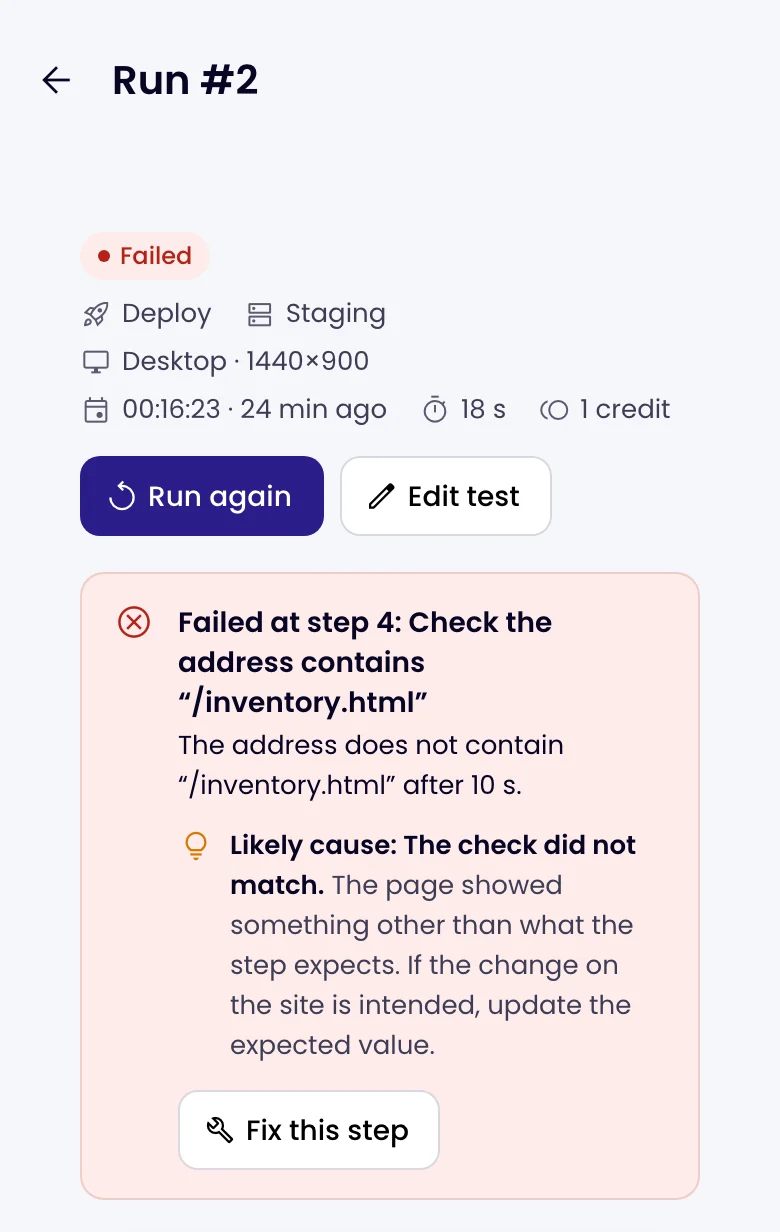
Runs open the same way on a phone, from the alert or the app, with the callout first.
Step by step
Below the callout, the steps are on the left with their result and how long each took; the selected step is on the right with its screenshot. Click a step, or use the ↑ and ↓ keys, to move through the run.
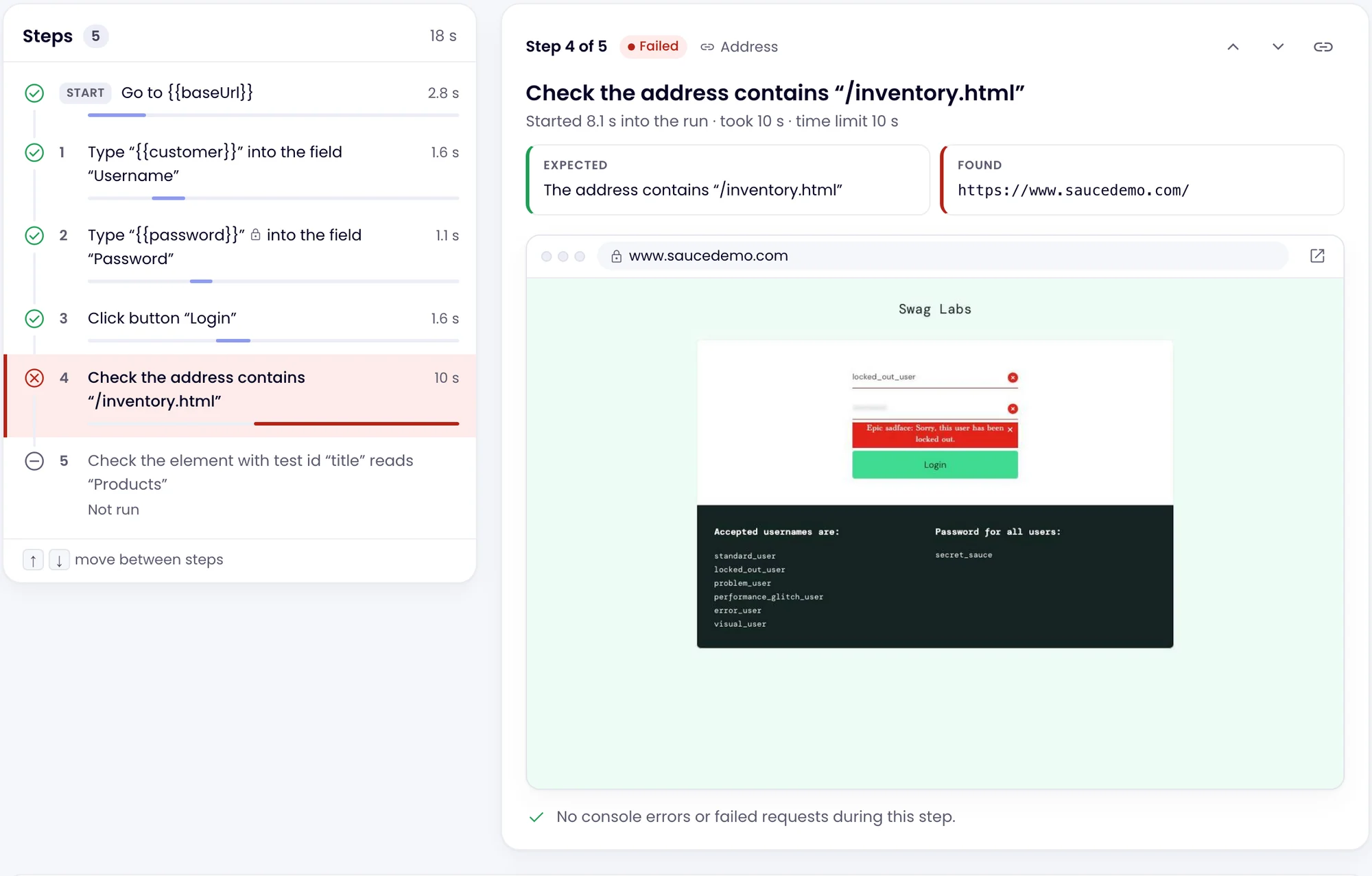
- A step is Passed, Failed, Warning (set to only warn), Passed after a repair (it found its element with a fallback) or Not run (a step after the one that failed).
- The screenshot shows the page as the step left it, with its address above. Click Zoom to see it larger. A typed secret is blurred.
- Console during this step and Failed requests during this step list what the page reported while the step ran.
- The link button copies a link to the step, to share in a ticket or a chat.
Console, network and saved values
At the bottom of the run, three tabs cover the whole run, with a link to the full log:
- Console: errors and warnings the pages logged, each with the step that was running.
- Network: requests that failed, with their method, status and step.
- Variables: the values Save a value steps kept, such as an order number. Secrets are never shown.
- Full log (JSON): every request with its timings and the full console, for a developer.

Retries
When a run fails and the test retries, Monity runs it again at once. The first run’s page says Monity ran it again, with the retry’s result and a link to it; Other attempts under the title links the attempts to each other. Only the last attempt counts towards the test’s status and alerts, so a failure that passes on retry does not alert you.
Scheduled runs keep less
To keep tests fast and light, a scheduled run that passes keeps only its last step’s screenshot, and no full log. A failed scheduled run keeps everything, and so does every run you start: Run now, the editor, deploy triggers and the API. Scheduled runs also report only when they finish, so while one is running its page says Results when it finishes instead of following each step.
When Monity could not run the test
If the test browser had a problem, for example the page could not be opened at all, the run is marked Could not run with a yellow callout, Monity could not run this test. It is not your site’s fault: the run is free, does not change the test’s status and sends no alert. If it happens 3 times in a row, the test says so and the Monity team is told.
A run’s credits
The run’s line shows what it used: 1 credit for a run of up to a minute, 1 more for each further started minute of its steps, and 1 for each Check with AI step answered. Hover over it for the breakdown. Free means it used none: Monity could not complete it, or it was stopped before a step ran.
How long runs are kept
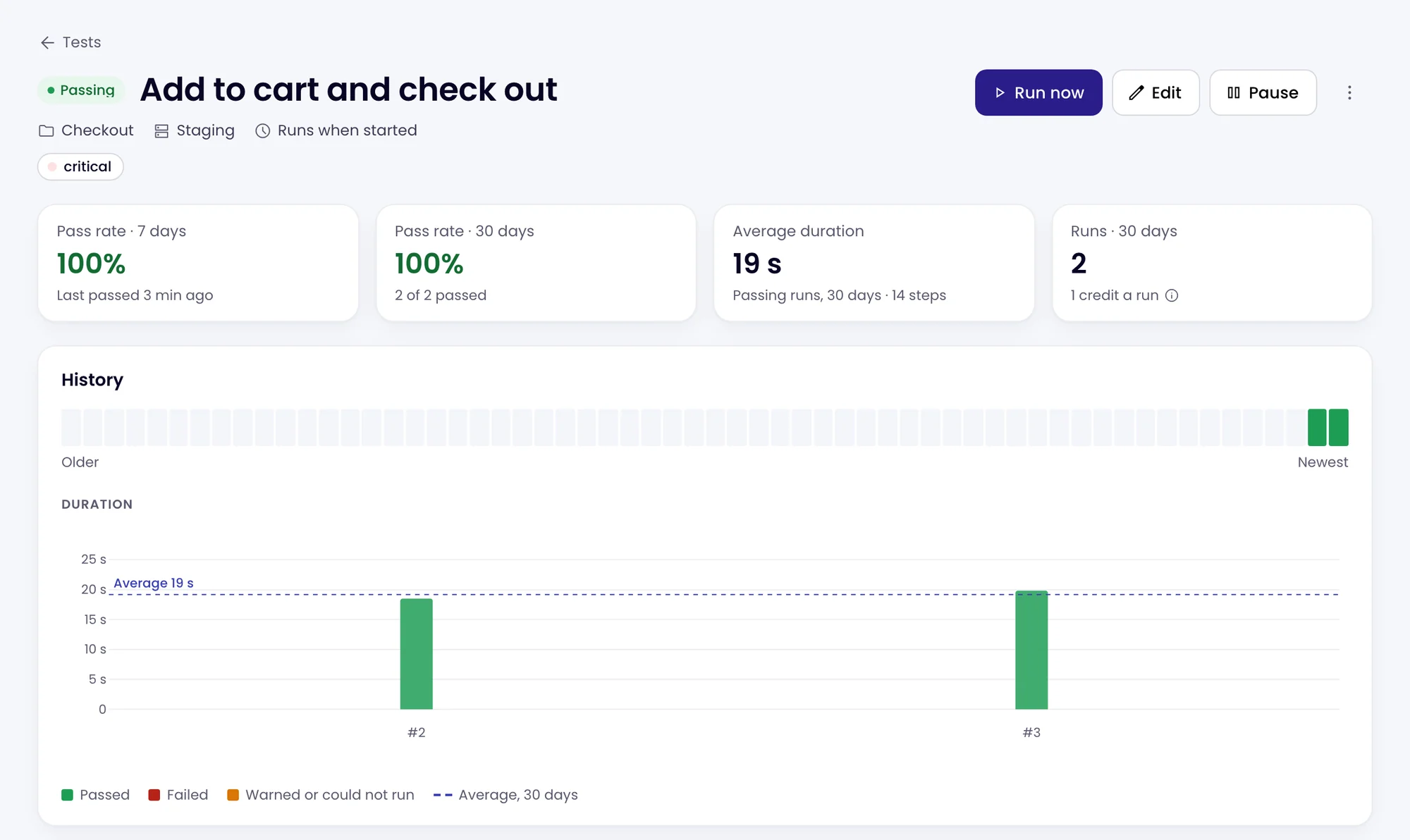
Runs that passed are kept for 30 days and runs that failed for 90 days, with their screenshots. The test’s page shows the last 60 runs as bars, the pass rate over 7 and 30 days, and the average duration of passing runs over 30 days.
While a run is going, its page shows each step as it runs and a Stop button. A stopped run is marked Stopped; it does not retry or alert, and if it was stopped before its first step it is free.