
Test environments, variables and secrets
An environment is where your tests run, such as staging or production, and the values their steps use there: a base URL, test account names, passwords. Write a test once with {{baseUrl}} and {{password}}, and the environment fills them in.
Add an environment
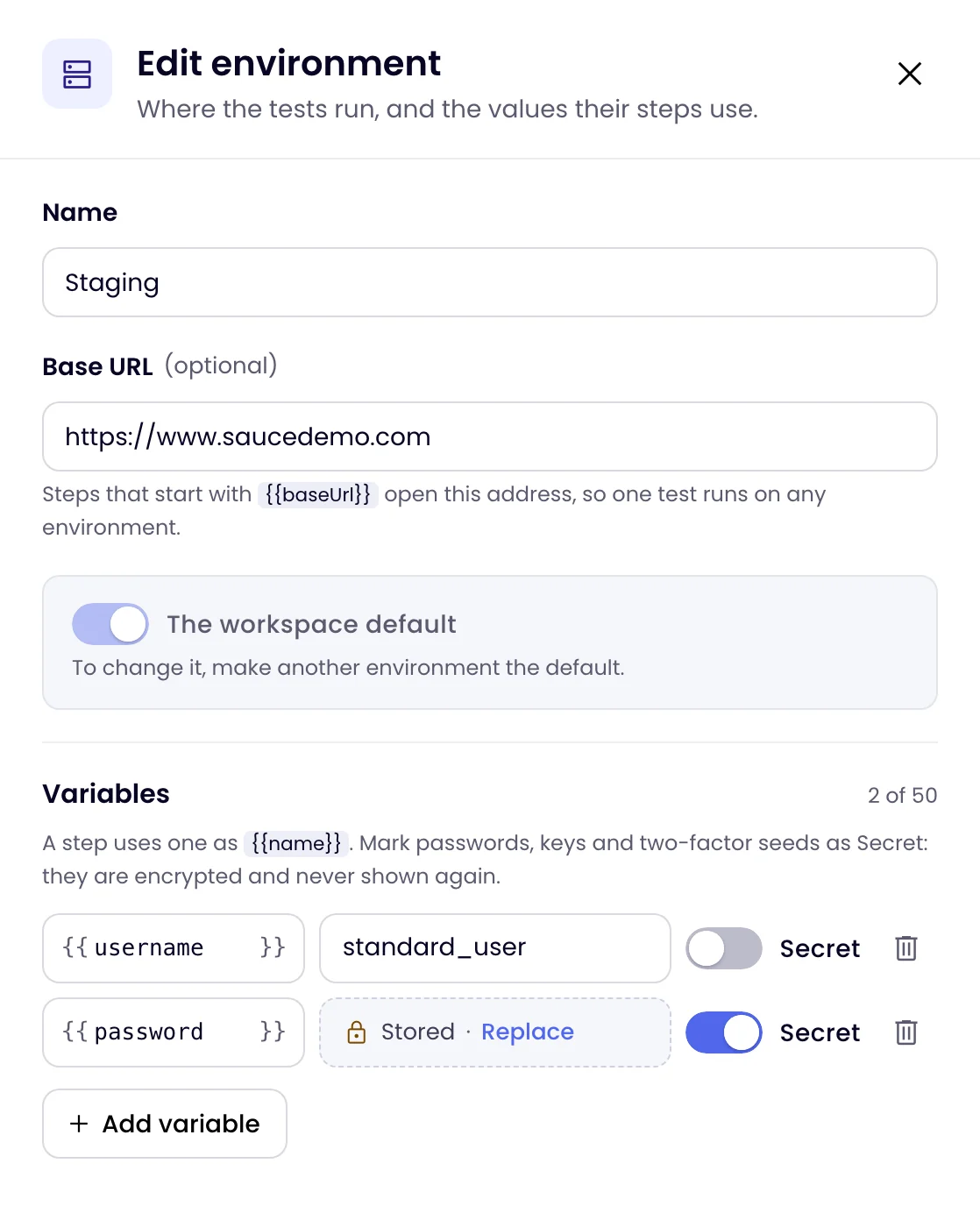
- On the Tests page, click Environments at the top right, then New environment.
- Enter a Name, such as Staging or Production.
- Enter the Base URL, for example
https://staging.example.com. Steps that start with{{baseUrl}}, and start addresses that are only a path such as/login, open this address. - Under Variables, click Add variable for each value your steps need: a name (letters, digits and
_, starting with a letter) and its value. - Turn on Secret for passwords, API keys and two-factor seeds.
- Click Add environment.
Secrets are write-only
A secret is stored encrypted. Once saved, it shows as Stored with a lock, and nobody can read it back, not even an admin. Click Replace to type a new value, or Keep the stored value to change your mind.
When a step types a secret variable, Monity treats it as secret: the value shows as •••• in results, logs and alerts, and the field is blurred in screenshots. The step’s sentence names the variable, such as {{password}}, with a lock.
The environments page
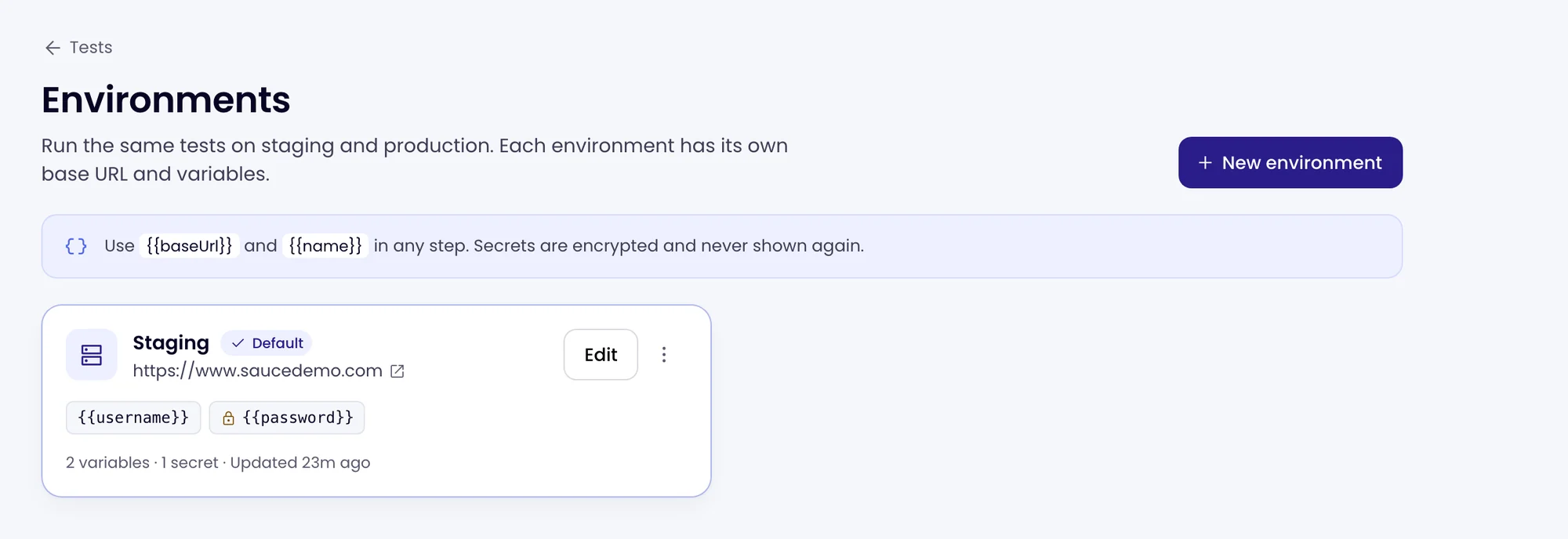
Each card shows the environment’s base URL and variables; secrets show only their name and a lock. The ⋮ menu has Edit, Make default and Delete.
The default environment
One environment in each workspace is The workspace default; the first one you add is. Tests run on it unless the test or its folder chooses another. To change it, make another environment the default. If you delete an environment a test uses, that test runs on the default instead.
Choose the environment for a test
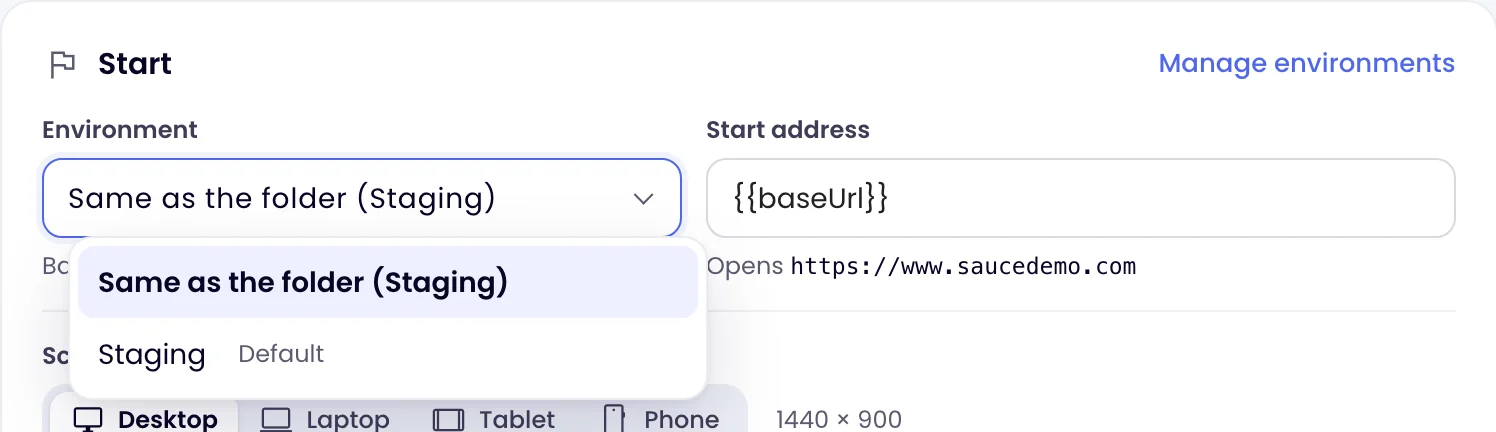
In the editor’s Start card, pick the Environment. The line below shows its base URL. For a test in a folder that sets one, the first choice is Same as the folder. A folder can set the environment for all its tests, and a deploy trigger can run a test on another environment with ?environment=Production.
Where a variable’s value comes from
When a step uses {{name}}, the run looks in this order and takes the first value it finds:
- Values saved earlier in the same run by Save a value or Set a variable steps.
- The test’s own variables, in the editor’s Variables card.
- The environment’s variables.
- The built-in values, such as
{{baseUrl}}and{{random.email}}(see Write a browser test).
So a test can override one environment value for itself. Keep secrets in environments rather than in a test’s variables, which are not encrypted.
Log in with two-factor authentication
For a test account protected by an authenticator app, Monity can type the current code:
- When you set up two-factor authentication for the test account, copy the secret key the site shows (often under “Can’t scan the QR code?”). The whole
otpauth://link also works. - Add it to the environment as a variable, for example
shopTotp, and turn on Secret. - In the test, add a Type step into the code field with the value
{{totp.shopTotp}}.
Each time the step runs, Monity works out the code that is valid at that moment, as the app on your phone would: six digits every 30 seconds by default, or the digits, period and algorithm an otpauth:// link sets.
Give tests their own account on your site, with no real customer data and no admin rights. Everyone in the workspace can open a run and see what the test saw on each page.