
Browser tests: test sign-up, login and checkout in a real browser
A browser test walks through a journey on your site the way a customer does: open the page, log in, add to the basket, check out. Monity runs it in a real browser on a schedule, after a deploy or when you click Run now, and alerts you when a step stops working, with a screenshot of the step that failed.
Page monitoring tells you when a page changes. A browser test tells you when something breaks: the login button does nothing, the checkout never reaches the thank-you page, the search shows no results. Every step passes or fails on an exact check, so a failed run is a clear yes or no, not a change to review.
Find your tests
Open Tests in the left sidebar, under Site health, next to Uptime. A red number beside it counts the failing tests. Tests never appear in the Tasks list, so a team with hundreds of tests still sees its page monitors on their own.
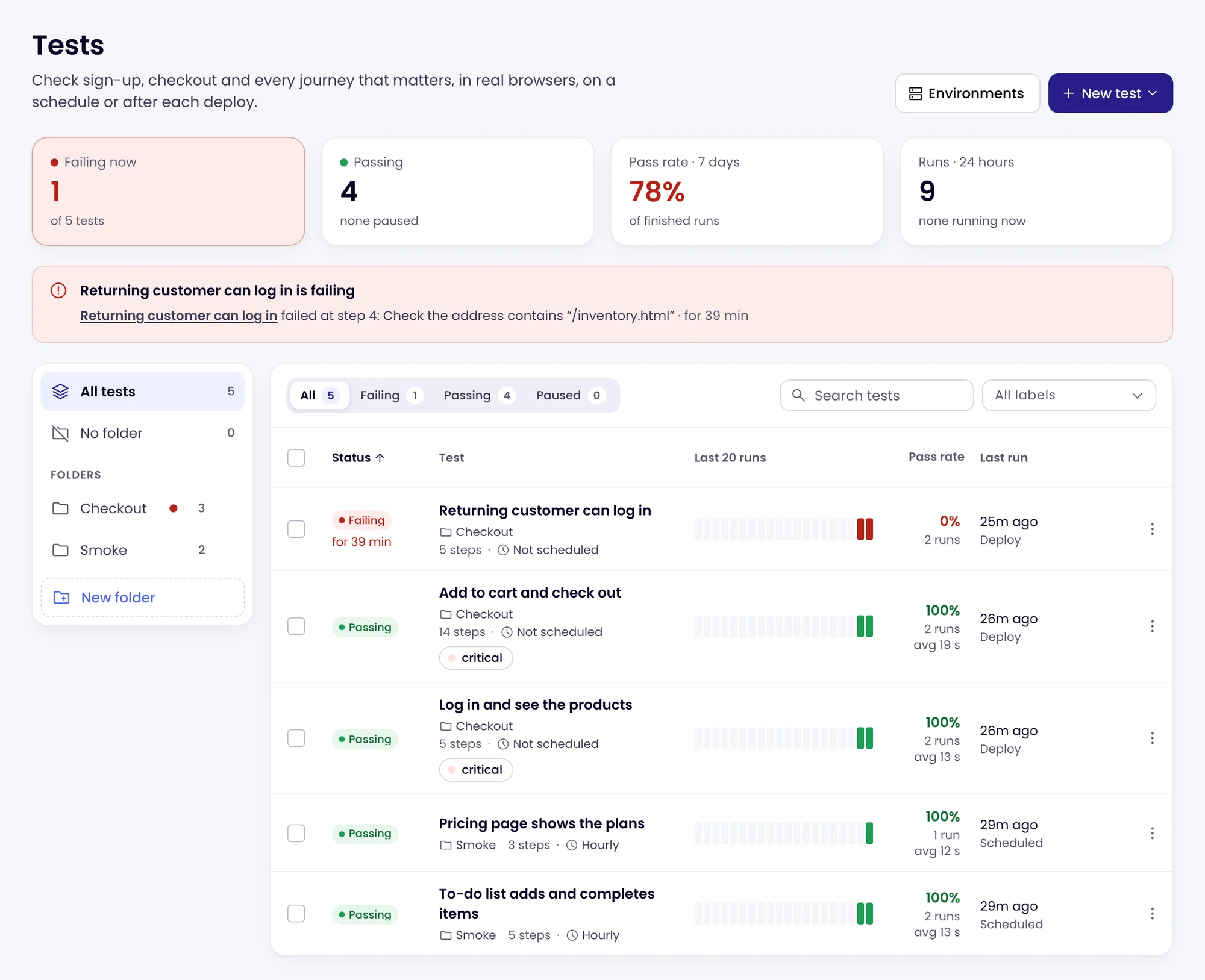
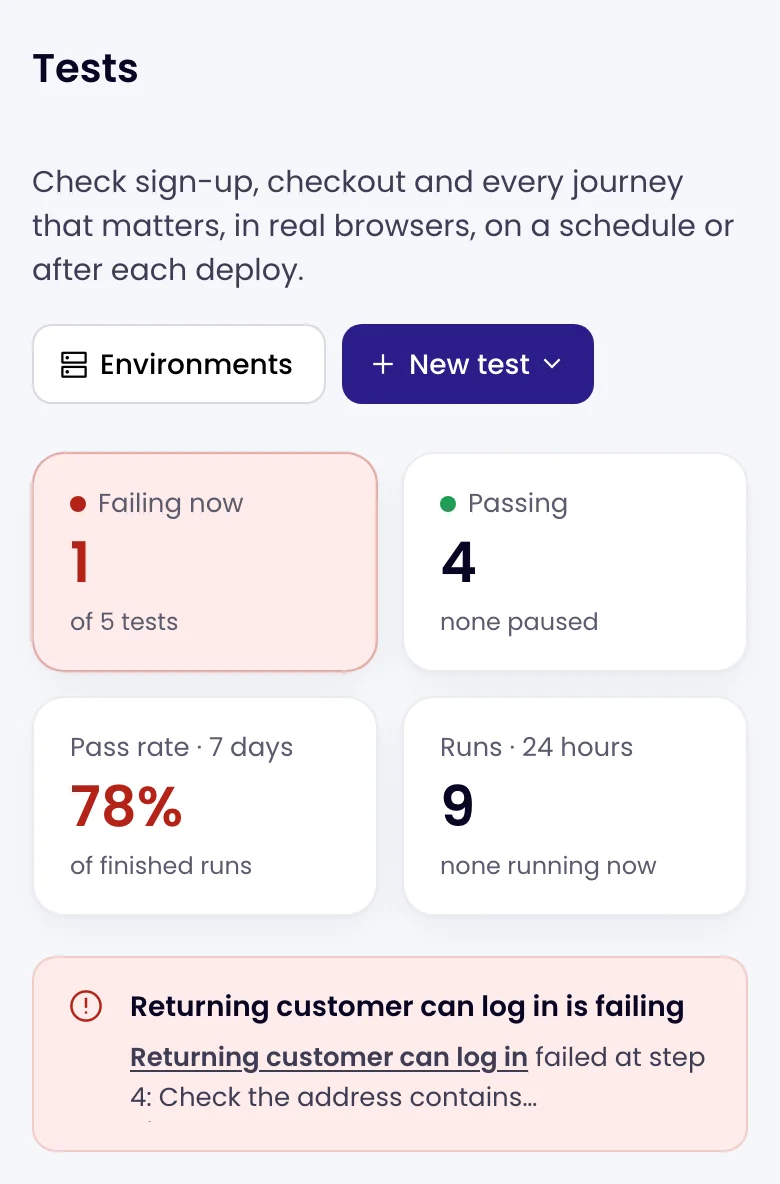
- The summary cards: Failing now, Passing, the Pass rate · 7 days of finished runs and the Runs · 24 hours.
- The red callout names every failing test, the step it fails at and for how long. Click a test’s name to open its failed run.
- Folders on the left: All tests, No folder and each folder with its count. A red dot means a test in it is failing. See Folders and deploy triggers.
- The list shows each test’s status, folder, number of steps, schedule, labels, its Last 20 runs as bars (green passed, red failed), Pass rate over 7 days with the average duration, and Last run with what started it. The play button runs it now; the ⋮ menu has Edit, Duplicate, Move to folder, Pause, Copy deploy trigger and Delete.
- Above the list, show All, Failing, Passing or Paused tests, search by name, folder or label, and filter by label. Tick tests to Run, Pause, Resume, Move to folder or Delete them together.
On a phone the summary cards sit two by two, and the folders are a menu above the list.
Write your first test
- On the Tests page, click New test and choose Blank test, or Write with AI to have the steps drafted from a sentence (see Write tests with AI). On an empty Tests page, the same choices are in the middle of the page, with three ideas to start from: log in, a contact form and search.
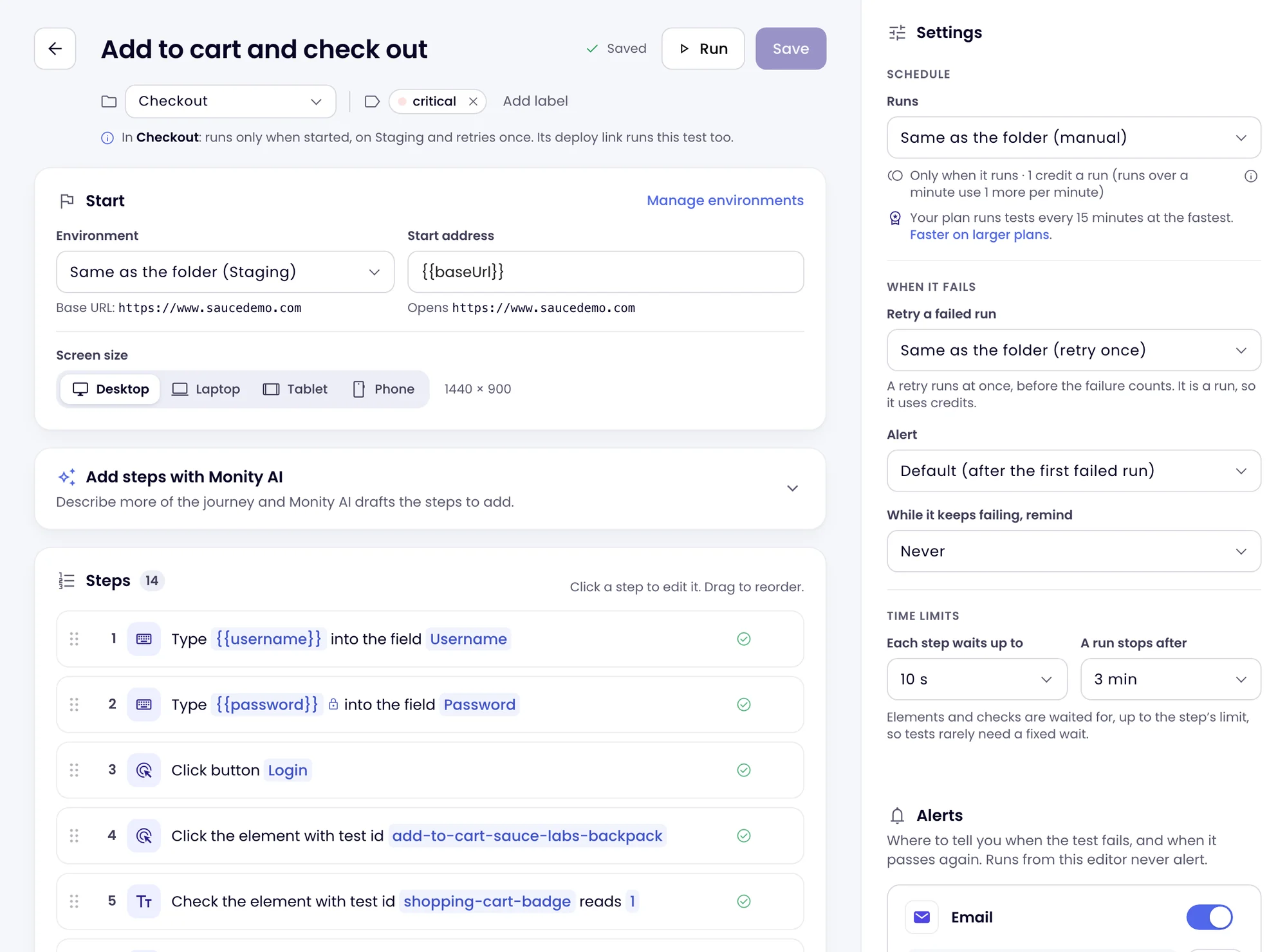
- Click Untitled test at the top and give the test a name that says what should work, such as “Add to cart and check out”.
- In Start, enter the Start address: the page the test opens first.
- Add the steps: what a person does (Click, Type, Choose an option…) and what should then be true (Text, Address, Element is visible…). Write a browser test explains every step.
- Click Run. The test runs in a real browser and the panel on the right ticks off each step with its time; Open full run shows a screenshot of every step. Runs from the editor never alert anyone.
- When it passes, click Create test. It now runs on its schedule, every hour unless you choose otherwise in Settings.
What happens in a run
Each run opens a fresh browser with no cookies or saved logins, at the screen size the test sets (desktop unless you choose laptop, tablet or phone). Then:
- The steps run in order. A step waits for its element to be there and ready, up to 10 seconds by default, so a slow page does not fail the test and you rarely need a fixed wait.
- A check (text, address, title, number of elements…) keeps checking until it matches or the step’s time runs out. The result says what was expected and what was found.
- When a step fails, the run stops there and the steps after it are marked Not run. A step can be set to carry on, or only to warn.
- Every step gets a screenshot (a scheduled run that passes keeps only its last), the console errors and failed requests are kept, and you can open the run to see exactly where it broke. See Test runs and failures.
- A failed run is run again at once before it counts (Retry once by default), so a one-off hiccup does not alert you.
A test’s status is that of its last counted run: Passing, Failing, Passing with warnings, Paused or Not run yet. A run Monity itself could not complete, for example because the test browser had a problem, is marked Could not run. It is free and does not change the test’s status.
When tests run
| How | What it does |
|---|---|
| Schedule | From every 5 minutes to every day, set in the test’s Settings under Runs, or by its folder. The fastest schedule is your plan’s fastest page check; faster ones show a lock. Choose Manual, or after a deploy for a test that should only run when started. |
| Run now | On the test’s page, its row in the list, or for a whole folder with Run all. It counts like a scheduled run, alerts included. |
| Deploy trigger | A URL your CI or deploy script calls after a release. It runs one test or a whole folder. See Folders and deploy triggers. |
| Run in the editor | Runs what is on screen, saved or not, to try your steps. It does not change the test’s status and never alerts. |
Pause stops a test’s schedule and its deploy trigger without deleting anything; Run now still works. Resume starts the schedule again.
Alerts
A failing test alerts through the same channels as your tasks: email (on by default), Slack, Microsoft Teams, Discord, Telegram, Google Sheets, webhooks and push. Choose them in the editor’s Alerts section.
- The alert names the test, the step that failed and why, for example: Step 6: Click button “Checkout” failed. Button “Checkout” is not on the page after 10 s. It links to the run.
- Alert sets how many failed runs in a row it takes: After the first failed run by default, or after 2, 3, 4, 5 or 10.
- While it keeps failing, remind sends a reminder every hour, every 4 hours or every day until it passes. Never by default.
- When it passes again, you get a “passing again” alert with how long it failed for.
Credits
Tests use the same credits as page checks:
- A run uses 1 credit for each started minute of its steps, counted from the first step’s start to the last step’s end. A run of up to a minute is 1 credit, like a page check; a run of 1 minute 20 seconds is 2.
- Each Check with AI step the model answers adds 1 credit.
- Retries and runs from the editor are runs, so they use credits. Runs Monity could not complete, and runs stopped before their first step, are free.
The Runs menu in the editor shows roughly what each schedule costs a month, and once a test has run, the line below it uses what its runs were really charged. When the workspace runs out of credits, scheduled runs are skipped and the test shows Not running: no credits left until there are credits again. See Credits and plans.
Each active test also counts as one task towards your plan’s task limit. A paused test does not.
Everyone in the workspace can see its tests and runs. Admins and editors create, edit, run, pause and delete them, and only they see deploy trigger URLs.