
Organisation and profile settings
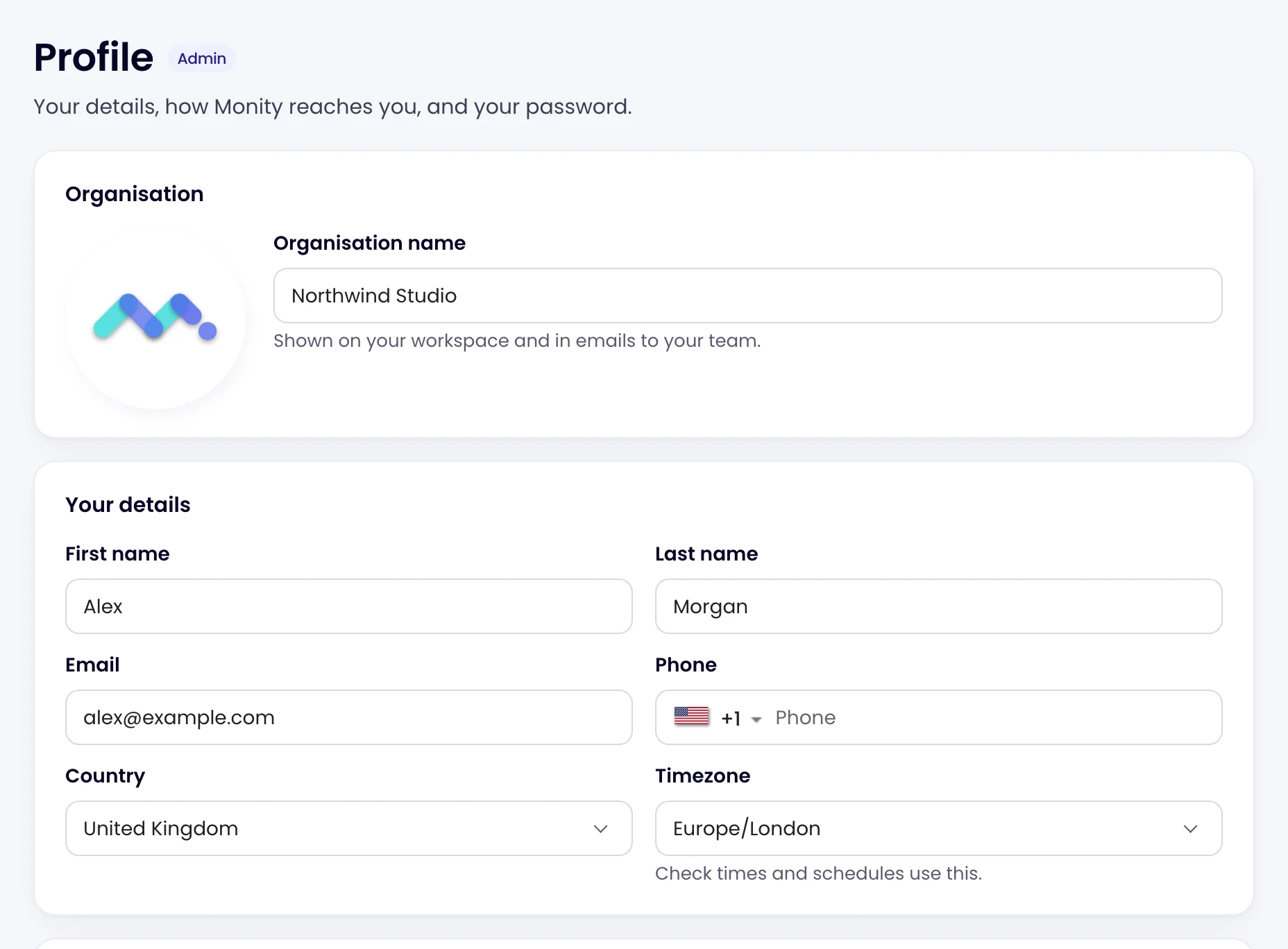
Your organisation name, your own details and a few preferences live on the Profile page.
-
Open your profile
Click your avatar at the top right and choose Profile.
-
Edit and save
Change the fields you need and click Update at the bottom of the page.
What each setting does
| Card | Setting | Used for |
|---|---|---|
| Organisation | Organisation name | The name of your account, shown on your workspace and in emails to your team. Only admins can change it. |
| Your details | First name, Last name, Email, Phone, Country | Who you are, and where alert emails reach you. |
| Your details | Timezone | Check times and schedules, such as “only check on weekdays between 9:00 and 18:00”. |
| Preferences | Public checks | Lets anyone with a check’s link open it without signing in, which is handy for sharing a change with someone outside your team. |
| Preferences | Mute notifications | Pauses the alerts sent to you; your tasks keep checking. See Mute alerts for yourself. |
| Preferences | Product news | An occasional email about what is new in Monity. Alerts and emails about your account come either way. |
Changing your email, phone or password opens a Confirm it’s you card that asks for your current password. See Change your email and Change your password.
Was this page helpful?