
Visual mode
Visual mode compares screenshots of the page and alerts you when it looks different. Use it for layout, imagery, banners and anything where appearance matters.
-
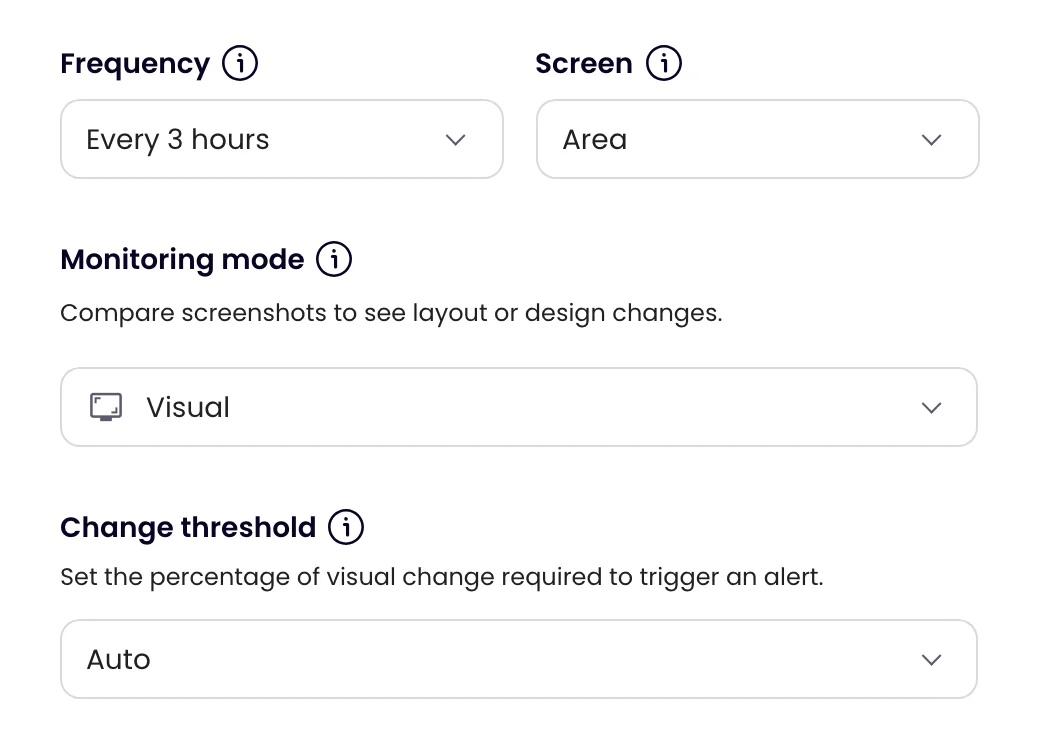
Choose Visual
On the task’s Settings tab, set Monitoring mode to Visual.
-
Choose what to capture
Use Screen to set how much of the page is compared.
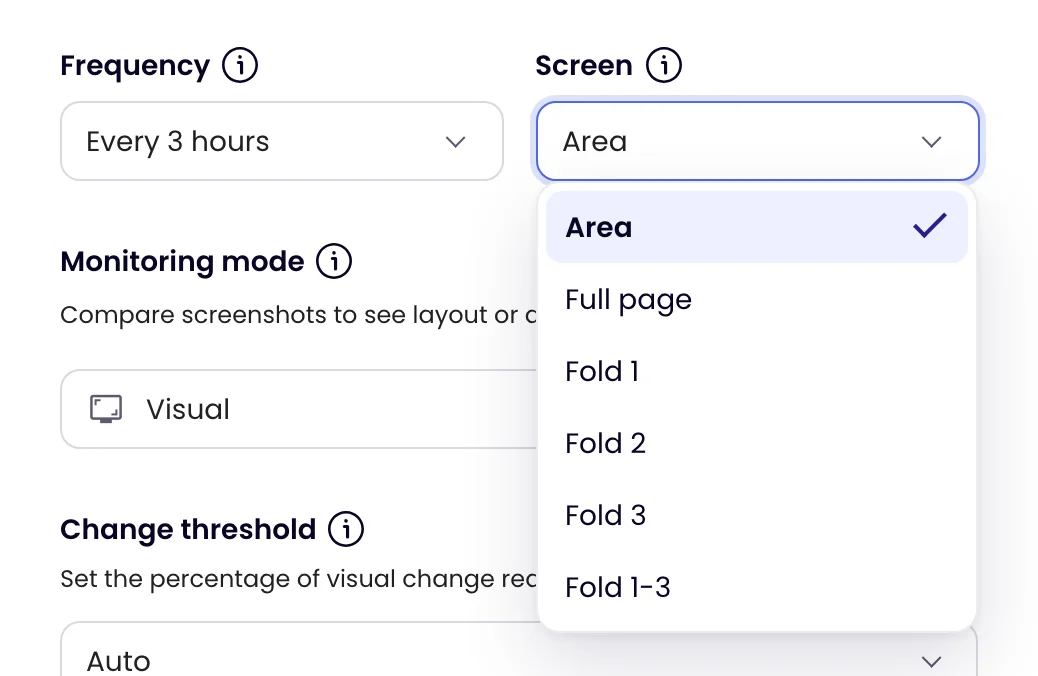
Screen Captures Area A part of the page you mark on the preview. Full page The whole page, top to bottom. Fold 1, 2, 3 The first, second or third screen-height of the page. Fold 1-3 The first three screen-heights together. -
Mark the area (Area only)
Hover the page preview over the part you want, click Focus here and choose Area. A box with corner brackets appears around it, and the page outside is dimmed. Drag the box or its handles to cover what you want to watch; arrow keys move it, and Shift with the arrow keys resizes it. Click Use selection to keep it. Changes outside the box are ignored.
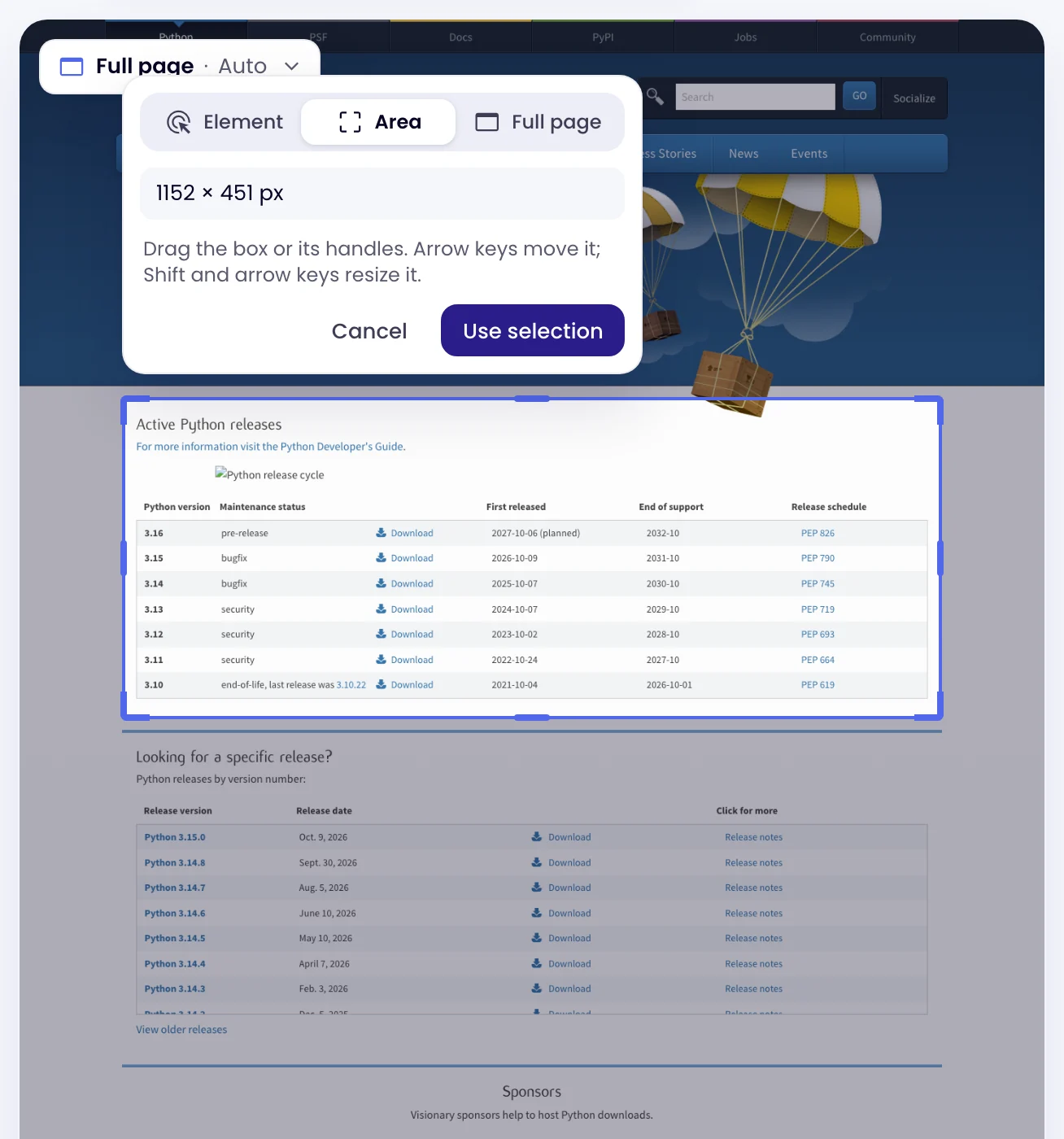
The chip at the top left of the preview shows what the task watches. Click it to switch between Element, Area and Full page; Full page clears a saved area or element.
-
Set the threshold
Change threshold sets how much of the captured area must change before a check counts as a change: Auto or Any change for any visible difference, or Tiny (1%), Medium (10%), Major (25%) or Gigantic (50%).
-
Save
Click Update task, or Create task for a new one.
If you add a Notify me when rule, it decides instead of the threshold: any visible change is checked against your rule, and you’re alerted only when it matches.