
Ask Monity: the monitoring assistant
Monity AI is the assistant built into monity.ai. Ask it in plain words to watch a page, tell you what changed, or change your tasks, and it does the work for you. Anything that changes a task waits for you to confirm it.
Open it
- On a computer: click Ask Monity in the header, or press ⌘J on a Mac (Ctrl J on Windows and Linux). Press the same keys, or Esc, to close it.
- On a phone: tap the Ask Monity button above the bottom bar. In the task editor it is the round button at the left of the footer. The panel opens over the whole screen.

On a computer the panel opens by itself when you arrive on Tasks, a task, Feed, Favorites or Insights, until you close it. After that it stays closed until you open it again; your browser remembers which you chose. In a wide window it sits beside the page; otherwise it floats over the right of the page. Wider and Narrower at the top of the panel change its width.
Ask
Type in the message box (or tap a suggestion) and press Enter. An empty panel greets you with “What should I keep an eye on?” and a few suggestions for where you are.
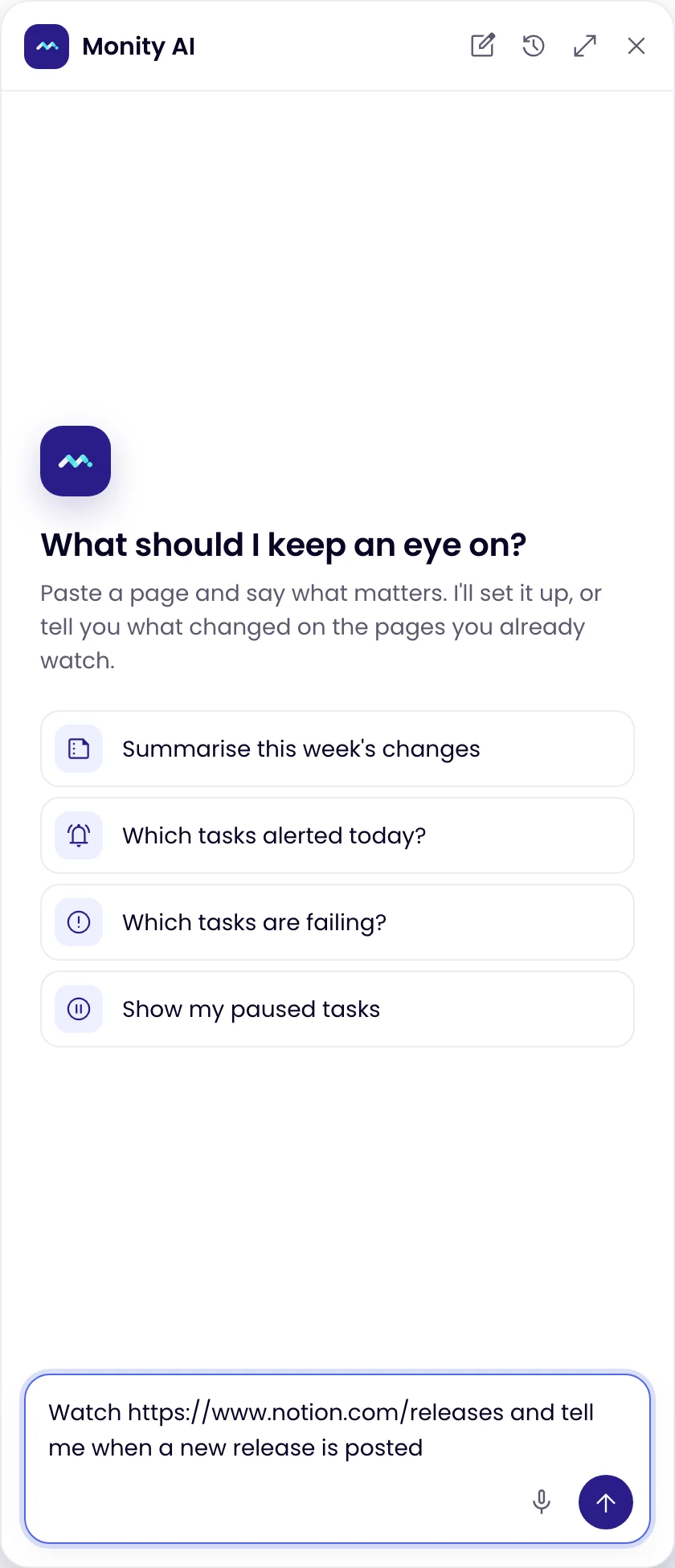
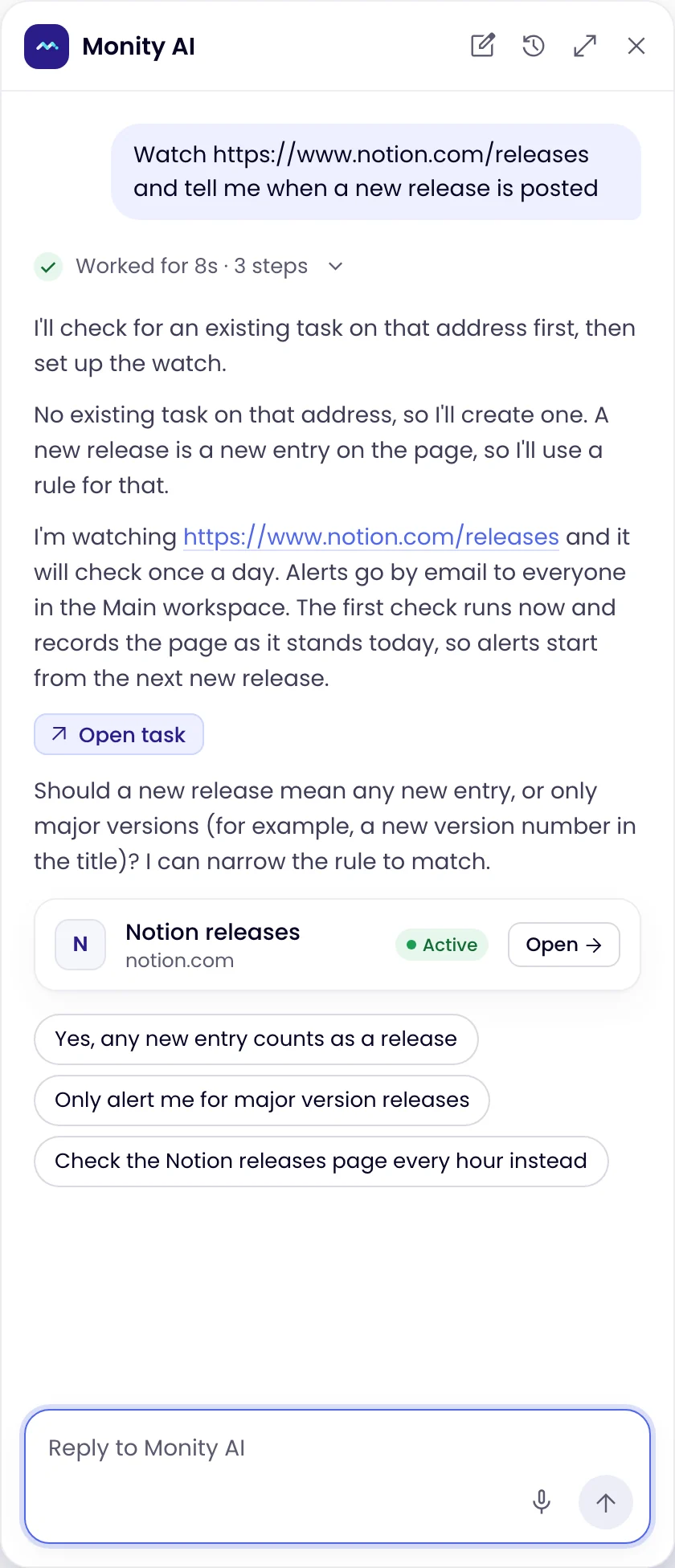
While it works, it shows the steps it takes; above the answer, a line such as “Worked for 4s · 2 steps” opens them again. Lists of tasks and checks come as a table under the answer, with links. Follow-up suggestions appear under the last answer.
On a task’s page, or with its panel open in Tasks, the task’s name shows at the top of Monity AI, and “it” means that task: “What changed?”, “Check it every hour instead”, “Run it now”. Click the × on the name to leave the task out of the conversation.
What it can do
| Ask about | For example |
|---|---|
| Your tasks | “What am I monitoring?”, “Which tasks are paused?”, “Which tasks alerted this week?”, “Who gets the alerts for the Pepper task?” |
| What changed | “What changed recently?”, “Show the last 10 checks of my Pepper task”, “Why did it alert twice today?”, “Describe the screenshot of that check”, “Mark the Feed as read” |
| New tasks | “Watch https://example.com/pricing and tell me when the price drops below 500”. It makes up to 3 tasks from one message straight away; for 4 to 25 it asks you to confirm them in one card. |
| Changing tasks | Rename, frequency, the Notify me when rule, keywords, exact rules, steps and labels; pause, resume, delete; up to 50 tasks in one change, such as “pause all my Amazon tasks”. |
| Run now | “Run it now” starts a check on a live task at once. |
| Skills | “Tell me if the page gets slow”, “Alert me 3 weeks before the SSL certificate expires”. See Skills. |
| Schedules | “Only check on weekdays 9 to 5”: one rule of days and hours. See Frequency and schedule. |
| Where alerts go | “Send Pepper’s alerts to #pricing on Slack”, “Also email Ben”: to channels, chats and addresses your account already uses. |
| Loading the page | “Check it from Poland”, “Block the ads”, “Wait 5 seconds before the check”. For a page behind a login it offers the live browser, so you sign in yourself. |
| Plans and credits | “How many checks do I have left?”, “Will my checks last this month?”, “Which plan do I need for 20 pages every hour?” |
| How to | “How do I get my alerts in Slack?”, “Why didn’t I get an alert?”. Answers link to these docs, and “Take me to Billing” opens the page. |
It answers in the language you write in, with times in your time zone.
Confirm cards
Changing, pausing or deleting a task, changing where its alerts go, making more than 3 tasks, and changing many tasks at once all wait for you. Monity AI shows a card that says exactly what will change, for example Pause “Linear · careers”?, with Cancel and a button named after the action, such as Pause or Delete. Nothing changes until you press it. Deleting shows a red card.
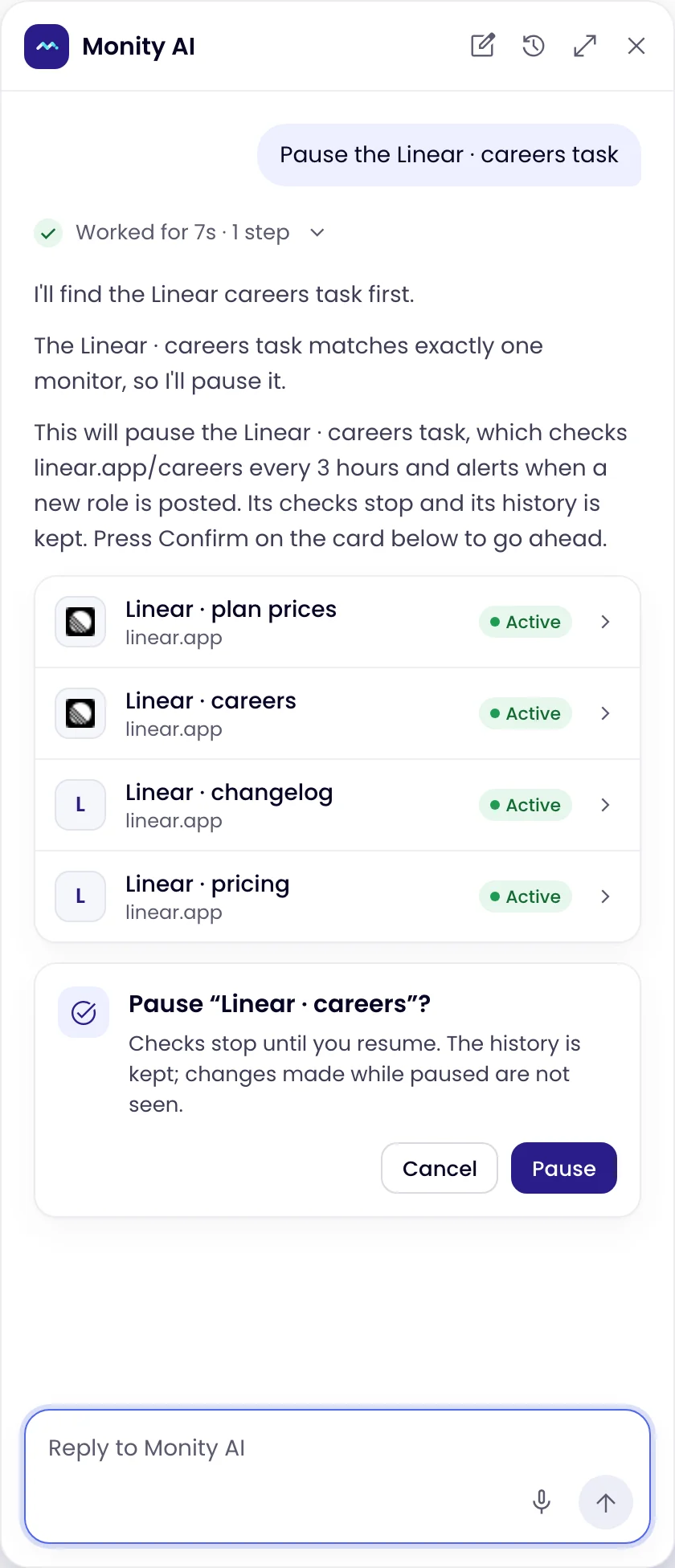
A card can be answered for 10 minutes, also after you reload the page. After that it expires and nothing changes; ask again to set it up. Resuming a task, Run now, making up to 3 tasks and marking the Feed read happen at once.
What it doesn’t do
When it can’t help, it says where to go instead:
- The task editor: changing the monitoring mode, or which part of the page a task watches. Use Focus here in the preview.
- The Schedule tab: exact dates, days of the month and several schedule rules.
- The Channels tab: an email address or webhook your account doesn’t use yet. Type it there.
- The Advanced tab: devices, custom browsers, HTTP headers, cookies and a forced baseline.
- The check view and task panel: deleting a check, adding it to Favorites, exporting a report.
- Your account pages: upgrading, cancelling or coupons (Plans, Billing); connecting Slack, Teams, Telegram, Discord or Google Sheets, and API keys (Integrations); inviting people (Users); workspaces; renaming or deleting labels (Labels); your email, password or time zone (Profile).
- Outside Monity: it watches web pages, not mailboxes, apps or databases. It never types passwords or payment details, never buys anything, and never signs in for you.
Your conversations
Recent chats at the top of the panel lists your earlier conversations; click one to carry on. New chat starts a fresh one. In a conversation, Monity AI remembers the last 30 messages.
Talk instead of typing
Click the microphone (Talk instead of typing) next to the message box, say what you want, then click Done. Your words are turned into text in the box, so you can check them before you send.
It acts as you
Monity AI works on your account only, with your role. A Guest can ask about tasks and changes, but can’t make, change, pause or delete tasks or change where alerts go. It never sees another account.
A message can be up to 4,000 characters, and you can send 20 messages every 5 minutes. To make more than 25 tasks, use Import tasks.
Monity AI is part of the app. To use monity.ai from ChatGPT, Claude or Muse instead, see Use monity.ai in ChatGPT, Claude and Muse.