
Slack alerts
Post alerts to one or more Slack channels, and mention the people who need to act. You connect your Slack workspace once; after that, each task picks its own channels.
-
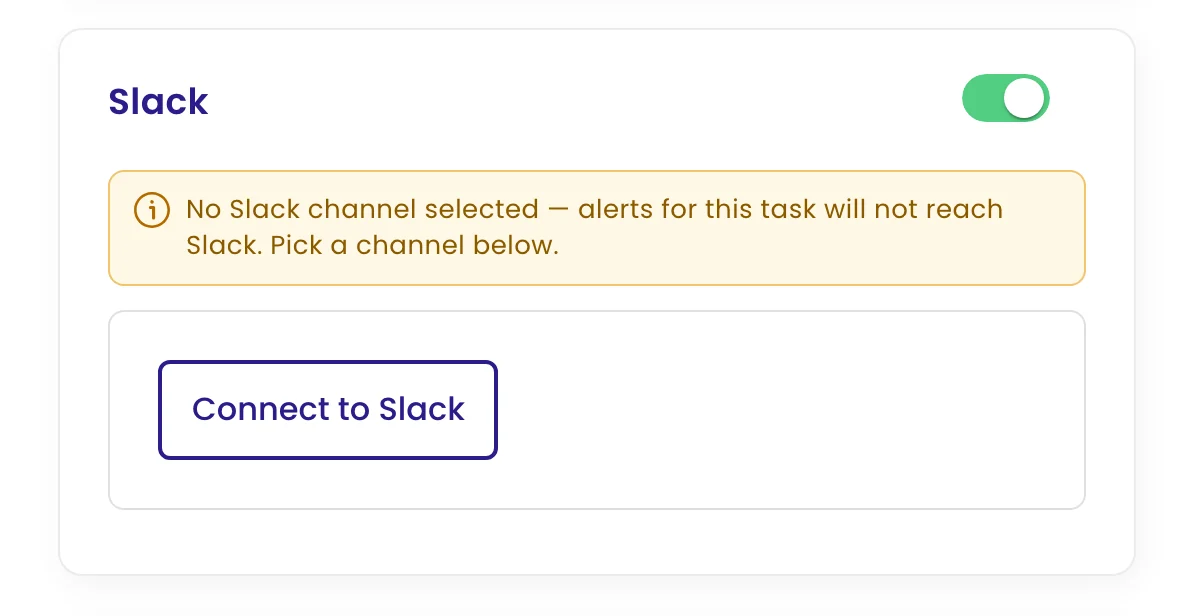
Switch on Slack
Edit the task, open Configure › Channels and switch on Slack.
-
Connect your workspace
Click Connect to Slack. Slack asks you to approve the monity.ai app for your workspace; click Allow and you’re brought back to the task. You need permission to add apps to the Slack workspace.
-
Pick channels
Under Available channels, tick the channels that should get this task’s alerts. Use the send icon next to a channel to post a test message. If a channel is missing, invite the monity.ai app to it in Slack and click refresh.
-
Mention people (optional)
Under Tag people, add Slack user IDs (they look like
U123ABC) and click Add IDs. Those people are mentioned in every alert from this task. -
Save
Click Update task.
What arrives in Slack
Each alert is a message headed “Change Detected” that names the task and page, followed by the AI summary of the change, before and after screenshots, and View Changes and View Website buttons.
In Slack, open the person’s profile, click the three dots and choose Copy member ID.