
Microsoft Teams alerts
Post alerts to a Microsoft Teams channel or chat as an Adaptive Card. Teams gives you a webhook URL through Workflows; you paste it into the task.
1. Create the webhook in Teams
-
Open Workflows
In Teams, go to the channel that should receive alerts, click More options (•••) and choose Workflows.
-
Use the webhook template
Pick Send webhook alerts to a channel (or the chat equivalent), name the workflow, check the account and click Add workflow.
-
Copy the URL
Teams shows the workflow’s URL. Copy it.
Microsoft’s guide covers this in more detail: Create incoming webhooks with Workflows.
2. Connect it to the task
-
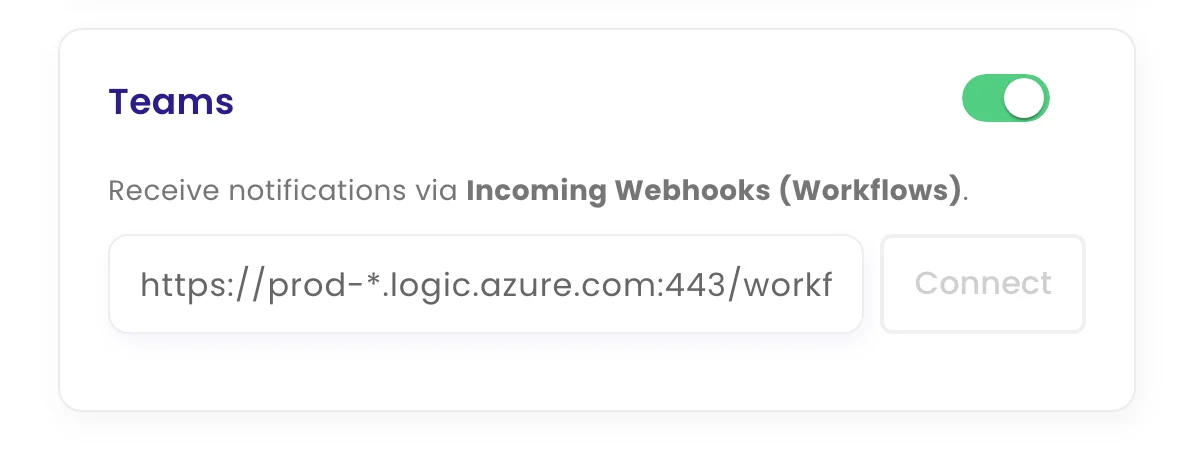
Paste the URL
Edit the task, open Configure › Channels, switch on Teams, paste the URL and click Connect.
-
Test and save
Click Test to post a sample card, then Update task.
What arrives in Teams
An Adaptive Card with the task name, the page and the date, the AI summary of the change, and View Changes and View Website buttons.