
Organise tasks with labels
Labels group related tasks, such as competitors, pricing pages or compliance sources, so you can find and filter them quickly. A task can have more than one label.
Add labels to a task
-
Open the Advanced tab
Edit the task, open Configure and go to the Advanced tab. Task labels is at the bottom.
-
Pick or create a label
Choose one from Select label, or click New label to create one. Repeat to add more. Click the × on a label to take it off the task.
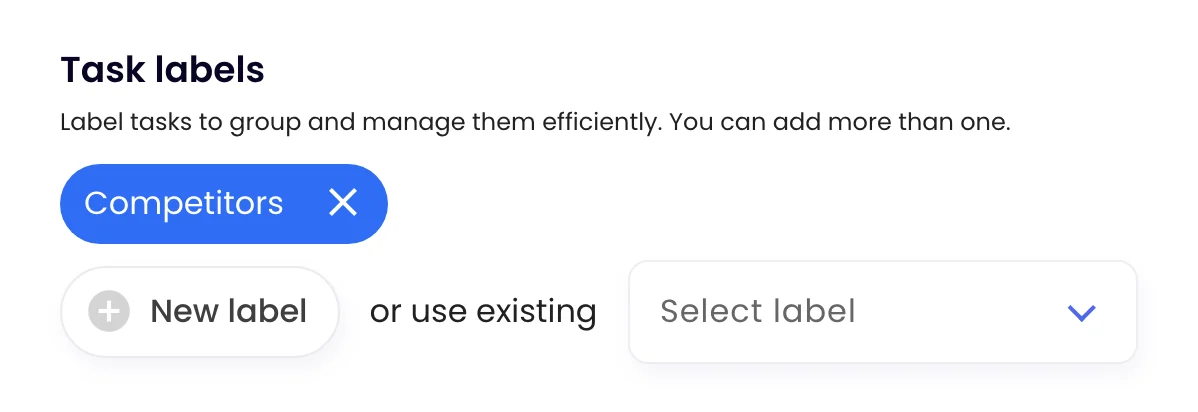
-
Save
Click Update task. The label shows on the task’s row in the list.
To label many tasks at once, select them in the list and use Bulk edit.
Manage all labels
Go to My account › Labels to see every label in the workspace. Click the pencil on a label to rename it or change its colour, or the × to delete it.

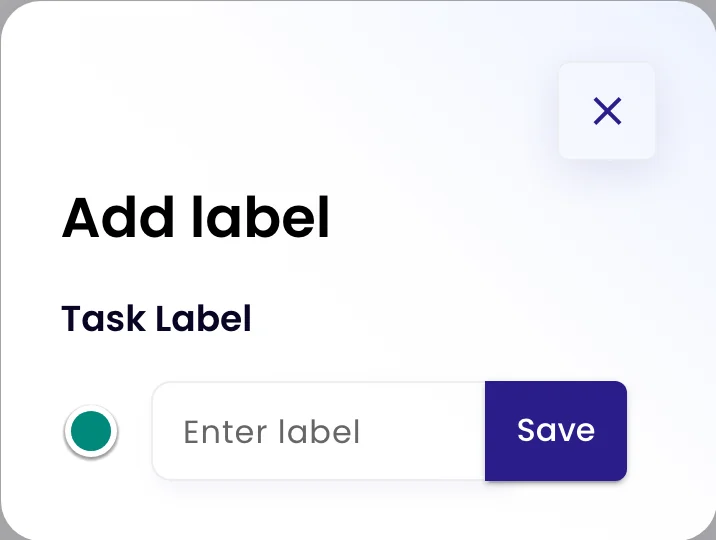
Click Add label to create one here, pick a colour with the dot on the left, then click Save.
Filter by label
In Tasks, open the filters and choose one or more labels under Label. See Find tasks: search, filter and sort.