
Setup verification: what Monity reads
A few minutes after you save a task, Monity’s AI opens the page, finds what you asked about and confirms it can read it the same way twice. From then on every check reads the same data and compares it item by item, so you can see exactly what was added, removed or changed.
Where you see it
On the task page, under the preview, the Setup verification by AI card shows the status. Once verified, it names what Monity watches and how much it reads, for example Verified · watching newest stories: 30 items. What is this? explains it in a sentence.
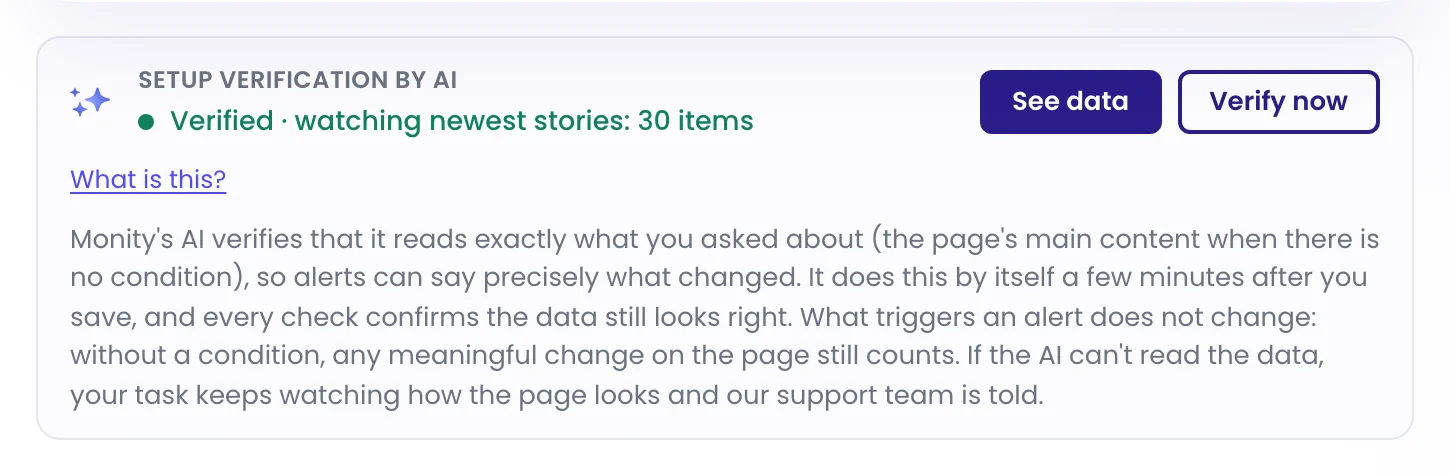
While the AI works, the task list shows Verifying… under the task.

What happens after you save
-
The task starts watching
Saving works as always: the first check runs straight away and the task watches the page from that moment. It makes no difference whether you saved in the editor or the assistant saved for you.
-
Monity’s AI reads the page
A few minutes after your last edit (each edit restarts the wait, so follow-up changes settle first), it opens the page in a real browser with the task’s own steps, closes anything in the way and finds what you asked about. Without a Notify me when rule, it reads the page’s main content.
-
It proves the reading
It reads the page a second time and keeps the result only if both reads agree. What it reads can be a single value (a price, an exchange rate), a list (stories, articles, releases) or a table.
-
Every check compares it
Each check reads the same data again and compares it with the previous check, item by item, so the history and your alerts can say which items are new, which were removed and which changed.
See what Monity reads
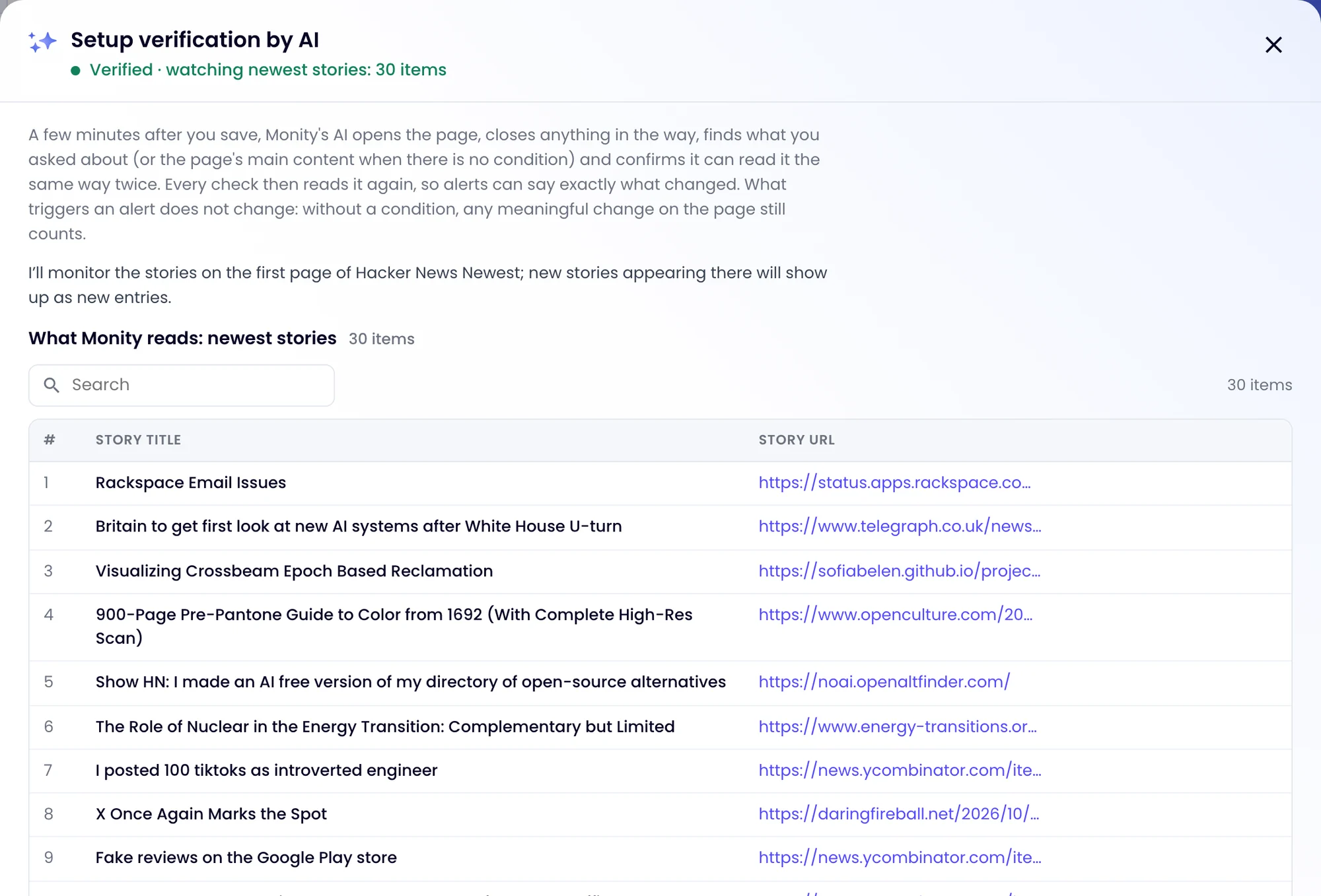
Click See data on the card. The window shows the status, a note from the AI on what it will monitor, and every item it reads, with a search box. Verify now runs the verification again at once, for example after you changed the page or the rule.
What changed in each check
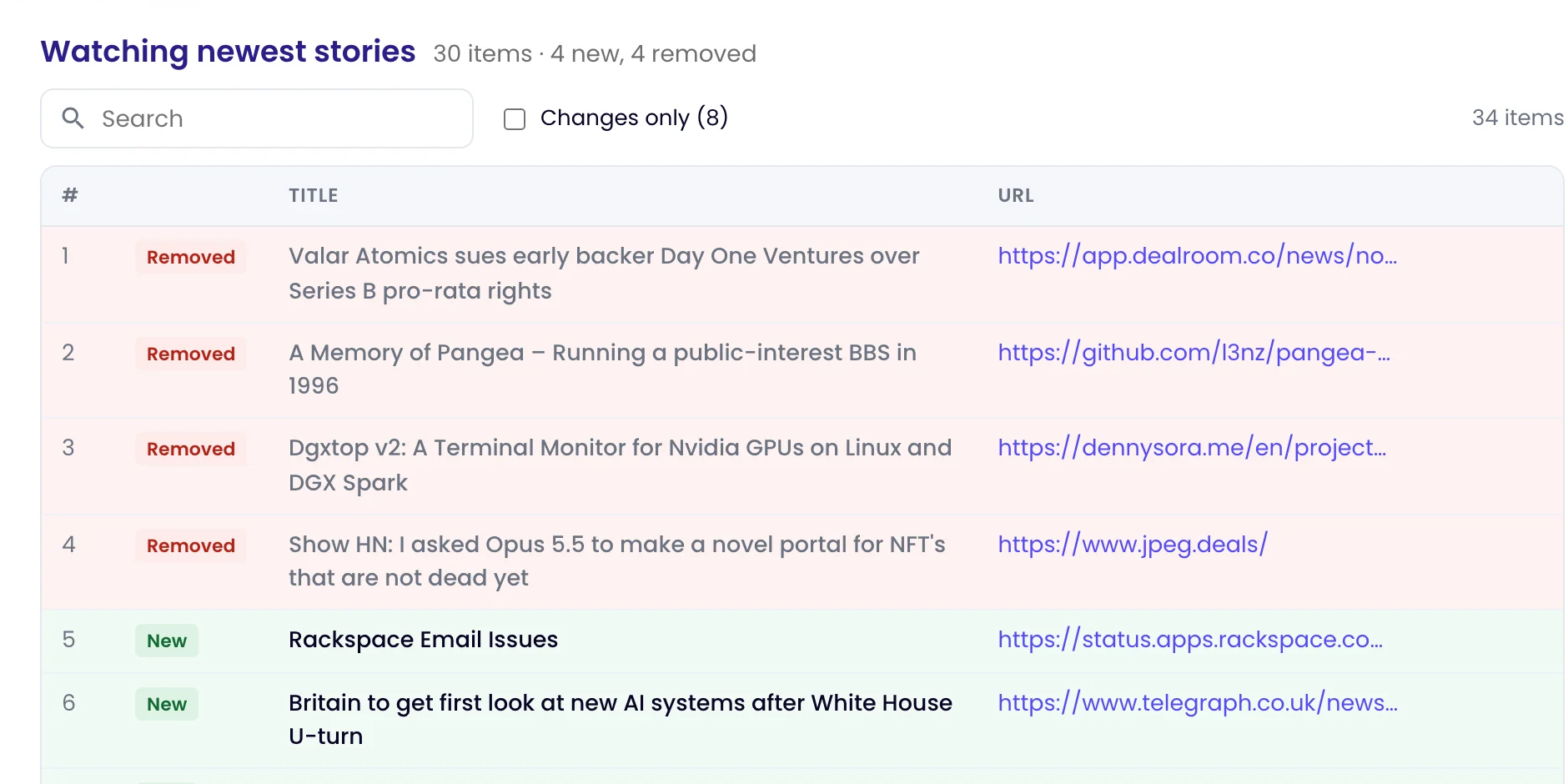
Open a check and choose Data to see what that check read. Items that appeared since the previous check are marked New and items that disappeared are marked Removed; tick Changes only to hide the rest. The Overview panel sums it up, for example 30 items · 4 new, 4 removed.
Statuses
| Status | What it means |
|---|---|
| Not verified yet | The task has not been verified. Verify now starts it. |
| Verification scheduled | Monity’s AI waits a few minutes after your last edit, then runs by itself. Verify now brings it forward. |
| Verifying… | The AI is working on it. It usually takes a minute or two, and you can keep editing. |
| Verified · watching … | The reading is proven. The status names what Monity watches and how much it reads. Tasks without a rule say Verified · reads …: the whole page is still watched, and this is the data Monity reads from it. |
| Couldn’t verify yet | The AI couldn’t confirm it can read what you asked about, for example because the page needs a login. The task keeps watching how the page looks, so you won’t miss visible changes, and our support team is told. |
| … couldn’t be read on the last check | The data was readable before but not on the last check, usually because the page changed its layout. The page is still watched by its screenshot while Monity’s AI looks at it; if it needs a fix, our support team is told. |
| Watching how the page looks | The page is best watched as it looks, so the task compares screenshots rather than data. |
Verification doesn’t change what triggers an alert. Your Notify me when rule still decides, and without a rule any meaningful change on the page still counts. What it adds is the data, so you can see precisely what changed.