
REST API
The REST API gives your own tools the same access as the dashboard: list monitors, read checks and screenshots, and create, pause, resume or run monitors.
Create a key
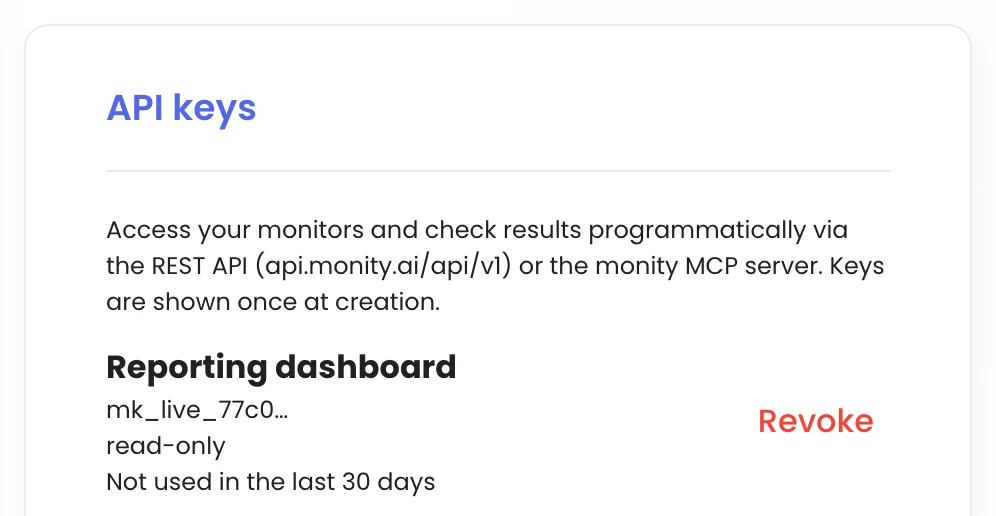
Go to My account › Integrations › API keys, name the key and create it. Switch on Allow write access only if the key needs to create or change monitors; read-only is enough for dashboards and reporting. The key starts with mk_live_ and is shown once, so copy it straight away. Each key shows its access and how often it’s been used; Revoke switches it off.
Make a request
The base URL is https://api.monity.ai/api/v1. Send the key as a bearer token:
curl https://api.monity.ai/api/v1/monitors \
  -H "Authorization: Bearer mk_live_…"
Endpoints
| Request | Does |
|---|---|
GET /monitors |
Lists your monitors. |
GET /monitors/{uuid} |
One monitor and its settings. |
GET /monitors/{uuid}/latest |
The latest check: status, time, AI summary and a link. |
GET /monitors/{uuid}/checks |
A monitor’s checks. |
GET /monitors/{uuid}/checks/{checkId} |
One check in detail. |
GET /monitors/{uuid}/checks/{checkId}/screenshot |
A check’s screenshot. |
GET /checks |
Recent checks across monitors. |
GET /account, GET /workspaces |
Your plan, limits, credits and workspaces. |
POST /monitors |
Creates a monitor (write key). |
PATCH /monitors/{uuid} |
Updates a monitor (write key). |
POST /monitors/{uuid}/pause, /resume, /run |
Pauses, resumes or runs a monitor now (write key). |
DELETE /monitors/{uuid} |
Deletes a monitor (write key). |
Create a monitor
curl -X POST https://api.monity.ai/api/v1/monitors \
  -H "Authorization: Bearer mk_live_…" \
  -H "Content-Type: application/json" \
  -d '{
    "name": "Competitor pricing",
    "websiteUrl": "https://example.com/pricing",
    "notifyWhen": "any plan price changes",
    "labels": ["Competitors"],
    "workspaceId": 123
  }'
Optional fields include compareType (AUTO, VISUAL, TEXT, HTML), selector to watch one element, frequency in minutes, keywords and keywordsAction, outputExtractor, jsonPath, notifyEmails and notifyWebhookUrl. Pass workspaceId (from GET /workspaces) to choose where the monitor goes. Monitors count towards your plan’s limits, and the first check runs straight away.