
Run steps before each check
Automations are steps monity.ai performs on the page before every check: accept a cookie banner, open a tab, choose a filter, sign in. The check then captures the page as it looks after those steps.
Two ways to build them
| Option | Best for |
|---|---|
| Record in live browser | Most pages. Do the steps once in a real browser (click, type, choose) and monity.ai turns them into automation steps. |
| Build manual automation | Full control: add steps one by one and point each at an element. |
Both are on the task’s Automations tab under Configure.
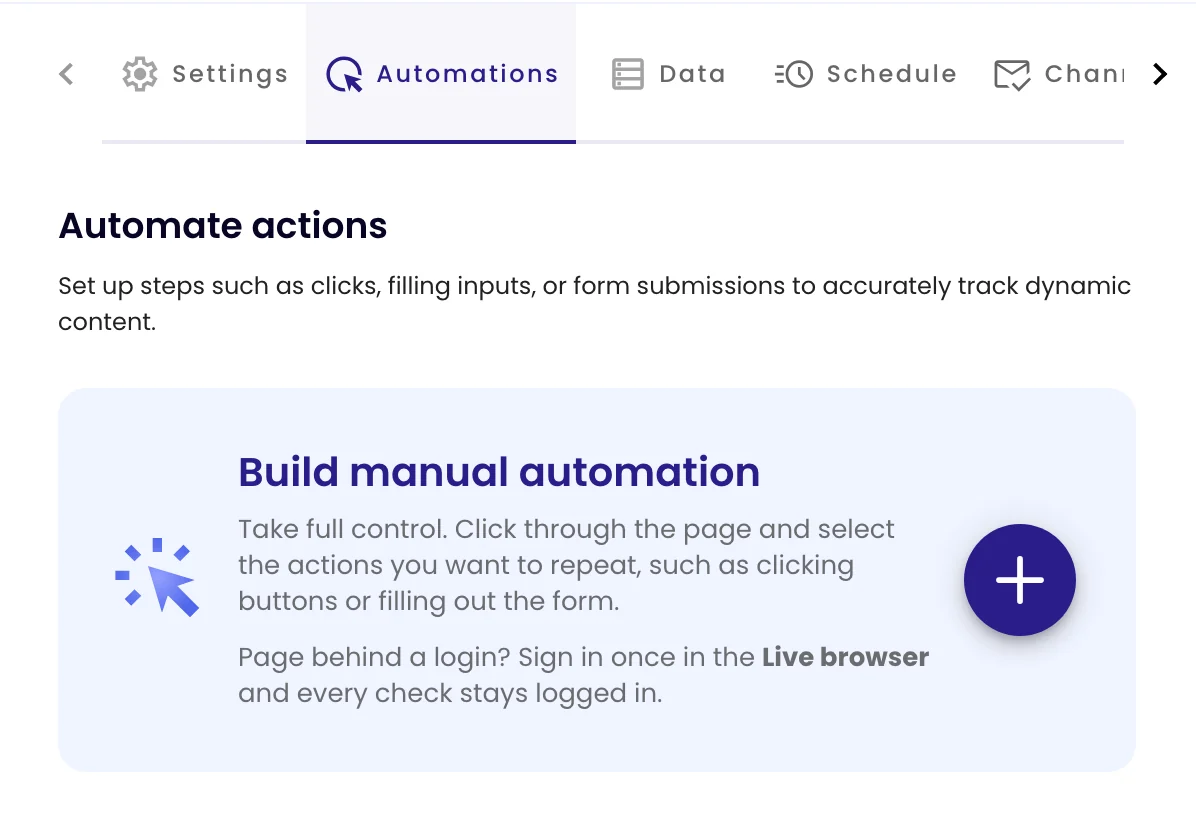
Build steps by hand
-
Add a step
Click + (or Add action once you have steps) and choose the action type.
-
Point it at an element
For actions that act on an element, click the pointer icon and then the element in the page preview, which is outlined in blue. Or type a CSS selector.
-
Order and test
Steps run from top to bottom. Drag the dotted handle to reorder, use a step’s switch to skip it without deleting it, and the bin to remove it. Click Update task to save.
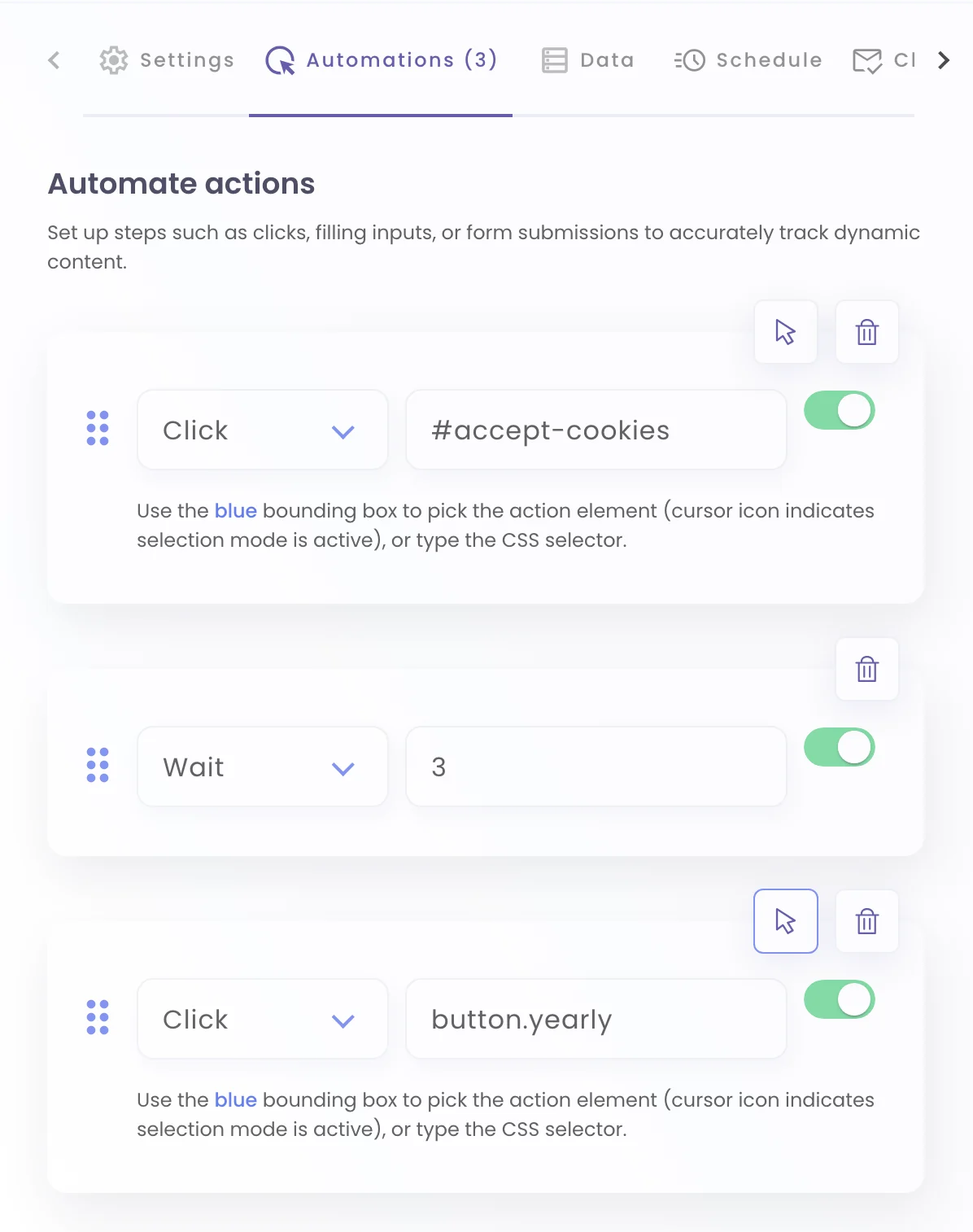
Action types
| Action | What it does |
|---|---|
| Click | Clicks an element: a button, a tab, a link. |
| Type | Types into a field, such as a search box or a login form. |
| Select | Chooses an option in a drop-down list. |
| Mouseover | Hovers over an element to open a menu or tooltip. |
| Iframe | Makes the following steps act inside an embedded frame. |
| Wait | Pauses for a number of seconds. |
| Refresh | Reloads the page. |
| Scroll | Scrolls down the whole page so lazy-loaded content appears. |
| Remove | Removes an element, such as a banner, before the capture. |
| Inject JS / Inject CSS | Runs your own JavaScript or adds your own CSS on the page. |
| Text Script | Clicks elements by the text on them, written as plain commands. |
You usually don’t need automations to stay signed in. Sign in once in the live browser instead. See Monitor pages behind a login.