
Import tasks in bulk
Create many tasks in one go by pasting a list of pages, straight from a spreadsheet if you like. Every page gets the same settings, and each row can have its own alert rule.
-
Open the import page
In Tasks, click Import tasks next to New task. Import is available on Business accounts.
-
Paste your pages
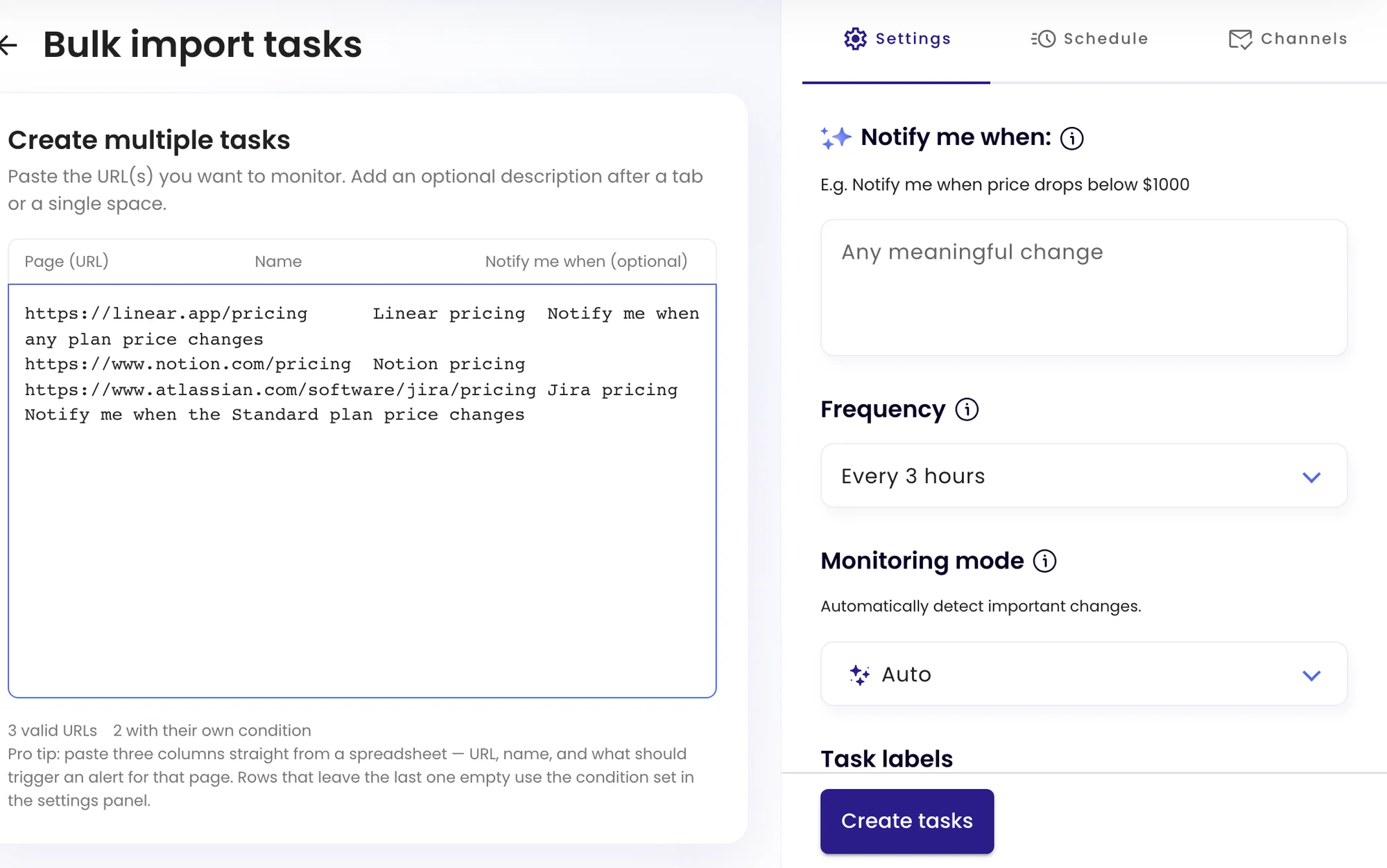
Put one page per line. Each line can have up to three columns, separated by a tab:
Column Content Page (URL) The address to monitor. Required. Name The task name. Optional; without it the task is named after the page. Notify me when The alert rule for this page only. Optional; leave it empty to use the rule in the settings panel. Copying three columns from Google Sheets or Excel gives you exactly this. Under the box, monity.ai counts the valid URLs and how many rows have their own rule.
-
Choose the shared settings
On the right, set the default Notify me when rule, the frequency, the monitoring mode and labels. The Schedule and Channels tabs apply to every task too.
-
Create the tasks
Click Create tasks. Each one runs a first check to record how its page looks today, and appears in the task list.
Imported tasks count towards your plan’s task limit like any other task. Check the limit for each workspace under My account › Workspaces.