
Microsoft Teams integration
Receive website change alerts from monity.ai directly in Microsoft Teams. By connecting a Teams webhook, you can automatically post notifications to a specific channel or chat whenever monitored content changes.
This guide explains how to:
-
Create a webhook in Microsoft Teams using Workflows (recommended)
-
Copy an existing webhook using Connectors (legacy option)
-
Add the webhook to your task in monity.ai
Create a webhook using Microsoft Teams Workflows
Workflows is Microsoft’s supported method for receiving incoming webhook messages in Teams business plans.
For detailed guidance on creating incoming webhooks with Workflows, visit the official Microsoft support page: https://support.microsoft.com/en-gb/office/create-incoming-webhooks-with-workflows-for-microsoft-teams-8ae491c7-0394-4861-ba59-055e33f75498
Steps to create a webhook
1. Open Microsoft Teams.
2. Go to the channel or chat where you want to receive monity.ai alerts.
3. Click More options (•••) next to the channel or chat.
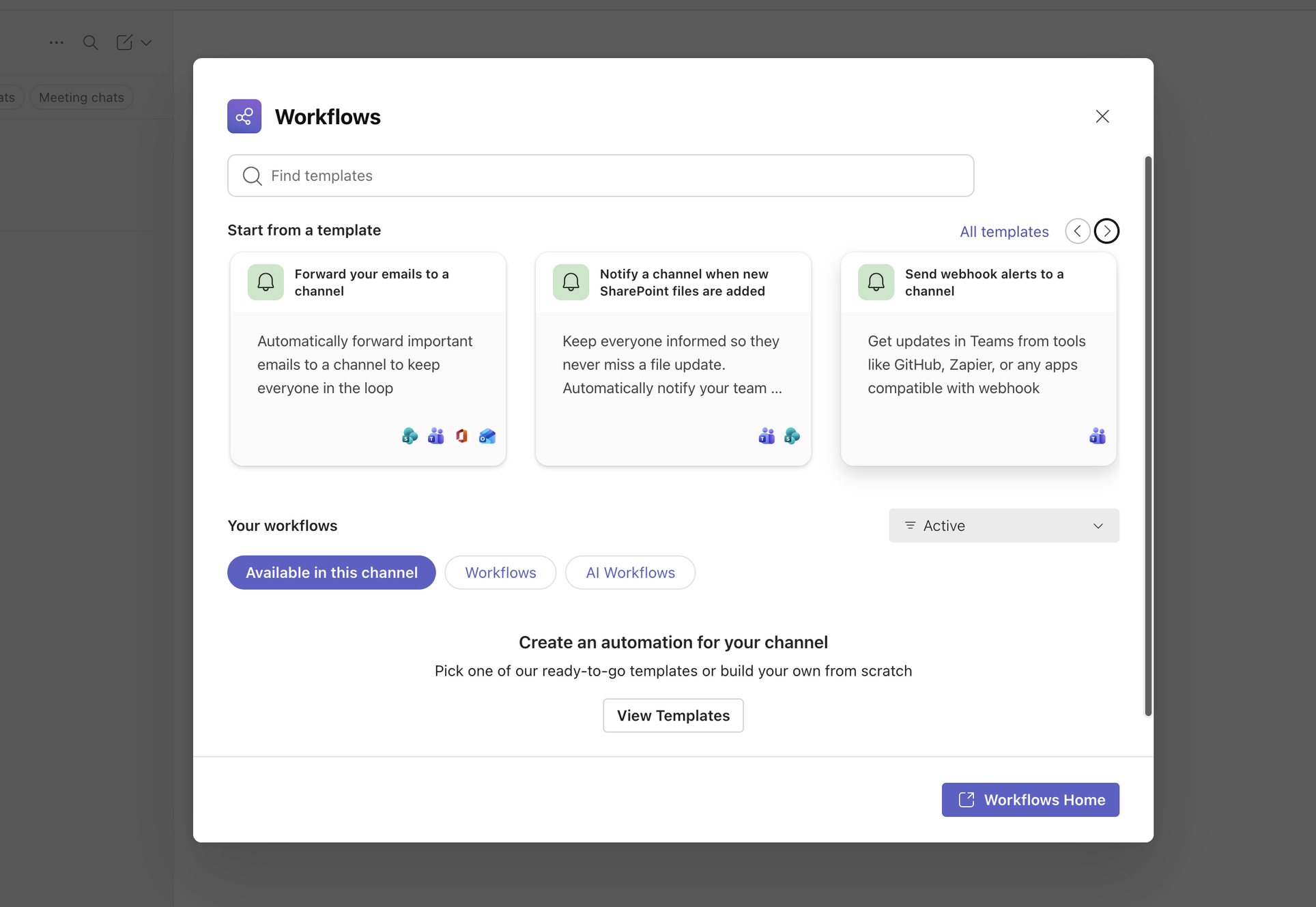
4. Select Workflows.
Select the webhook template:
Send webhook alerts to a channel
This template allows Microsoft Teams to receive incoming webhook requests and post them directly into the selected channel.
If you prefer to send alerts to a private chat instead of a channel, select the equivalent webhook-to-chat template if available in your Teams version.
5. Rename the workflow if needed.
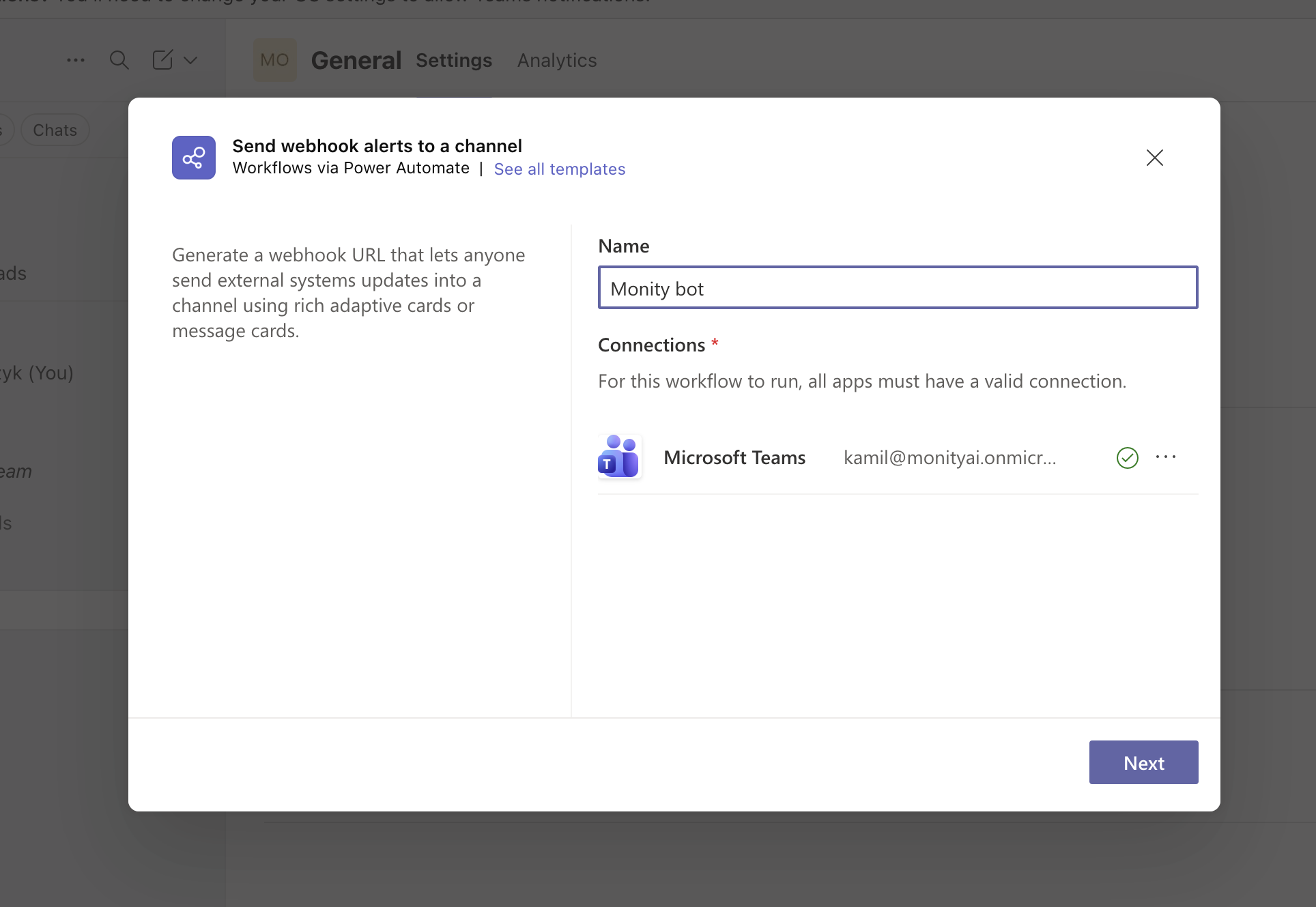
6. Make sure the correct Microsoft account is authenticated.
7. Click Next.
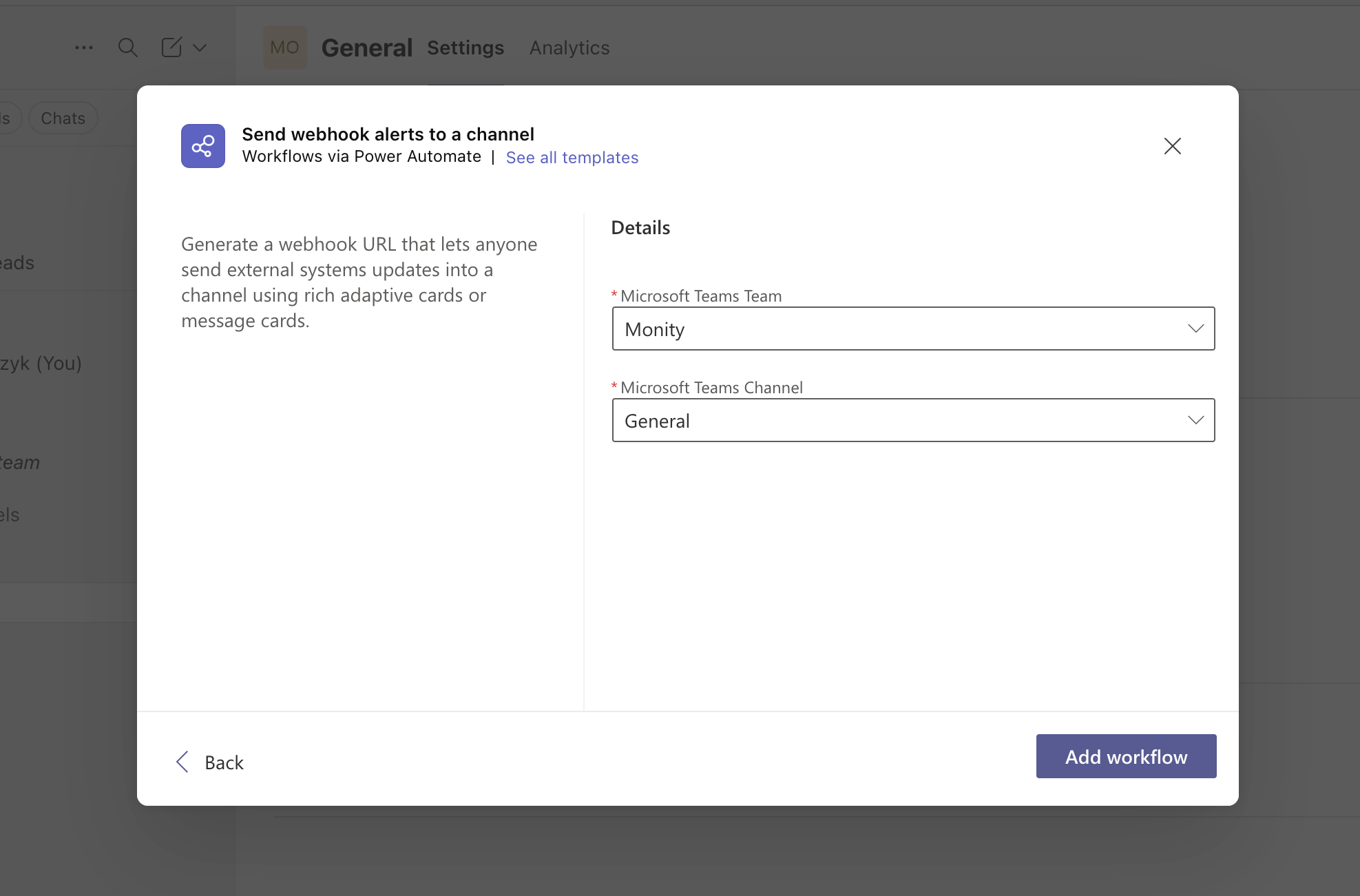
8. Select Add workflow.
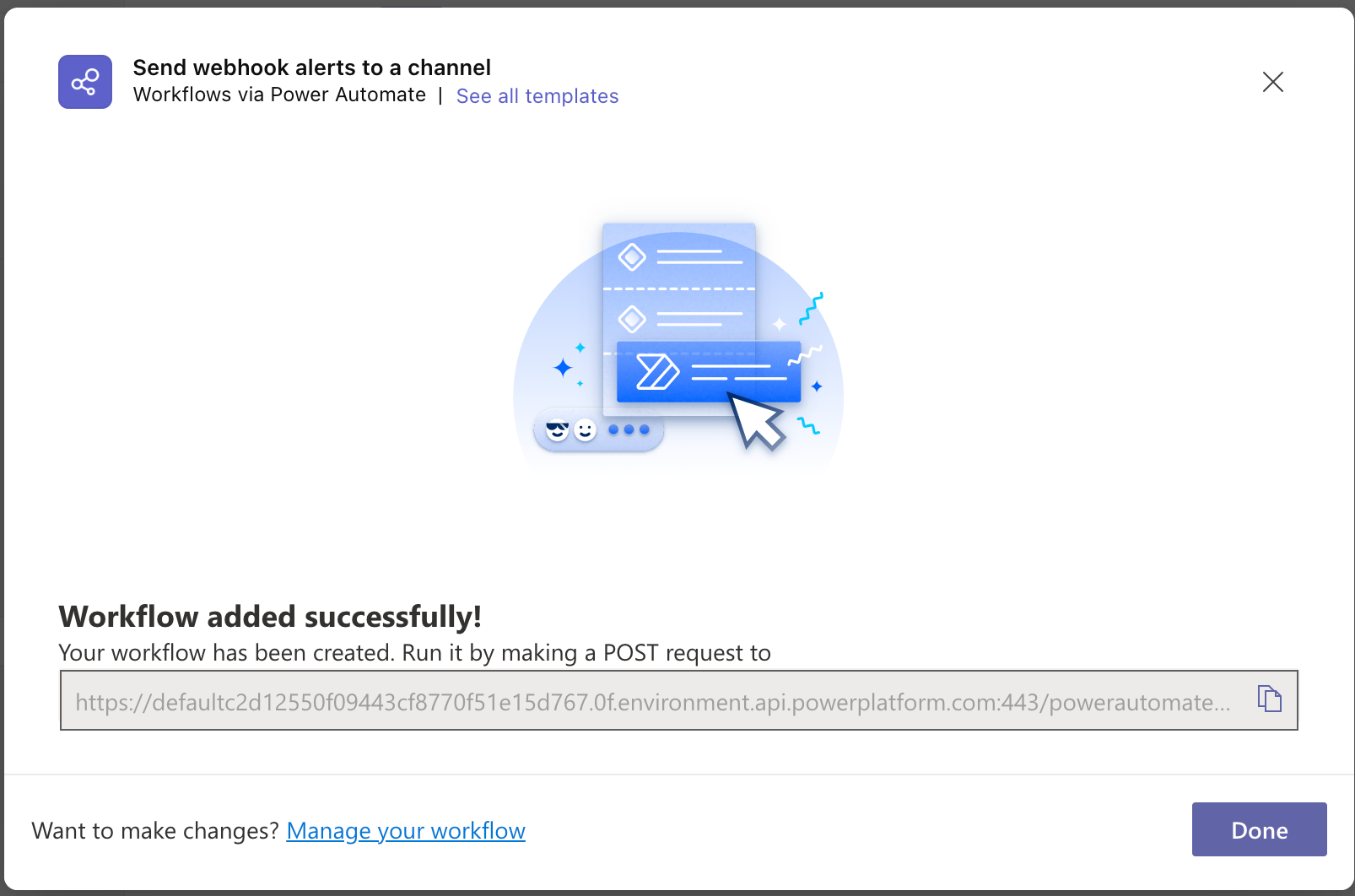
After the workflow is created, a window will display your webhook URL. Copy this URL — you’ll need it in monity.ai.
Add Microsoft Teams to a task in monity.ai
Once you have your webhook URL, connect it to your monitoring task.
Steps inside monity.ai
-
Log in to your monity.ai dashboard.
-
Click Create new task.
-
Enter the website URL you want to monitor.
-
In the task setup screen, click on Notifications (located at the top-right, above the task configuration panel).
-
Toggle Teams on.
Paste your Microsoft Teams webhook URL into the field provided. 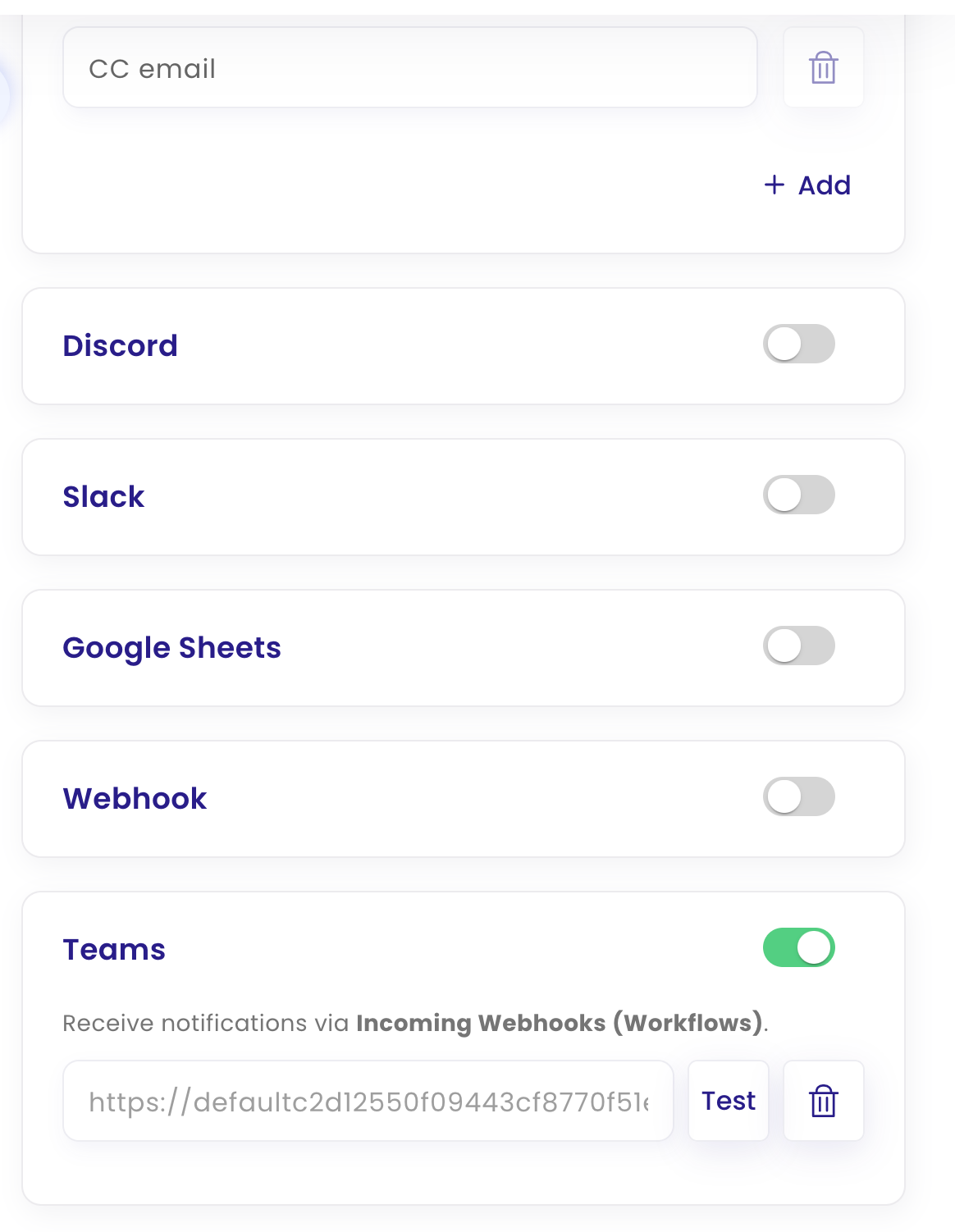
6. Click Test to verify the connection.
7. Click Create task to save your setup.
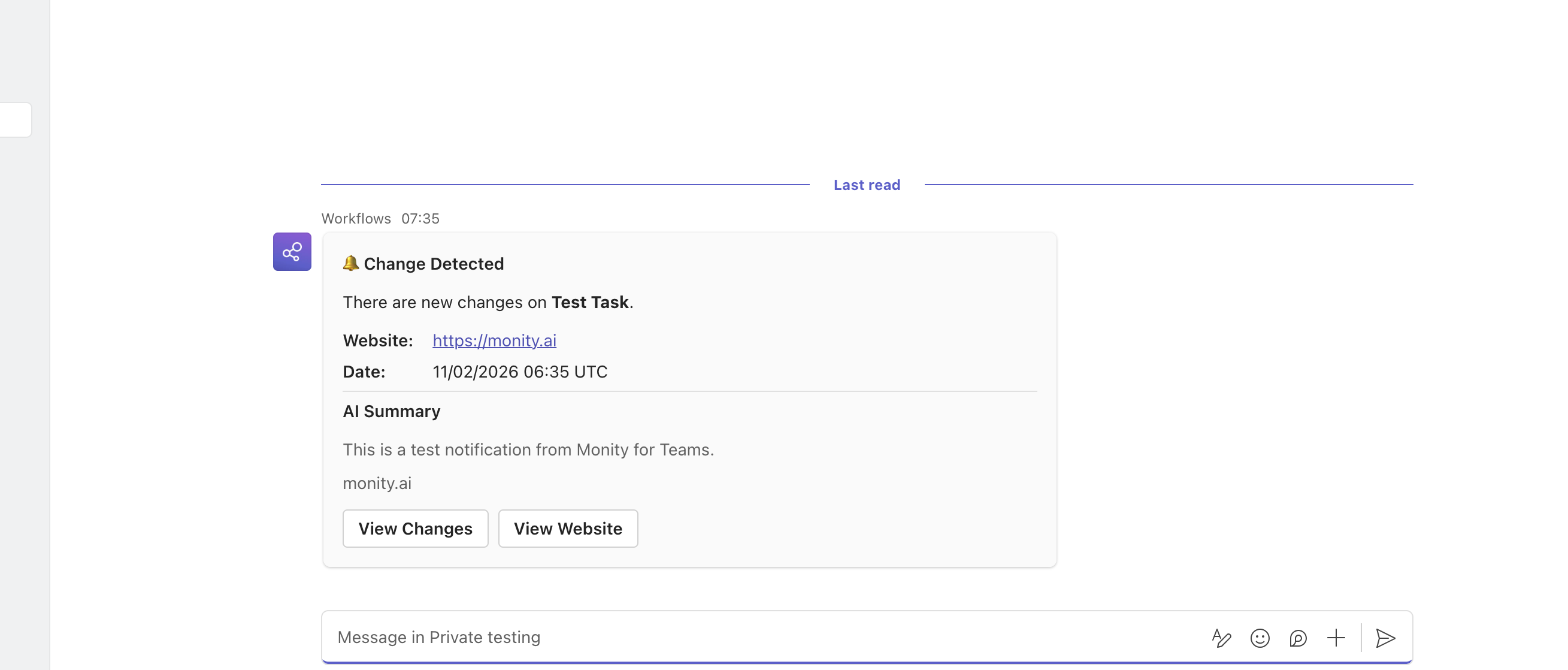 Once configured, monity.ai will automatically send change notifications to your selected Microsoft Teams channel or chat according to your monitoring frequency and conditions.

Top Articles
71 Shelton Street, Covent Garden, London, WC2H9JQ United Kingdom
© Copyrights Monity.ai, 2025, Inc.