
Automatically send website alerts to Google Sheets
Automatically send website change alerts from monity.ai directly to Google Sheets. Instead of copying notifications manually, you can use webhooks to add a new row to your spreadsheet every time a change is detected.
This integration is powered by Webhooks for Sheets, allowing monity.ai to send data straight into your selected Google Sheet.
How it works
When monity.ai detects a change, it sends a webhook request to Google Sheets. Each notification is automatically added as a new row in your chosen spreadsheet.
No manual data entry is required.
Step 1: Install Webhooks for Sheets
-
Go to the Google Workspace Marketplace.
-
Install the Webhooks for Sheets add-on.
-
Accept the requested permissions to complete the installation.
This add-on enables your spreadsheet to receive webhook data.
Step 2: Open Google Sheets and access the Webhook tool
-
Create a new Google Sheet (or open an existing one).
-
Click the Webhooks icon in the toolbar.
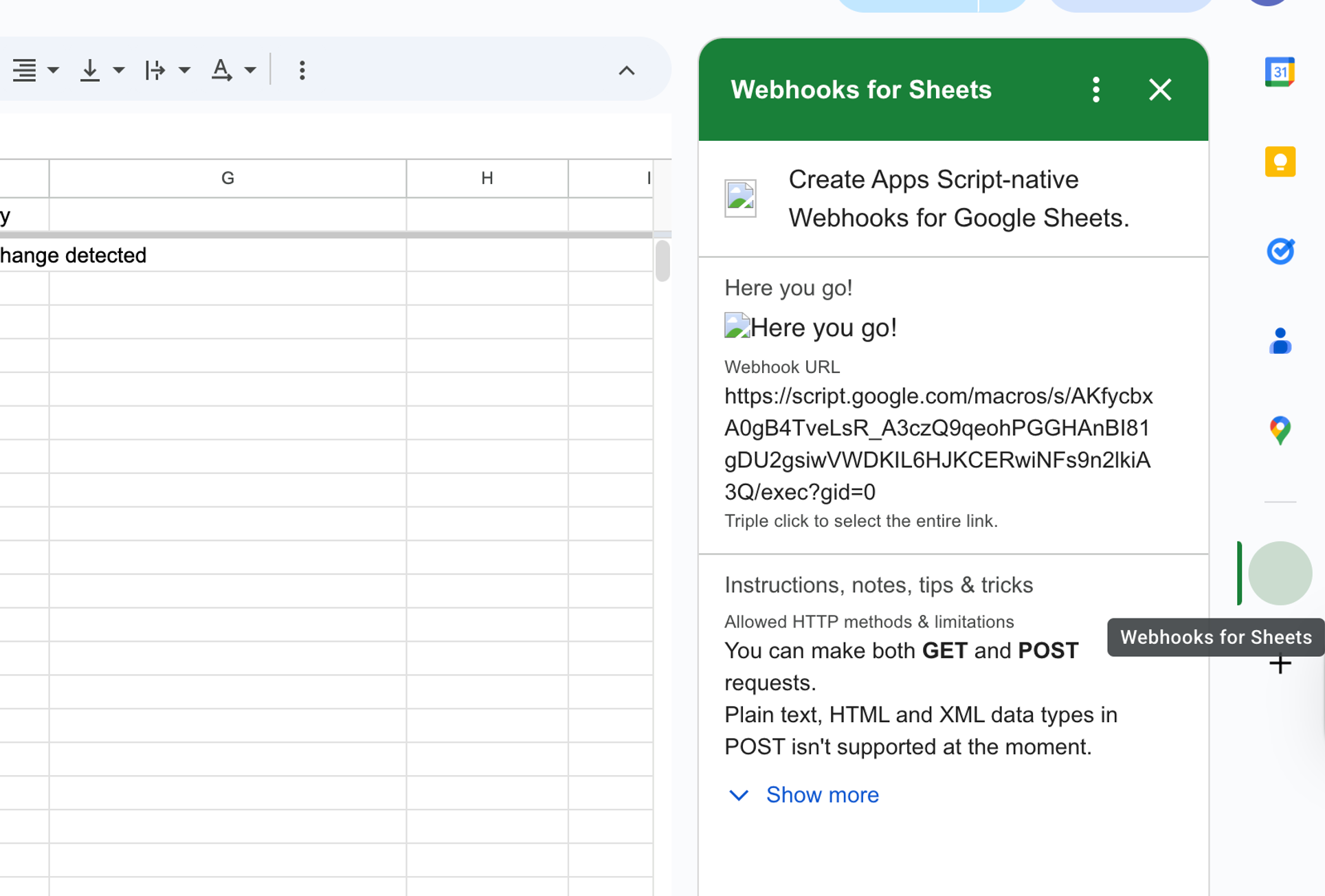
If the Webhooks icon is not visible, confirm that the add-on was successfully installed in Step 1.
Step 3: Complete the setup requirements
Follow the on-screen prerequisites inside the Webhooks interface. These steps prepare your sheet to receive incoming webhook data.
Step 4: Select your target sheet
-
Choose the specific sheet (tab) where you want notifications to appear.
-
Click Create.
A webhook URL will be generated for that sheet. You’ll use this URL inside monity.ai.
Step 5: Authorise the webhook (if prompted)
In some cases, you may be asked to authorise the webhook connection.
If prompted:
-
Refresh the Google Sheets page.
-
Open the Webhooks tab.
-
Click Authorise.
-
After authorisation is complete, click Next.
-
Generate the webhook URL again if required.
Once authorised, your webhook will be ready to receive data.
Connect monity.ai to Google Sheets
After generating your webhook URL in Google Sheets, you can connect it to your monitoring task.
Steps inside monity.ai
-
Log in to your monity.ai dashboard.
-
Click Create new task.
-
Enter the website URL you want to monitor.
-
In the task setup screen, open the Notifications section (located at the top-right above the task configuration panel).
-
Toggle Google Sheets on.
-
Paste the generated webhook URL into the input field.
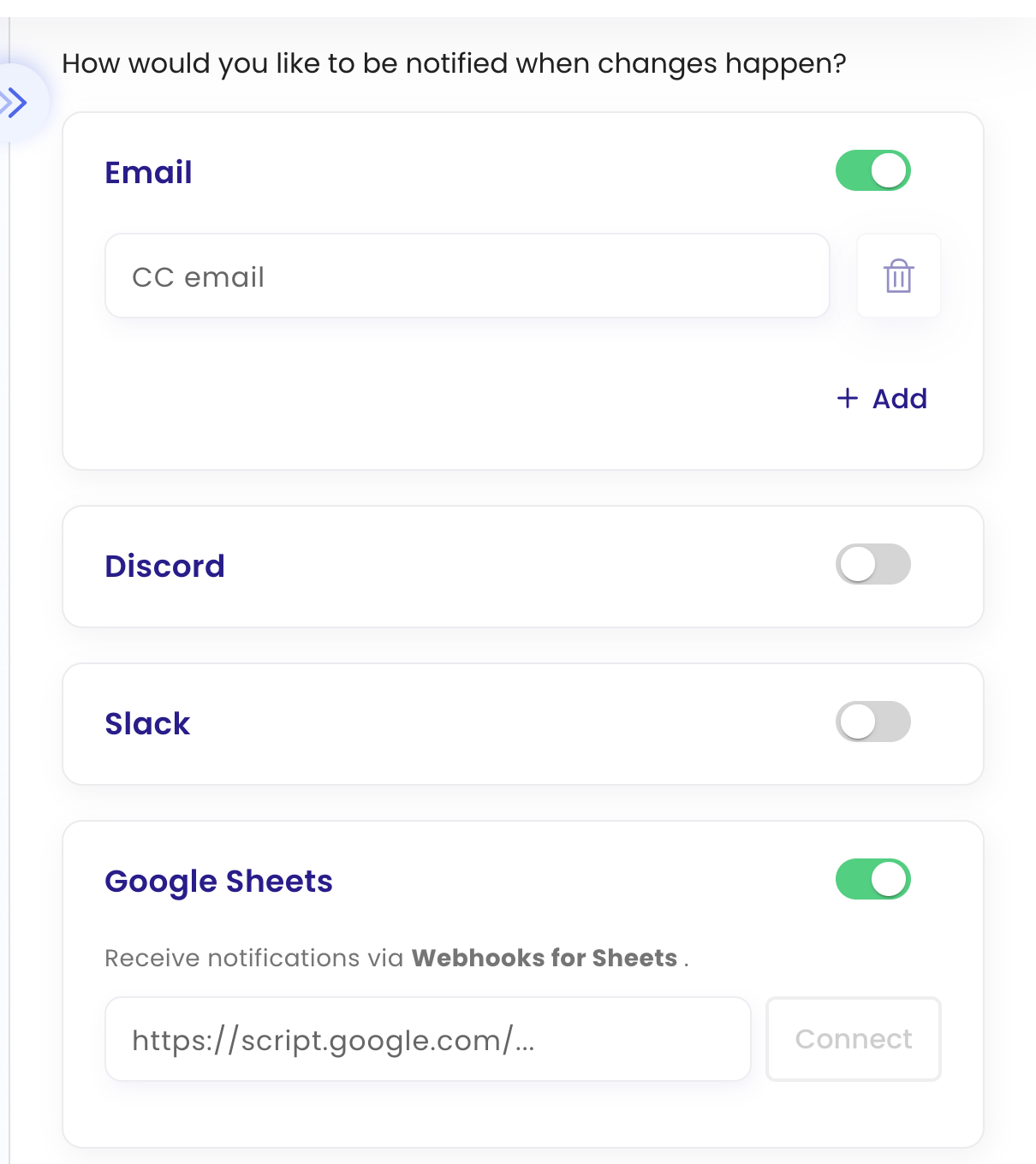
7. Save or create the task.
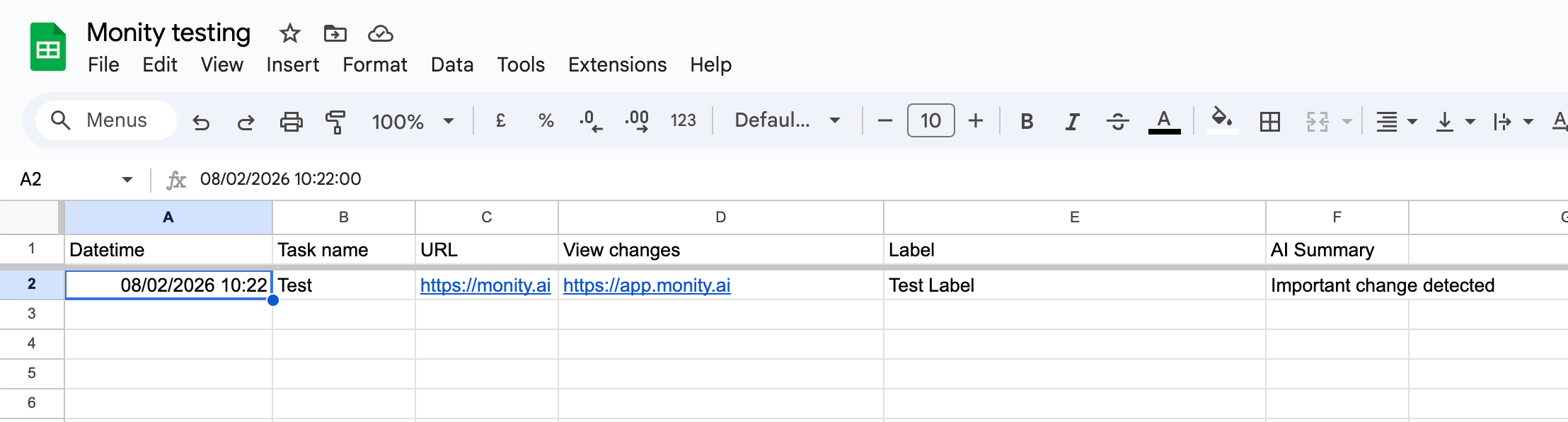
Once connected, monity.ai will automatically add a new row to your selected Google Sheet every time a monitored change is detected.

Top Articles
71 Shelton Street, Covent Garden, London, WC2H9JQ United Kingdom
© Copyrights Monity.ai, 2025, Inc.