To monitor a website for changes, have something load the page on a schedule, compare it with the last copy and tell you what is different: its content, how it looks, or one price or line on it. You can do that by hand, with a browser extension, with feeds, or with a monitoring service such as Monity (monity.ai), which checks from its own browser and keeps every version. If you open the same page every morning to see whether it changed, a computer does that job better.
This guide covers each way, from free and manual to fully automatic, and how to set it up so that you hear about the changes you care about and nothing else. We make Monity, so the step-by-step part uses it; the advice before and after applies to any tool.
What counts as a change
Every monitoring method does the same three things: it fetches the page, compares it with the copy it kept, and reports the difference. Where they differ is in what they compare.
- The text. The words on the page. Good for prices, terms, job lists and news.
- How it looks. A screenshot compared with the last one. Good for layouts, images and anything a designer would notice.
- One part of the page. A single price, a table or a status label, so the rest of the page can change without telling you.
- The source. The HTML behind the page. Good for titles, tags and scripts that a visitor never sees.
Most disappointment with monitoring comes from comparing the wrong one. A page with a rotating banner changes how it looks on every visit, while its text stays the same.
Four ways to monitor a website for changes
Check it by hand
Free, and fine for one page you would read anyway. It fails quietly: you skip a day, or you look and do not notice that one number moved. You also have no record of what the page said last week.
A browser extension
An extension checks the page from your own browser. It costs little or nothing and works on pages you are signed in to. The catch is that it only runs while that browser is open, on that computer. Close the laptop and the checking stops.
Feeds and search alerts
Some sites publish an RSS feed, and search engines can email you when they find new results for a phrase. Both are free. A feed only covers what the site chooses to put in it, and a search alert arrives when the search engine next visits the page, which can be days later. Neither tells you that a price or a sentence on an existing page was edited.
A monitoring service
A service checks the page from its own servers on a schedule, keeps every copy, and sends an alert when something changes. It works while you sleep, it works for a team, and it keeps the history. This is the one to use when missing a change would cost you something. Our comparison of the best website change monitoring tools covers the main ones and their prices.
Decide these before you start
- Which page, exactly. The pricing page, not the home page. The careers list filtered to your city, not the whole list.
- How often. A price you act on within the hour needs frequent checks. A policy you have a month to respond to needs one a day.
- What matters. “Tell me about anything” sounds safe and produces alerts you learn to ignore. Decide what you would act on.
- Who needs to know. An alert in one person’s inbox is lost when that person is on holiday. A shared channel is not.
Step by step with Monity
- Add the page. Paste its address into a new task, or tell the assistant what you want to watch.
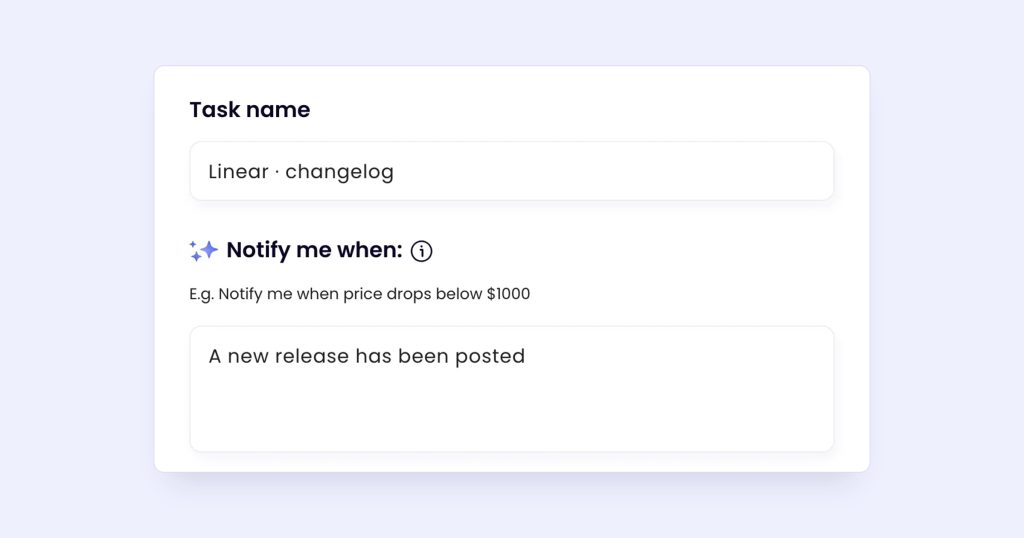
- Say what matters. Under Notify me when, write the change you care about in your own words: “the price of the Pro plan changes”, or “a new job is posted in London”. Leave it empty to hear about any meaningful change. The docs explain how to write a good rule.
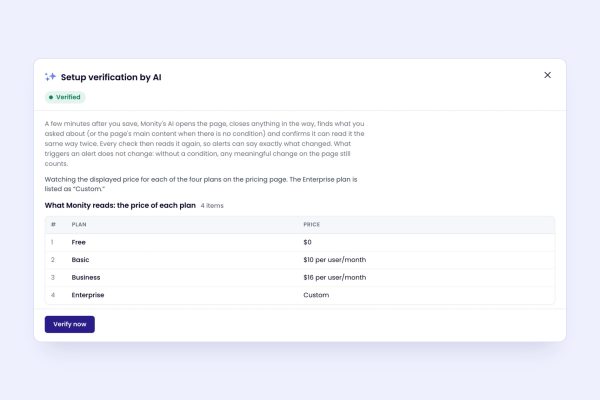
- Let it verify. A few minutes after you save, Monity’s AI confirms what it reads on the page, so later checks compare it item by item: each price, each row, each listing.
- Choose the schedule. The free plan checks every 3 hours at the fastest. Paid plans check hourly, and the larger ones every 5 minutes.
- Choose where alerts go. Email, Slack, Microsoft Teams, Discord, Telegram, Google Sheets, a webhook or a push on your phone. Every channel is on every plan.
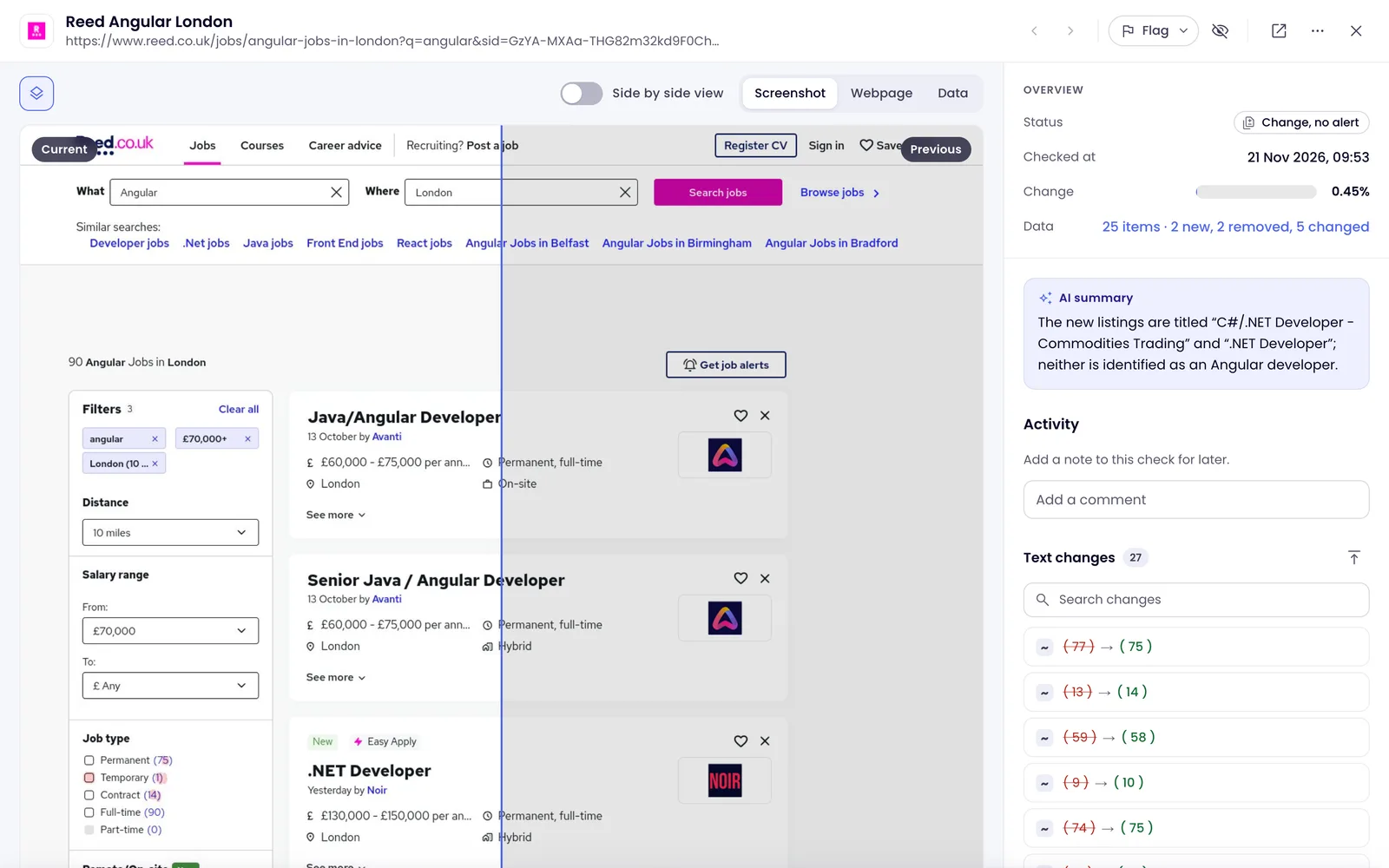
When a check finds a change that matches, the alert has one sentence on what changed and a link to the page before and after. The guide on getting an alert when a web page changes goes through each setting.
How to stop false alerts
False alerts are the reason people give up on monitoring. These are the usual causes, and what fixes each.
- The page has moving parts. Dates, counters, rotating banners, “customers also bought”. Watch the text, or one part of the page, and they stop mattering.
- The page was reordered. A list sorted differently is not a change. A tool that reads the list item by item sees the same items and stays quiet.
- The change is real but not yours. A new blog post on a pricing page’s sidebar. This is what a rule is for: describe the change you care about and let the tool judge each one against it.
- A cookie banner covers the page. A good service dismisses it before it reads the page. If yours does not, the banner is what it compares.
How to choose a monitoring tool
Judge a tool on what its price list doesn’t show: whether it runs without you, how it tells a real change from noise, what its alerts say, where they go, whether it keeps the history and whether it can reach your page. Our comparison of the best website change monitoring tools goes through each question, with eight tools side by side.
Mistakes to avoid
- Watching the home page. It changes constantly and rarely tells you anything. Watch the specific page that holds the fact you care about.
- Checking too often. Every check costs something, and a policy page does not need one every five minutes.
- Alerting on everything. A week of alerts that did not matter trains you to ignore the one that does.
- One person’s inbox. Send alerts where more than one person will see them.
- Never looking again. Pages get redesigned and addresses change. Glance at each monitor now and then to see it still reads what you meant.
See what a page said before
A monitoring service keeps every check, so you can open last Tuesday’s and see the page as it was. That record starts on the day you add the page: no tool can show you a copy it never took. For older versions of a public page, the Internet Archive’s Wayback Machine is the place to look. The guide to checking a website’s change history covers both.
When it will not work
- Pages behind a login need a login you save with the tool, or a browser session you are signed in to. Sites that ask for a one-time code on every sign-in are harder.
- Sites that refuse automated visitors. Some sites block any tool. A monitoring service should say so plainly when it happens. Monity does not get around a site’s protection.
- Pages that are different for every visitor, such as search results that depend on where you are. Watch one fixed version of the page.
More than changes
Knowing that a page changed is one question. Two others usually follow: is the site up, and does it still work? An uptime monitor answers the first, and a browser test that runs sign-up or checkout step by step answers the second. In Monity those are in the same account as your page monitors, with the same alert channels: see uptime monitoring and browser tests.