
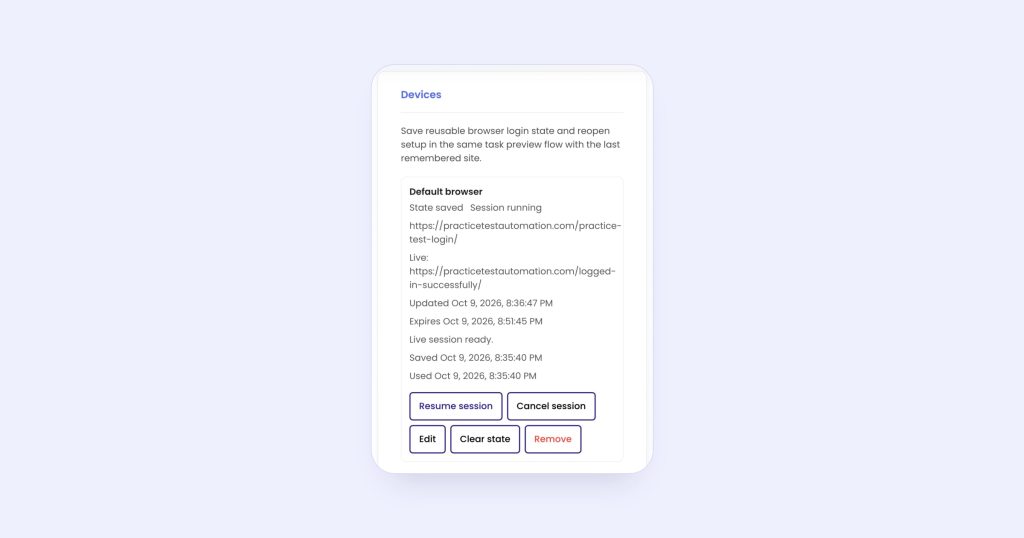
To monitor a page behind a login, the monitor has to see the page as you do when signed in. In monity.ai you sign in once in a live browser inside the app, including any two-factor code; Monity keeps that browser session and every check runs signed in. You don’t save your password in monity.ai, and it works for supplier portals, dashboards, member price lists and booking pages.
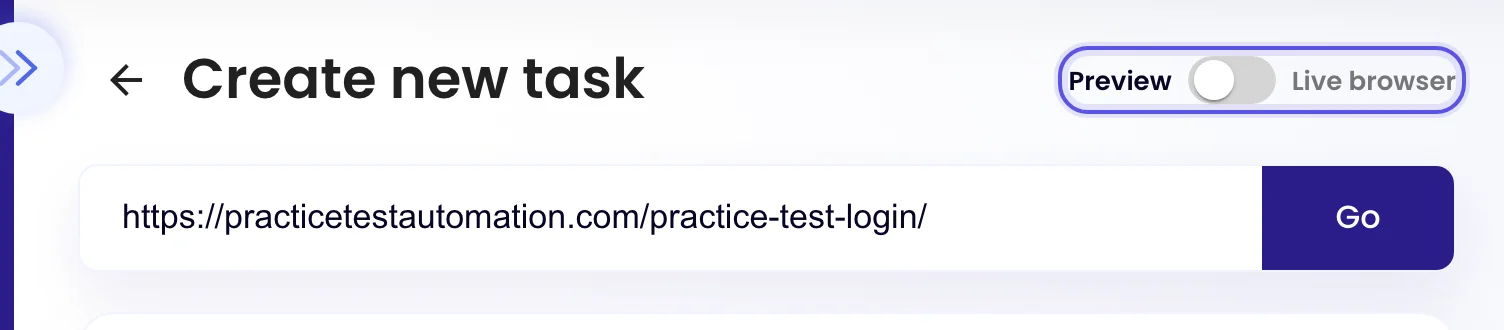
Step 1: Switch the task to the live browser
In the task editor, enter the page’s address and switch the toggle above it from Preview to Live browser.
Step 2: Sign in as you normally would
A real browser opens in the panel. Click into the form and type your details, including any two-factor code. The bar above it reads “Default browser · Logins and cookies are remembered automatically”.
Step 3: Go to the page and save the task
Once you’re in, open the page you want to watch, then create or update the task as usual. Add a Notify me when rule if only some changes matter, such as “a new invoice is listed” or “the price of item 12 changes”.
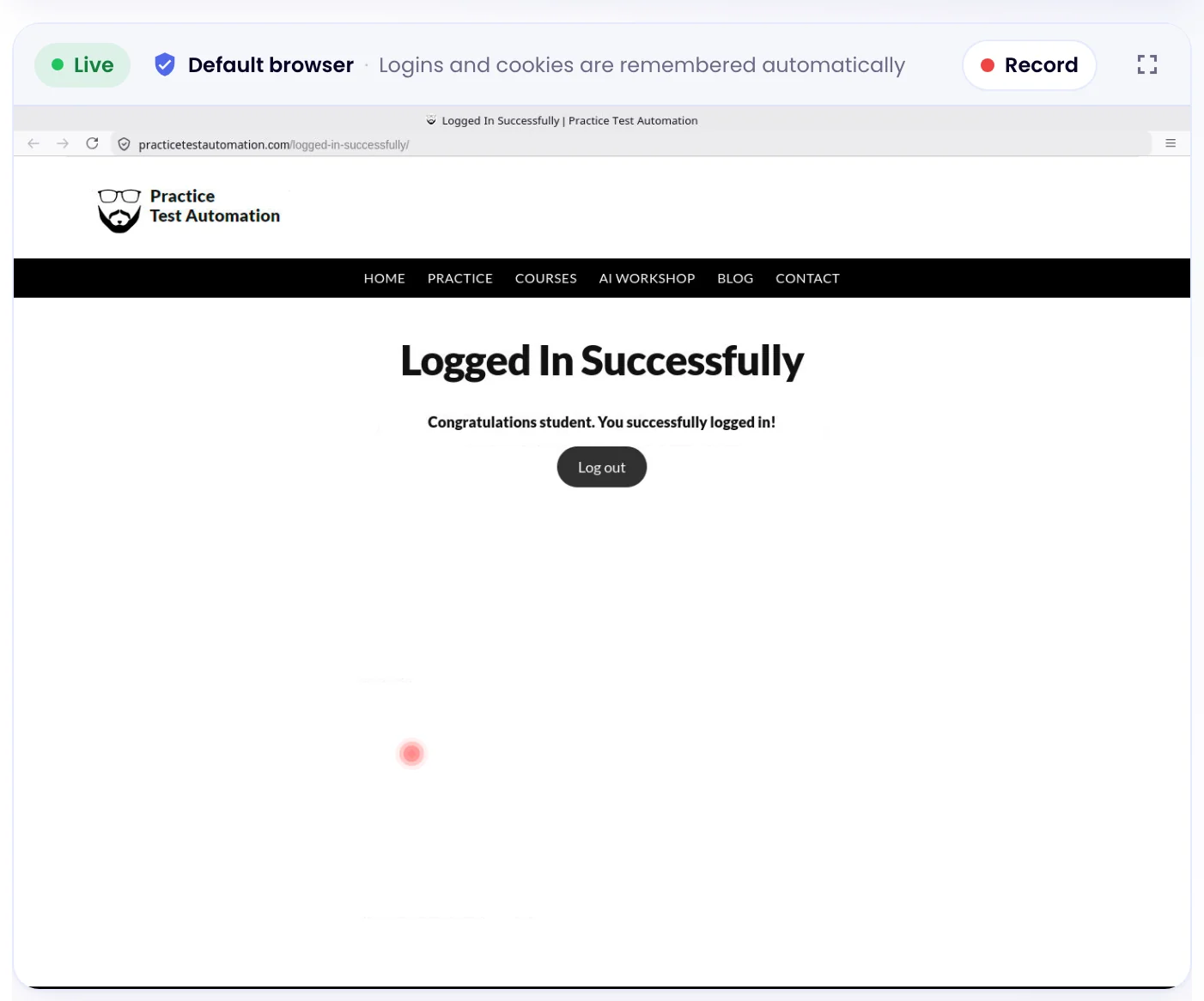
Checks run in your account’s Default browser, so anything you signed in to there stays signed in for every task.
Different accounts on the same site
A saved browser sign-in is called a device. Your account starts with the Default browser. When different tasks need different accounts on the same site, add more devices under My account › Integrations › Devices and pick one for each task on its Advanced tab, under Device. Extra devices come with every paid plan and the Business trial.
When a site signs you out
Some sites end sessions after a while. When that happens, checks capture the sign-in page instead of your content. Open the task in the live browser, sign in again, and the next check picks up the new session.
Why not a pasted cookie or a password step?
A pasted session cookie usually expires within days, and a scripted login breaks on two-factor prompts. The live browser saves the whole browser session instead. If a site does allow a simple scripted login, you can still add browser actions that type into the sign-in form before each check.
Related: getting an alert when a web page changes, monitoring a PDF on a website, pages behind a login in the docs and authenticated monitoring.